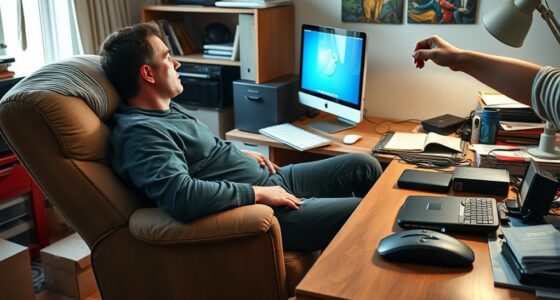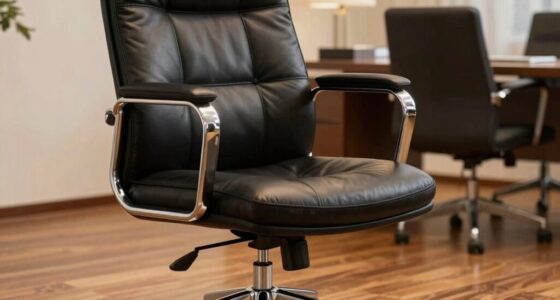
To prevent neck strain with a large ultrawide monitor, set the top of the screen at your eye level and keep it about an arm’s length away. Adjust your chair so your feet are flat and your hips are at 90 degrees, supporting good posture. Position the monitor to minimize head turning and ensure the entire screen is comfortably viewable without excessive movement. Keep these tips in mind to maintain comfort and learn how to perfect your setup.
Key Takeaways
- Position the ultrawide monitor so the entire screen is within your natural peripheral vision to minimize excessive head turning.
- Adjust the monitor height so the top of the screen is at eye level for a neutral neck position.
- Keep the monitor about an arm’s length away to prevent leaning forward or straining your neck.
- Use an adjustable stand or mount to tilt the screen slightly downward, reducing neck extension.
- Take regular breaks and perform neck stretches to alleviate strain from prolonged viewing of a large screen.

Ultrawide monitors have become popular for boosting productivity and enhancing your viewing experience, but ensuring proper ergonomics is essential to prevent discomfort or strain. One of the most critical aspects is setting the correct monitor height. You want the top of your screen to be roughly at eye level so that you don’t need to tilt your head up or down. When the monitor is too high or too low, it forces you into awkward neck positions, leading to strain over time. Adjust your monitor so that you’re looking straight ahead, with your neck in a neutral position. This minimizes the effort your neck muscles need to sustain longer work sessions. Maintaining proper posture is fundamental to preventing long-term discomfort and ensuring sustained productivity. Equally important is your chair adjustment. Your chair should support your lower back and keep your feet flat on the ground. When your chair height is just right, your hips are at a 90-degree angle, and your knees are level with your hips. This position helps maintain proper posture and reduces overall body strain. If your chair is too high or low, you might be forced to crane your neck or slouch, which can cause discomfort during extended periods. Adjust the chair so that your eyes align comfortably with the monitor’s center or slightly below it. This way, you avoid tilting your head up or down repeatedly. In addition to monitor height and chair adjustments, consider the distance between you and the screen. Your ultrawide monitor should be about an arm’s length away, giving you a clear view without leaning forward or stretching your neck. When the monitor is too close, you tend to lean in, causing neck and eye fatigue. If it’s too far, you strain to see details, which also leads to discomfort. Position the monitor so that you can view the entire screen comfortably without excessive head movement. This is especially vital with ultrawide monitors, which can be quite expansive.
Frequently Asked Questions
How Often Should I Take Breaks When Using an Ultrawide Monitor?
You should take a break every 20-30 minutes to prevent eye strain and maintain comfort. This break frequency helps your eyes relax and reduces fatigue from staring at the ultrawide monitor. During breaks, look away from the screen and focus on distant objects. Incorporate short stretching sessions to ease neck and shoulder tension. Consistent breaks are essential for eye strain prevention and maintaining productivity during long screen sessions.
What Are the Best Ergonomic Accessories for Ultrawide Monitors?
Like Icarus reaching for the sun, you want your ultrawide monitor to be within easy reach. Invest in monitor arms for flexible placement, ensuring the top of the screen is at eye level. Use an ergonomic desk with adjustable height to reduce neck strain. Consider a monitor stand or a curved screen to minimize head turning, creating a comfortable workspace that promotes good posture and prevents fatigue.
Can Adjusting Monitor Height Reduce Neck Strain Effectively?
Adjusting your monitor height with a good monitor stand can considerably reduce neck strain by keeping your screen at eye level, so you don’t have to tilt your head. Pair it with ergonomic cushions for added comfort if needed. Proper height alignment encourages good posture, making long hours easier on your neck. Don’t forget to regularly check and adjust the height as needed to maintain ideal ergonomics.
How Does Monitor Curvature Impact Ergonomic Comfort?
Monitor curvature can markedly enhance ergonomic comfort by aligning the screen with your natural eye movement. When you choose a curved monitor, it reduces the need to turn your head and minimizes eye strain, especially on large screens. This design helps create a more immersive experience, preventing neck discomfort caused by constant repositioning. Overall, a curved monitor promotes better posture and makes your workspace more comfortable during long hours of use.
Are There Specific Ergonomic Guidelines for Multi-Monitor Setups?
For your multi-monitor setup, follow ergonomic guidelines like aligning monitors at eye level and maintaining a consistent height to prevent neck strain. Position your ergonomic chair so your feet are flat on the ground and your back is well-supported. Keep monitors close enough to avoid excessive head turning, and make certain your primary screen is directly in front of you. Regular breaks and proper posture are key to comfort.
Conclusion
To keep neck strain at bay, make sure your ultrawide monitor is positioned correctly—centered at eye level and at a comfortable distance. Did you know that 60% of users experience neck discomfort from poor monitor setup? By adjusting your monitor and taking regular breaks, you can enjoy your big screen without sacrificing comfort. Remember, a little ergonomic effort goes a long way in maintaining your health and productivity.