To go paperless and build a digital filing system in your home office, start by choosing a secure cloud storage service like Google Drive, Dropbox, or OneDrive. Create a logical folder structure based on categories such as finances or work projects, and save files with clear, descriptive names. Review, organize, and delete outdated documents regularly, and back up your data for extra safety. Continue exploring the basics to set up an efficient, clutter-free digital workspace.
Key Takeaways
- Choose a secure cloud storage service like Google Drive, Dropbox, or OneDrive for easy access and safety.
- Create a logical folder structure with main categories and subfolders to organize files effectively.
- Name files descriptively with dates and details to facilitate quick identification and retrieval.
- Regularly review, delete outdated files, and use tags or color-coding to streamline organization.
- Back up all digital files periodically to external drives or additional cloud services for data protection.

Setting up a digital filing system for your home office can greatly boost your productivity and keep your documents organized. When you switch to a paperless approach, you eliminate clutter and make it easier to access important files whenever you need them. The first step is choosing a reliable cloud storage service. With options like Google Drive, Dropbox, or OneDrive, you can store all your files securely online, making them accessible from any device with an internet connection. This not only safeguards your documents from physical damage but also guarantees you can work seamlessly across devices. When selecting a cloud storage provider, consider factors like storage limits, security features, and ease of use to match your specific needs.
Once you’ve selected a platform, develop organization tips to keep your digital files tidy. Create a logical folder structure that mirrors your workflow or categories you frequently use. For example, you might have main folders for finances, health records, work projects, and personal documents. Inside these, add subfolders for specific topics, such as invoices, receipts, or project proposals. Consistency is key, so always save files in the correct folders and name them clearly. Use descriptive, date-inclusive filenames to make searching easier later on. For instance, “2024-04-27_Invoice_ClientName” is more effective than generic titles.
Create a logical folder structure with clear, date-inclusive filenames for easy digital file organization.
Regularly updating and maintaining your digital filing system is vital to its effectiveness. Set aside time weekly to review and organize new files, deleting outdated documents and consolidating similar files. This ongoing organization prevents clutter from building up and guarantees that your system remains intuitive. To further streamline your process, utilize tagging or color-coding features offered by many cloud storage platforms. These visual cues can help you quickly identify priority files or categorize documents for easy retrieval.
Another organization tip is to back up your files regularly. While cloud storage offers security, having an additional backup—such as an external hard drive or another cloud service—adds an extra layer of protection. This way, even in unforeseen circumstances, your important documents stay safe and accessible. Additionally, understanding the importance of contrast ratio can help you when selecting a home projector, as higher contrast ratios yield deeper blacks and brighter whites, which can improve the clarity of your digital files if you decide to display them on a projector. Remember, the goal of a digital filing system is to save you time and reduce stress. When your files are clearly organized and easily accessible, you’ll spend less time searching and more time focusing on your work or personal tasks. By leveraging cloud storage and applying simple organization tips, you’ll create a streamlined, efficient digital environment that supports your home office productivity.

SSK 4TB Personal Cloud Network Attached Storage Support Wireless Remote Access, Home Office NAS Storage with Hard Drive Included for Phone/Tablet PC/Laptop Auto-Backup (Not Support WiFi Connection)
Your personal cloud storage with 4TB large capacity doesn't have own WIF: This NAS built-in 3.5inch 4TB storage,…
As an affiliate, we earn on qualifying purchases.
As an affiliate, we earn on qualifying purchases.
Frequently Asked Questions
What Are the Best Apps for Digital Document Organization?
You should try apps like Evernote, Notion, and Google Drive for digital document organization. They support cloud storage, making your files accessible from anywhere. Use tagging systems within these apps to categorize and find documents easily. These tools help you streamline your home office, reduce clutter, and stay organized, ensuring your important files are always just a search away.
How Do I Ensure My Digital Files Are Secure?
Secure your files by strengthening your safeguards. Start by setting strong, unique passwords for every account and file. Use encryption methods to mask your data from prying eyes, ensuring only you can access sensitive information. Regularly update software to patch vulnerabilities, and consider two-factor authentication for added assurance. By blending passwords and encryption, you build a barrier that keeps your digital documents safe, secure, and away from unauthorized access.
Can I Access My Digital Files Offline?
Yes, you can access your digital files offline if you set up cloud synchronization. By syncing files to your device, you guarantee offline access whenever you need it. Just make sure to download the necessary files beforehand, especially if you’re planning to be without internet. This way, your files are always within reach, whether you’re connected to the cloud or working offline.
How Often Should I Back up My Digital Filing System?
You should back up your digital filing system regularly, ideally weekly, to guarantee file versioning stays current and secure. Frequent backups reduce the risk of data loss from hardware failures or cyber threats. Adjust your backup frequency based on how often you update files. Using automated backup tools can help maintain consistent backup schedules, giving you peace of mind knowing your files are protected and up-to-date at all times.
What Are Common Mistakes to Avoid When Digitizing Documents?
You might think that any scan will do, but poor scanning quality can lead to lost information or illegible files. Avoid this by using consistent file naming conventions and high-resolution settings. Don’t rush the scanning process, and double-check each document for clarity. Skipping these steps can make your digital filing system chaotic and hard to navigate. Pay attention to detail to guarantee your files stay organized and accessible.

Gawerk 5-Section Vertical Desktop Organizer, 5-Section Mesh File Folder Stand Sorter for Office Home Classroom Organization
🗂️ Dimension: 9.25" L x 8.78" W x 7.28" H
As an affiliate, we earn on qualifying purchases.
As an affiliate, we earn on qualifying purchases.
Conclusion
By embracing a digital filing system, you gently streamline your home office, making clutter a thing of the past. With each document neatly organized and easily accessible, you’ll find more time for the things that truly matter. Moving to a paperless setup isn’t just about decluttering; it’s about creating a peaceful, efficient space where productivity flows effortlessly. Soon, you’ll wonder how you ever managed without this quiet, seamless harmony.

YOTUO 500GB External Hard Drive, Portable Storage Expansion HDD, USB 3.0 & USB-C for PC, Mac, Desktop, Laptop, Smartphone, PS4, Xbox One, Xbox 360, Office & Game, Black
【Versatile Storage Expansion – For Gaming, Work & Everyday Use】 Running out of space on your PS5 or…
As an affiliate, we earn on qualifying purchases.
As an affiliate, we earn on qualifying purchases.
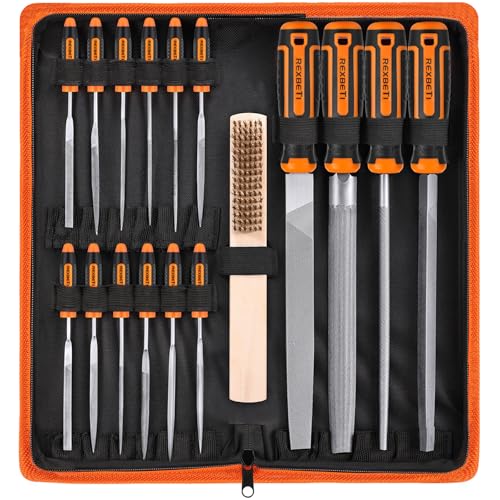
REXBETI 25Pcs Metal File Set, Premium Grade T12 Drop Forged Alloy Steel, Flat/Triangle/Half-round/Round Large File and 12pcs Needle Files with Carry Case, 6pcs Sandpaper, Brush, A Pair Working Gloves
all the 16 pieces file are made by T12 Drop Forged Alloy Steel, the long lasting teeth were…
As an affiliate, we earn on qualifying purchases.
As an affiliate, we earn on qualifying purchases.