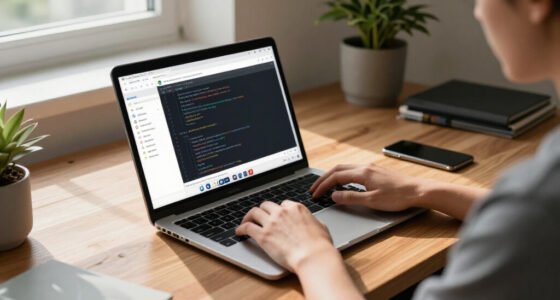

To create a more reliable video call setup at home, position your camera at eye level using a sturdy stand or stacking books. Use natural light from a window or soft artificial lighting in front of you to reduce shadows and improve clarity. Keep your background simple and clutter-free to stay professional. Test your camera and lighting beforehand and make adjustments for the best image quality. Want tips on optimizing your setup even further? Keep exploring for more details.
Key Takeaways
- Position your camera at eye level using a stand or stacked books for a professional look.
- Use natural light from a window or soft artificial lighting to evenly illuminate your face.
- Keep your background tidy and uncluttered to maintain a professional and distraction-free environment.
- Test your camera and lighting setup beforehand using preview features to make adjustments.
- Ensure your device’s camera quality is sufficient and update equipment regularly for optimal performance.
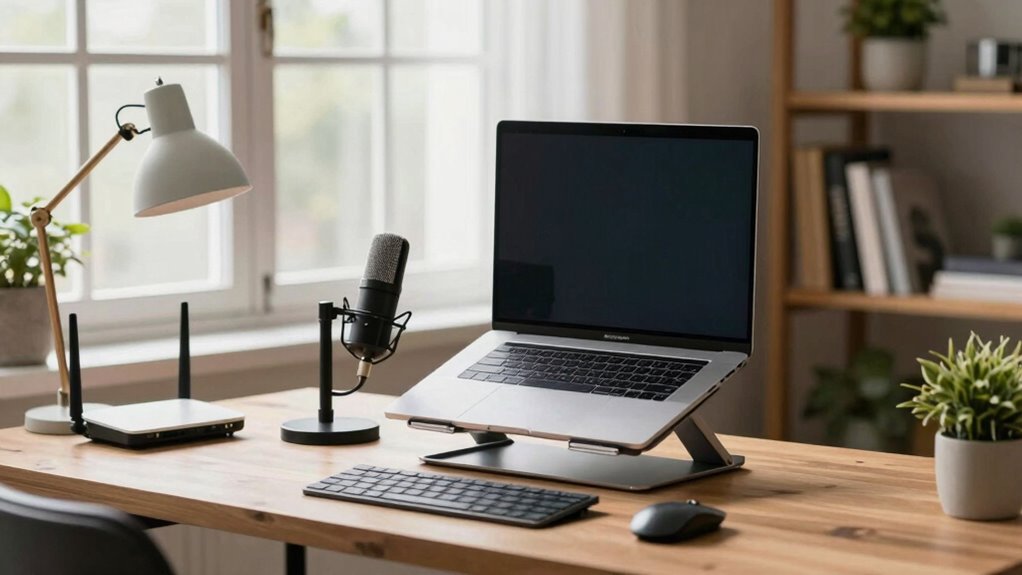
In today’s remote work and virtual meeting culture, having a dependable video call setup at home is vital. Your setup can considerably impact how colleagues and clients perceive you, so paying attention to details makes a difference. One of the most important aspects is camera positioning. You want your camera to be at eye level, which creates a natural and engaging connection. Avoid placing your camera too high or too low, as it can make you look unprofessional or unapproachable. Use a sturdy stand or stack some books underneath your laptop to elevate the camera to your eye line. Position yourself centrally in the frame, so your face is well-lit and clearly visible. Check your framing before the meeting begins, making sure that your head and shoulders are in view and that there’s not too much empty space around you.
Lighting techniques also play an essential role in improving your video quality. Proper lighting helps eliminate shadows and ensures your face is clearly visible. The best approach is to face a window during the day, utilizing natural light to illuminate your face evenly. If natural light isn’t available, invest in soft, diffused artificial lighting such as ring lights or softbox lights. Place the light source in front of you, slightly above eye level, to avoid unflattering shadows under your eyes or nose. Avoid sitting directly under overhead lights, which can create harsh shadows, or backlighting, where a bright window behind you makes your face appear dark and silhouetted. Instead, aim for a balanced lighting setup that evenly lights your face from the front or sides. Additionally, considering color accuracy in your lighting can improve how natural and professional your appearance looks on camera. Ensuring your device’s camera quality is suitable for video calls can also make a significant difference in clarity. To further enhance your appearance, adjusting your lighting angle can help reduce glare and reflections on your skin. Regularly updating your video conferencing equipment ensures you’re using the latest technology for optimal quality.
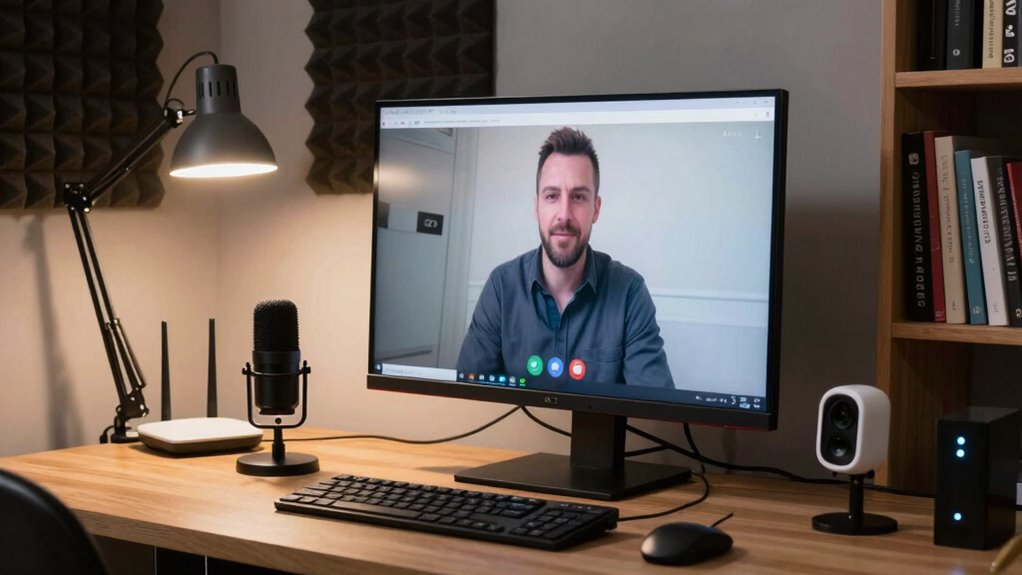
Test your camera and lighting setup before important calls to make sure everything looks professional. Use your device’s preview feature to check how you appear on screen—adjust your camera angle or lighting as needed. Keep your background simple and clutter-free, ensuring it doesn’t distract from your face. Consider adding some personal touches, like a plant or a neat bookshelf, to make your space more inviting without being overwhelming.

Lamicall Adjustable Laptop Stand for Desk for MacBook Air Pro HP 10-17.3''
- Wide Compatibility: Fits laptops from 10 to 17.3 inches
- Adjustable & Portable: Customizable height and angle, foldable design
- Stable Aluminum Base: Large, heavy-duty aluminum for stability
As an affiliate, we earn on qualifying purchases.
As an affiliate, we earn on qualifying purchases.
Frequently Asked Questions
What Is the Best Lighting for Video Calls?
You should aim for soft, even lighting to look your best on video calls. Use lighting techniques like diffusing light sources to avoid harsh shadows. Natural illumination is ideal—position yourself facing a window for balanced light. If natural light isn’t available, supplement with soft, warm-toned LED lights. Avoid backlighting and bright screens behind you, which can cause visibility issues. Proper lighting helps you appear clear, professional, and well-lit during your calls.
How Can I Improve Audio Quality During Calls?
To improve your audio quality during calls, focus on audio enhancement techniques and proper microphone placement. Use a high-quality microphone positioned close to your mouth, ideally at mouth level, to capture clear sound and reduce background noise. Avoid placing the mic near noisy objects or vents. Additionally, consider using noise-canceling features or software to further enhance your audio, ensuring your voice comes through crisp and professional.
What Camera Settings Should I Use for Clarity?
To get clear video, focus on camera placement and lens selection. Place your camera at eye level for natural framing, avoiding angles that distort your face. Use a lens with a wider aperture, like f/2.8 or lower, to create a sharp picture with good background blur. Make certain your camera is steady—use a tripod if needed—and set the resolution to the highest available for crisp, professional-looking video calls.
How Do I Reduce Background Noise Effectively?
You can reduce background noise effectively by using noise cancellation features on your microphone or headset, which research shows considerably improves call clarity. Additionally, try to position yourself in a quiet room, close windows, and turn off appliances that generate noise. Using a directional microphone also helps focus on your voice, blocking out surrounding sounds. Combining these strategies ensures your background noise stays minimal, making your video calls clearer and more professional.
What Internet Speed Is Necessary for Smooth Calls?
For smooth calls, you need at least 3-4 Mbps for HD video and 1-2 Mbps for standard quality. Make sure your internet bandwidth supports your simultaneous activities, like streaming or browsing. Connection stability is essential; use a wired connection if possible, or position your Wi-Fi router centrally. Regularly check your speeds with online tools, and upgrade your plan if your current bandwidth struggles to handle your video call needs.
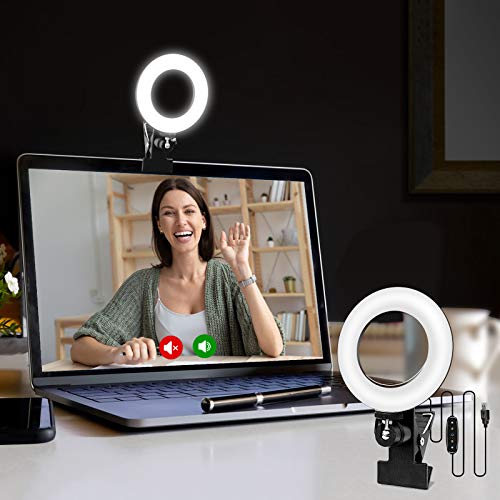
Cyezcor Video Conference Lighting Kit, Ring Light for Monitor Clip On
- Adjustable Color Temperature: 3200K-6800K with 3 modes
- Brightness Levels: 5 adjustable brightness levels
- High-Quality LED Beads: 48 LEDs with 10W brightness
As an affiliate, we earn on qualifying purchases.
As an affiliate, we earn on qualifying purchases.
Conclusion
By following these tips, you’ll notice a real improvement in your video calls. Don’t let technical issues hold you back—investing a little time in your setup is worth it. Even if you’re not tech-savvy, simple steps like upgrading your internet or positioning your camera can make a big difference. With a reliable setup, you’ll communicate more confidently and professionally. So go ahead, make these changes, and enjoy smoother, clearer video calls every time!

ATEN US224 2 x 4 USB 2.0 Peripheral Sharing USB Switch 2 Computers Share 4 Devices Simple Remote Port Selector Included Supports Optional USB Power Adapter – Windows Mac Linux
- All-in-one design: Neat, clutter-free installation
- Four USB ports: Connect multiple devices easily
- Shared device support: Share 4 devices between 2 computers
As an affiliate, we earn on qualifying purchases.
As an affiliate, we earn on qualifying purchases.

HP 320 FHD Webcam – USB-A Computer Camera with Mic & Privacy Cover – for Desktop, Laptop, & Chromebook – 1080p Resolution w/Wide FOV – Zoom & Teams Compatible – Clip Mount, Tripod Support, & Swivel
- Easy Plug-and-Play Setup: Connect via USB-A, clip, and auto-adjust
- Full HD 1080p Video: Crisp, clear video quality for calls
- Wide 66-Degree Field of View: Natural, conversational perspective
As an affiliate, we earn on qualifying purchases.
As an affiliate, we earn on qualifying purchases.