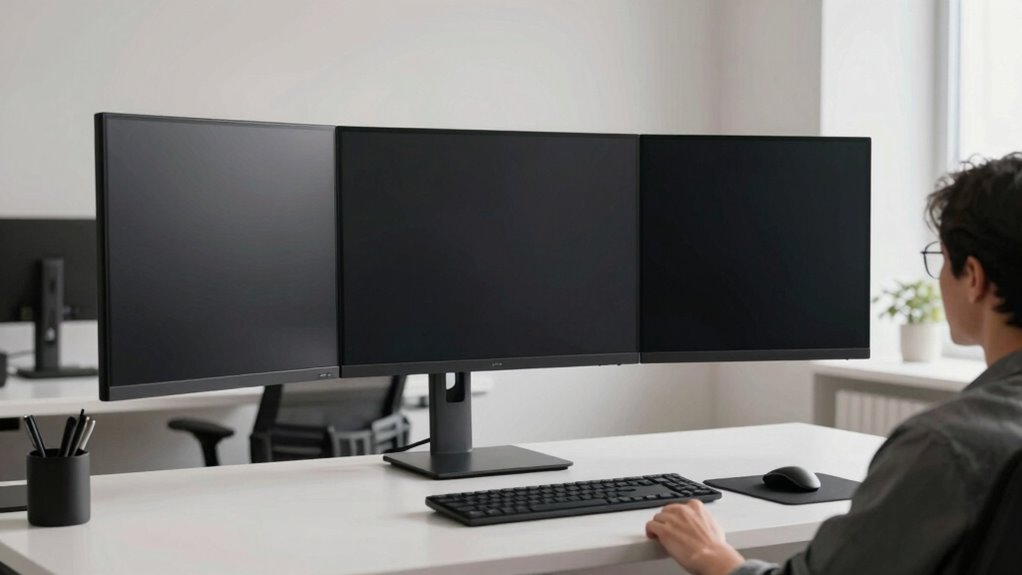

To reduce neck movement in large display setups, position your monitor at eye level using a flexible monitor arm or riser. Keep the screen close enough—about an arm’s length away—to avoid leaning forward or sideways. Arrange your workspace so most tasks are within a comfortable reach, minimizing the need for constant head turning. Incorporate ergonomic accessories like footrests and optimize your layout to enhance comfort and productivity—more tips await to help you adapt effectively.

Get comfort and recovery gear delivered free — and shop member deals
- Fast, free delivery on millions of items
- Access to Prime Big Deal Days deals on October 6–7
- Prime Video, Amazon Music and more included
Key Takeaways
- Position the monitor at eye level using risers or adjustable arms to minimize tilting and neck strain.
- Keep the display within an arm’s length to reduce the need for frequent head movement.
- Use a curved or wide monitor to create a natural viewing angle across the entire screen.
- Arrange workspace to prevent excessive turning by positioning frequently used tools within easy reach.
- Incorporate ergonomic accessories like monitor stands and adjustable mounts to optimize display placement.

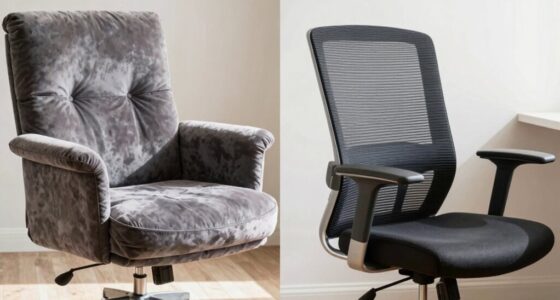
If you work with large display setups, frequent neck movement can cause discomfort and fatigue. To prevent this, you need to optimize your workspace so that your monitor stays within your natural line of sight. Start by focusing on ergonomic chair adjustments; setting your chair height and tilt properly can help maintain a good posture and reduce unnecessary neck strain. When your chair supports your lower back and positions your eyes correctly relative to the monitor, you won’t have to tilt or turn your head excessively to view different parts of the screen. Make sure your feet are flat on the ground and your knees are at a 90-degree angle, as this encourages a balanced and comfortable seating position.
Proper ergonomic chair adjustments reduce neck strain and promote comfortable, healthy posture during long work sessions.
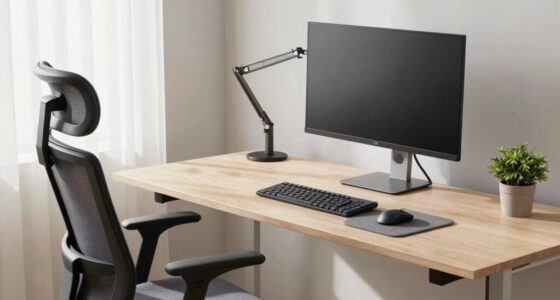
In addition to chair adjustments, monitor arm ergonomics play a vital role. A good monitor arm allows you to position your display at the ideal height and angle, minimizing the need for head movement. You should position the monitor so that the top of the screen is roughly at eye level, and the screen is about an arm’s length away from you. With a flexible monitor arm, you can easily adjust the display’s tilt, height, and distance to suit your workflow, keeping everything within your natural field of view. This setup prevents you from constantly turning your neck to see different parts of the display, which can lead to strain over time. Proper workspace arrangement can significantly enhance comfort and productivity during extended periods of work. Additionally, keeping your workspace organized and clutter-free can help prevent unnecessary movements and distractions that may contribute to discomfort.
Furthermore, incorporating ergonomic accessories such as footrests or monitor risers can help fine-tune your setup for maximum comfort. Finally, take regular breaks to stretch your neck and shoulders. Even with an optimized setup, prolonged static postures can cause fatigue. Incorporating region-specific display setups and ergonomic accessories can further enhance comfort and reduce strain. Establishing a consistent ergonomic routine can also help prevent repetitive strain injuries over time. Incorporate simple neck stretches and shoulder rolls into your routine to maintain flexibility and reduce muscle tension. When combined with proper ergonomic chair adjustments and monitor arm ergonomics, these habits help you work comfortably and prevent discomfort associated with large display setups. Staying mindful of your posture and workspace arrangement guarantees you can focus on your tasks without the distraction of neck pain or fatigue.
ergonomic monitor arm adjustable
As an affiliate, we earn on qualifying purchases.
As an affiliate, we earn on qualifying purchases.
Frequently Asked Questions
What Are the Best Ergonomic Chairs for Reducing Neck Strain?
You should look for ergonomic chairs with adjustable seating, lumbar support, and headrests to reduce neck strain. Features like adjustable armrests and seat height help you maintain proper posture, minimizing neck movement. Choose a chair that allows you to customize the height and angle of the headrest to keep your neck aligned with your display. An ergonomic chair designed with these features encourages comfort and reduces the risk of neck pain during long periods of work.
How Does Lighting Affect Neck Posture During Long Display Use?
Lighting ergonomics play a vital role in your neck posture during long display use. Poor lighting can cause you to tilt or turn your head excessively, increasing strain. Avoid visual glare by positioning lights and displays properly, and use adjustable lighting to reduce eye fatigue. When lighting is well-balanced, you naturally maintain better neck alignment, minimizing discomfort and helping you stay focused during extended screen time.
Can Specific Desk Layouts Improve Neck Comfort?
Yes, specific desk layouts can substantially improve neck comfort. Adjust your desk height so your monitor is at eye level, reducing the need to tilt or turn your neck frequently. Proper monitor positioning—placing screens directly in front of you and at a comfortable viewing distance—helps minimize strain. By aligning your desk setup with ergonomic principles, you promote better posture and reduce neck movement during long hours at your display.
Are There Recommended Exercises for Neck Relief?
Yes, you should do neck stretches and focus on posture correction to relieve neck tension. Incorporate gentle neck tilts, rotations, and shoulder rolls into your daily routine to loosen stiff muscles. Maintaining proper posture by keeping your monitor at eye level and sitting upright can prevent strain. Regularly practicing these exercises helps reduce discomfort, improves flexibility, and supports better neck health over time.
How Often Should I Take Breaks When Using Large Displays?
You should take breaks every 20 to 30 minutes when using large displays to prevent eye strain and promote posture correction. During these pauses, look away from the screen, focus on distant objects, and stretch your neck and shoulders. Regular breaks help reduce fatigue, improve circulation, and minimize discomfort. Incorporating these habits into your routine keeps your neck aligned and your eyes comfortable, enhancing overall productivity and well-being.
As an affiliate, we earn on qualifying purchases.
Conclusion
To keep your neck comfortable, focus on positioning your display at eye level and using ergonomic accessories. Did you know that poor monitor placement can cause neck strain in up to 60% of office workers? By making small adjustments, you can reduce this risk and work more comfortably. Remember, investing in ergonomic setups not only boosts productivity but also preserves your health—so take the time to optimize your workspace today!
As an affiliate, we earn on qualifying purchases.
As an affiliate, we earn on qualifying purchases.
Fall Picks
fall essentials
As an affiliate, we earn on qualifying purchases.