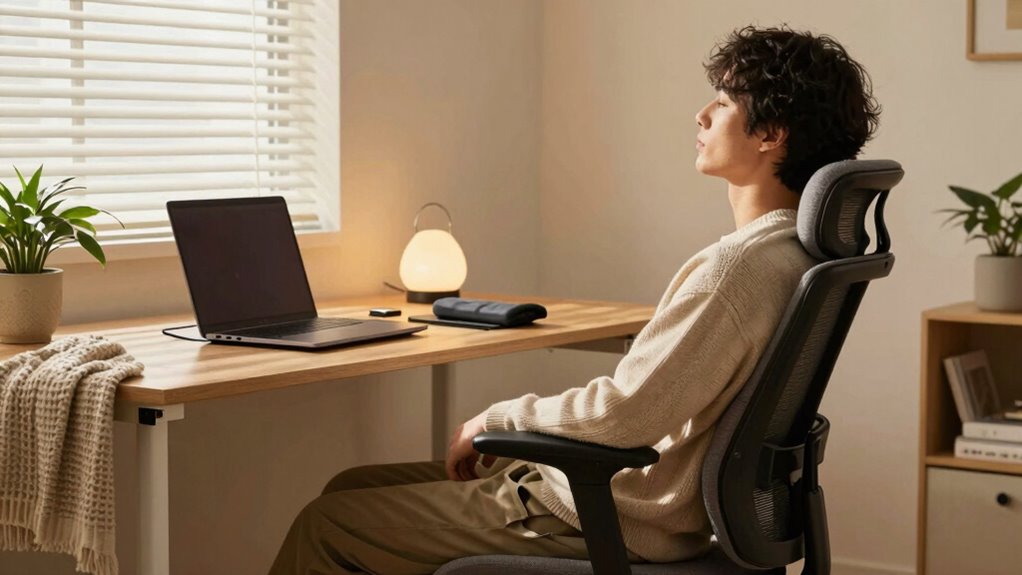
To reduce tension while using your laptop as your main device, make sure your workspace is ergonomically set up by raising your screen to eye level and using a supportive chair with proper back support. Take regular breaks to stretch and move around, and use ergonomic accessories like a comfortable keyboard and mouse. Keep your posture straight, shoulders relaxed, and feet flat on the ground. Small adjustments like these can make a big difference in comfort, so explore more helpful tips to stay tension-free.

Get comfort and recovery gear delivered free — and shop member deals
- Fast, free delivery on millions of items
- Access to Prime Big Deal Days deals on October 6–7
- Prime Video, Amazon Music and more included
Key Takeaways
- Use an adjustable laptop stand to elevate the screen to eye level and reduce neck strain.
- Maintain proper posture with a straight back, relaxed shoulders, and feet flat on the ground.
- Incorporate ergonomic accessories like a supportive keyboard and mouse to minimize wrist and arm tension.
- Take regular breaks every 30-45 minutes to stretch, walk, and change positions.
- Create an ergonomic workspace by adjusting monitor height and supporting your lower back for comfort.
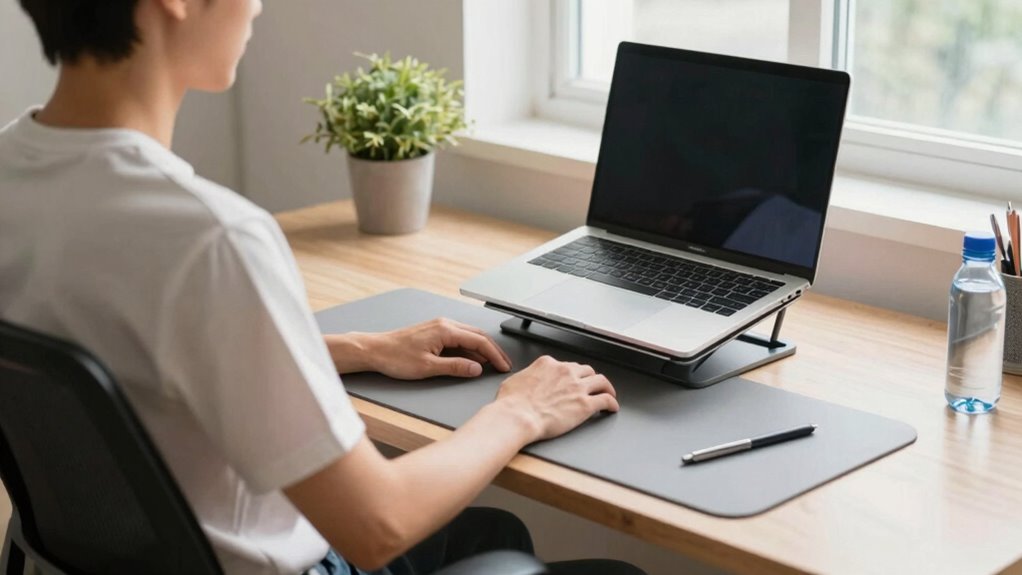
Using a laptop for extended periods can lead to tension and discomfort if you don’t take proper precautions. The key to avoiding strain is creating a workspace that supports your body’s natural alignment. Start by investing in ergonomic accessories—these are designed to promote better posture and reduce the physical stress of long-term computer use. An adjustable laptop stand, for example, raises your screen to eye level, preventing you from hunching forward or craning your neck. Coupled with a supportive ergonomic keyboard and mouse, your arms and wrists will stay in a neutral position, minimizing repetitive strain injuries.
Posture correction plays an essential role in reducing tension. Sit with your back straight and shoulders relaxed, ensuring your feet are flat on the ground and your knees are at a 90-degree angle. If your chair isn’t supportive enough, consider adding a lumbar pillow to maintain the natural curve of your lower back. Keep your monitor at eye level so that you don’t tilt your head up or down, which can cause neck pain over time. These simple adjustments help maintain proper spinal alignment, reducing fatigue and discomfort after hours of work. Incorporating proper ergonomic setup can further enhance your comfort and support long-term health. Additionally, paying attention to household ergonomics can help create a safer and more comfortable environment overall.
Proper posture with a straight back and eye-level monitor reduces neck and spinal strain during long work sessions.
In addition to ergonomic accessories and posture correction, regular breaks are vital. Every 30 to 45 minutes, stand up, stretch, and walk around. Stretching your neck, shoulders, and back releases built-up tension and encourages blood flow. Incorporate shoulder rolls or gentle neck stretches into your routine to loosen tight muscles. A quick change of position can make a significant difference in preventing stiffness and soreness, especially during long work sessions. Staying mindful of ergonomic principles can further improve your comfort and prevent strain. Remember, small adjustments throughout your workday can greatly reduce the risk of developing chronic discomfort.
ergonomic laptop stand adjustable
As an affiliate, we earn on qualifying purchases.
As an affiliate, we earn on qualifying purchases.
Frequently Asked Questions
What Are the Best Ergonomic Accessories for Laptop Use?
The best ergonomic accessories for laptop use include an ergonomic keyboard and an adjustable stand. An ergonomic keyboard helps reduce wrist strain by promoting a natural typing position. An adjustable stand elevates your laptop screen to eye level, preventing neck and shoulder tension. Together, these accessories improve your posture, reduce discomfort, and make long working sessions more comfortable, supporting better health and productivity during extended laptop use.
How Often Should I Take Breaks During Long Laptop Sessions?
You should take a break every 20 to 30 minutes during long laptop sessions. During these breaks, focus on posture correction by adjusting your seating and screen height, and practice eye relaxation exercises like blinking or looking into the distance. This helps reduce tension, prevent strain, and maintain comfort. Short breaks also boost productivity, so make it a habit to step away regularly for your health and well-being.
Can Specific Exercises Help Alleviate Tension From Laptop Use?
Ever wondered if specific exercises can ease your tension? They definitely can! Focusing on posture habits and wrist stretches helps release strain from prolonged laptop use. Regularly stretching your wrists and maintaining good posture guarantees muscles stay flexible and relaxed. Incorporate simple exercises like wrist circles and shoulder rolls into your routine. Do these daily, and you’ll notice less discomfort and more comfort during your laptop sessions.
How Does Screen Glare Contribute to User Tension?
Screen glare causes your eyes to strain, leading to overall tension and discomfort. When your screen brightness is too high or too low, your eyes work harder to see clearly, increasing fatigue. Using anti-glare filters can substantially reduce this strain by minimizing reflections, and adjusting screen brightness to match ambient lighting helps too. These steps make your viewing more comfortable, easing tension in your eyes and neck during extended laptop use.
Are There Optimal Room Setups to Reduce Strain?
Imagine your workspace as a sanctuary, perfectly tuned to your comfort. You should optimize lighting adjustments, avoiding harsh glare and excessive brightness, creating a soft glow that eases your eyes. Furniture arrangements matter too—position your laptop at eye level, use an ergonomic chair, and keep everything within easy reach. This setup reduces strain, prevents tension, and transforms your workspace into a place where tension simply can’t survive, letting you work effortlessly.
ergonomic keyboard and mouse set
As an affiliate, we earn on qualifying purchases.
As an affiliate, we earn on qualifying purchases.
Conclusion
By implementing these simple tips, you’ll create a more comfortable and ergonomic workspace, reducing tension and preventing discomfort. Remember, investing a little time in proper setup can make a significant difference in your overall well-being. So, why settle for strain and fatigue when you have the power to improve your posture and comfort? Take action today, and enjoy a more relaxed, productive laptop experience every time you sit down.
lumbar support pillow for office chair
As an affiliate, we earn on qualifying purchases.
As an affiliate, we earn on qualifying purchases.
monitor riser for ergonomic setup
As an affiliate, we earn on qualifying purchases.
As an affiliate, we earn on qualifying purchases.
Fall Picks
fall essentials
As an affiliate, we earn on qualifying purchases.