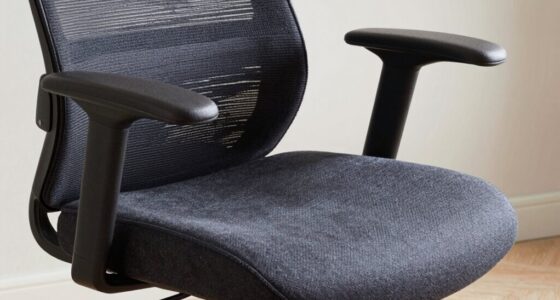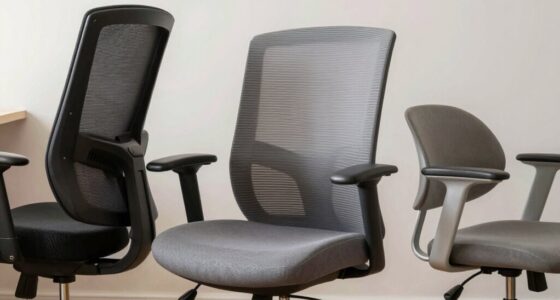
To avoid neck and shoulder pain while using your laptop, prioritize proper ergonomics by positioning your screen at eye level so you don’t crane your neck. Keep your elbows close to your sides at about a 90-degree angle and use an external keyboard if needed to achieve this. Adjust your chair height for comfortable, flat feet and good lumbar support. Using connected devices can further help maintain good posture. Keep going to discover more tips for a healthier setup.

Get comfort and recovery gear delivered free — and shop member deals
- Fast, free delivery on millions of items
- Access to Prime Big Deal Days deals on October 6–7
- Prime Video, Amazon Music and more included
Key Takeaways
- Elevate your laptop screen to eye level to prevent neck craning and promote proper posture.
- Use an external keyboard and mouse to maintain elbows at a 90-degree angle and reduce shoulder strain.
- Adjust your chair height so your feet are flat on the ground and knees are at a 90-degree angle.
- Keep the keyboard close to your body to avoid reaching and hunching forward.
- Incorporate ergonomic accessories and connected devices to support proper positioning and long-term comfort.
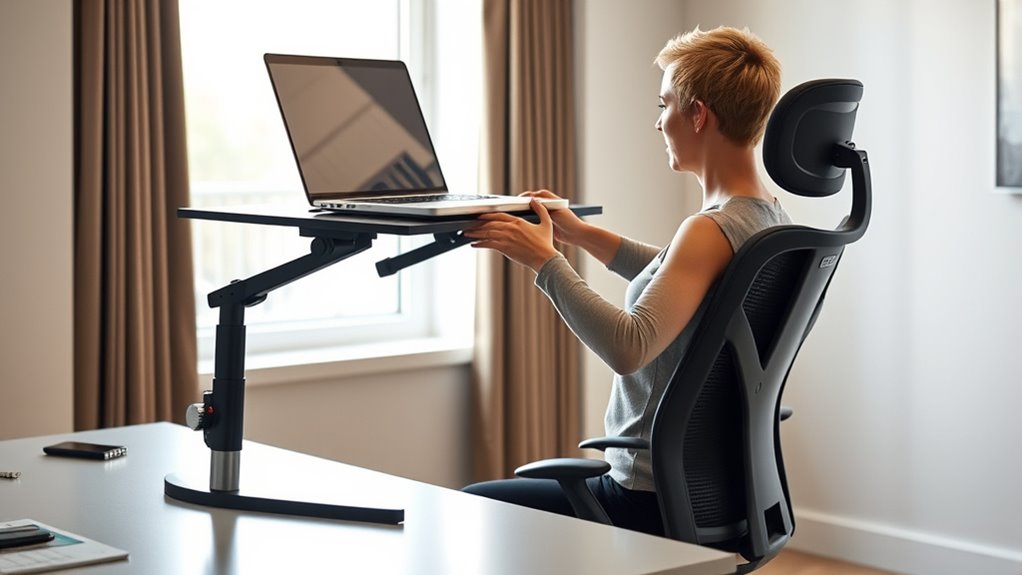
Are you aware of how your laptop setup can impact your health? Many people overlook the importance of proper ergonomics, especially when it comes to how they position their keyboard and chair. Poor keyboard placement can force you to reach or hunch over, leading to unnecessary strain on your neck and shoulders. Ideally, your keyboard should be positioned so that your elbows stay close to your sides and form about a 90-degree angle. This means adjusting your chair height so your forearms are parallel to the ground or slightly inclined, preventing you from slouching forward or craning your neck. When your keyboard is too high or low, it creates tension in your shoulders and neck muscles, which can lead to discomfort or pain over time. Incorporating connected devices into your workspace can further enhance your ergonomic setup by allowing easier adjustments and promoting better posture. Your chair height plays a vital role in maintaining good posture. When your chair is too low, you tend to slide forward, raising your shoulders and straining your neck. Conversely, if it’s too high, your feet might dangle, causing instability and awkward positioning that affects your entire upper body. The goal is to set your chair so that your feet are flat on the floor, and your knees are roughly at a 90-degree angle. This position encourages a natural alignment of your spine and helps keep your head in a neutral position, reducing the tendency to tilt or crane your neck forward. Proper chair height also ensures that your hips are level, which supports your lower back and promotes overall comfort during long hours at your device.
ergonomic external keyboard for laptop
As an affiliate, we earn on qualifying purchases.
As an affiliate, we earn on qualifying purchases.
Frequently Asked Questions
How Can I Tell if My Laptop Setup Causes Strain?
You can tell if your laptop setup causes strain by paying attention to posture cues like neck, shoulder, or back discomfort after prolonged use. If you hunch over or your eyes strain, it’s a sign your setup isn’t ergonomic. Don’t fall for ergonomic myths—proper positioning, like keeping your screen at eye level, helps. Adjust your workspace, take breaks, and listen to your body to prevent pain.
Are There Specific Ergonomic Accessories Recommended for Laptops?
Think of ergonomic accessories as your toolkit for comfort. You should consider an external keyboard and a laptop stand to improve your setup. An external keyboard lets you keep your wrists straight, while a laptop stand lifts your screen to eye level. These accessories work together to reduce strain, helping you work longer without discomfort. Investing in them can turn your workspace into an oasis of ergonomic bliss.
How Often Should I Take Breaks During Long Laptop Use?
You should take a break every 30 to 60 minutes during long laptop use. During these breaks, focus on posture correction and do ergonomic exercises to relieve tension. Stand up, stretch your neck, shoulders, and back, and adjust your sitting position. Regular breaks help prevent strain and promote better circulation, reducing the risk of neck and shoulder pain. Keep mindful of your posture to stay comfortable and healthy while working.
Does Screen Brightness Affect Neck and Shoulder Discomfort?
Think of your screen brightness as a gentle lighthouse guiding your eyes. When it’s too bright or dim, it fuels glare and eye strain, which can make your neck and shoulders tense up as you squint or lean forward. Adjust your brightness to match your environment, reducing glare, and easing eye strain. This small change keeps your posture relaxed, helping prevent discomfort from creeping into your neck and shoulders.
Can Adjusting My Chair Improve My Laptop Ergonomics?
Yes, adjusting your chair can substantially improve your laptop ergonomics. Set your chair height so your feet rest flat on the floor and your knees are at a 90-degree angle. Use lumbar support to maintain the natural curve of your lower back, reducing strain on your neck and shoulders. Proper chair adjustments promote better posture, helping you stay comfortable and prevent pain during long work sessions.
adjustable laptop stand for eye level
As an affiliate, we earn on qualifying purchases.
As an affiliate, we earn on qualifying purchases.
Conclusion
By implementing these ergonomic tips, you can considerably reduce neck and shoulder pain, making your laptop use more comfortable and productive. It’s understandable to think adjusting your setup takes extra effort, but prioritizing your health pays off in the long run. Remember, small changes—like elevating your screen or maintaining good posture—can make a big difference. Investing a few minutes now ensures you stay comfortable and avoid more serious issues down the line.
ergonomic office chair with lumbar support
As an affiliate, we earn on qualifying purchases.
As an affiliate, we earn on qualifying purchases.
As an affiliate, we earn on qualifying purchases.
Evergreen bestsellers Picks
bestsellers
As an affiliate, we earn on qualifying purchases.