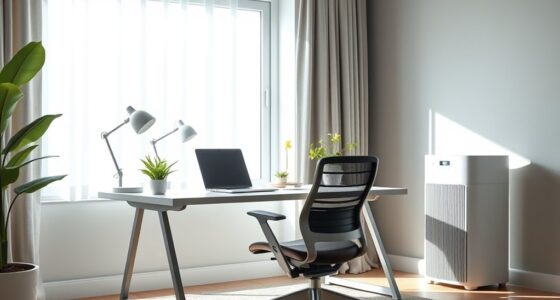
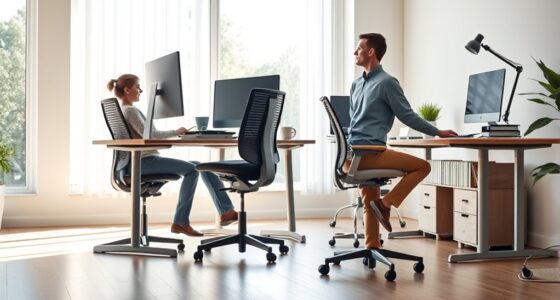
To prevent aches with dual monitors, position them at eye level with the top of the screens just below your natural line of sight. Keep both screens at equal distance and slightly inward to reduce neck strain and promote smooth changes. Use adjustable stands or supports for ideal height and tilt, and maintain proper distance—about an arm’s length. If you keep these tips in mind, you’ll find your workspace becomes more comfortable and ergonomic — more practical details await to improve your setup further.
Key Takeaways
- Position monitors at eye level with top edges just below eye line to prevent neck strain.
- Arrange screens at equal distance and slightly inward to facilitate natural head and eye movement.
- Keep primary monitor directly in front, with secondary angled to reduce unnecessary head turning.
- Use adjustable stands and ergonomic accessories to fine-tune height, tilt, and support for comfort.
- Manage lighting and glare to minimize eye fatigue and ensure consistent display calibration across screens.
Assessing Your Workspace for Optimal Placement

Before setting up your dual monitors, it’s vital to evaluate your workspace to guarantee ideal placement. Good workspace organization helps you identify the best spot for your screens, reducing strain and improving efficiency. Consider the size and layout of your desk—make sure there’s enough space to position monitors comfortably without clutter. Lighting considerations are also essential; avoid glare and reflections by positioning your monitors away from direct sunlight or bright lights. Use natural light wisely and incorporate adjustable lighting options if needed. Keep your workspace tidy to prevent distractions and guarantee easy access to essential items. A well-organized, thoughtfully lit area sets the foundation for ergonomic monitor placement, minimizing discomfort and enhancing your overall productivity. Additionally, paying attention to simple systems can help streamline your setup process and maintain a clutter-free environment. Incorporating ergonomic principles into your workspace setup can further improve comfort and prevent strain during extended use. To achieve the best setup, consider monitor positioning strategies that align with ergonomic standards and support your health. Integrating biological feedback can help you adjust your posture and setup for maximum comfort and efficiency.
Setting the Correct Monitor Height and Tilt

To minimize neck and eye strain, setting your monitor to the correct height and tilt is essential. Proper monitor calibration guarantees your screen’s top aligns with your eye level, reducing the need to look up or down. Adjust the tilt so the screen’s surface is slightly angled towards you, which helps minimize glare and reflections. Lighting considerations also play a role—position your monitor to avoid direct light or windows that cause glare, making calibration easier and your view clearer. Take time to fine-tune both height and tilt until your eyes are level with the top third of the screen, and the screen feels comfortable without straining your neck. Correct positioning reduces fatigue and enhances your work efficiency. Additionally, understanding ergonomic principles can further optimize your workspace setup for comfort and productivity. Incorporating ergonomic accessories like adjustable monitor stands can also help achieve optimal positioning and support better posture. Regularly adjusting your setup to match your body posture can prevent discomfort over long periods of use. Being aware of visual ergonomics and how they relate to smart home automation can also improve your overall comfort during extended screen time.
Arranging Monitors for Seamless Viewing and Access

To work comfortably with dual monitors, you need to optimize their placement for easy viewing and access. Proper screen positioning helps you switch between tasks smoothly without straining your neck or eyes. When you manage your screen shifts effectively, your workflow becomes more seamless and less tiring. Incorporating monitor placement best practices can further enhance ergonomic comfort. Paying attention to ergonomic principles can help prevent discomfort and promote better posture during extended computer use. Additionally, ensuring your monitors are aligned at the correct eye level reduces neck strain and enhances overall comfort during long work sessions. Using adjustable monitor stands can help you achieve optimal positioning and maintain proper posture throughout your workday.
Optimal Screen Placement
Achieving seamless viewing and easy access requires careful arrangement of your dual monitors. Start by positioning your screens at eye level, ensuring they are directly in front of you to minimize neck strain. Use monitor calibration to set consistent brightness, contrast, and color settings, so both screens appear uniform and comfortable to view. Good cable management is essential; tidy cords prevent clutter and allow smooth adjustments without tangling or accidental disconnections. Place your primary monitor directly in front, with the secondary slightly angled, creating a natural viewing flow. Keep important tools and reference materials within easy reach on both screens, optimizing workflow. Proper placement reduces eye and neck strain, making your dual-monitor setup more ergonomic and efficient. Ergonomic principles play a crucial role in designing your workspace for comfort and productivity.
Managing Screen Transitions
Ensuring smooth screen handoffs starts with arranging your monitors so that movement between them feels natural. Position the screens at the same eye level and angle them slightly inward to minimize neck strain. Use keyboard shortcuts to switch between apps or move windows quickly, reducing the need for constant mouse adjustments. Keep color calibration consistent across both screens to guarantee seamless visuals, especially when dragging content back and forth. Incorporate proper lighting in your workspace to reduce glare and eye fatigue, enhancing overall comfort during long hours of multitasking.
Maintaining Proper Distance and Angle to Reduce Strain

To reduce strain, you should keep your monitors at eye level so you don’t tilt your head up or down. Make sure both screens are positioned at the same distance from you to avoid unnecessary eye movement. Proper alignment helps maintain comfort during long hours at your desk. Additionally, considering ergonomic best practices can further enhance comfort and prevent discomfort during extended use.
Align Eye Level
Position your monitor so that the top of the screen is at or just below eye level. This keeps your neck in a neutral position and prevents strain. To improve your setup, consider these tips:
- Adjust your monitor’s tilt to minimize screen glare, making it easier to see without squinting.
- Regularly calibrate your monitor for accurate colors and brightness, reducing eye fatigue.
- Keep your monitor directly in front of you, about an arm’s length away, to maintain a comfortable viewing angle.
- Using a high-quality display can also enhance color accuracy and reduce eye strain over prolonged periods.
Aligning your screen correctly also helps reduce eye strain and prevents headaches. When your monitor is at the right height, you won’t need to tilt your head or lean forward, making your workspace more comfortable and ergonomic overall.
Keep Equal Distance
Maintaining an equal distance between your eyes and the monitor helps prevent eye strain and discomfort. Make sure both screens are positioned so that your eyes are centered at the same level and distance from each monitor. Proper monitor calibration ensures the screens display images with accurate size and brightness, reducing the need to squint or adjust your head. Good cable management keeps cords tidy, preventing clutter that could cause unintended movement or misalignment of your monitors. When your screens are evenly spaced, you minimize awkward head turns and neck strain. Regularly check the distance and angle, adjusting as needed to stay comfortable throughout the day. Keeping your monitors equidistant promotes better posture and reduces visual fatigue.
Incorporating Ergonomic Accessories for Support and Comfort

Incorporating ergonomic accessories into your workspace can considerably reduce discomfort and prevent long-term injuries. Support cushions, for example, can improve your posture and alleviate pressure on your lower back. Ergonomic accessories like adjustable monitor stands allow you to set screens at eye level, reducing neck strain. Using wrist supports or padded mouse pads can prevent repetitive strain injuries in your hands and wrists. These accessories help create a more comfortable setup, making it easier to focus and work efficiently. Remember, small adjustments with the right accessories can make a significant difference in your daily comfort and health. Prioritize ergonomic accessories that support your body’s natural alignment, and you’ll notice a reduction in aches and fatigue over time. Understanding ergonomic design principles can further enhance your workspace setup for optimal comfort and productivity. Additionally, choosing accessories made from supportive materials can improve overall support and durability, contributing to a healthier workspace and long-term well-being. Incorporating elements like crochet tools and kits can also promote a steady, comfortable grip during repetitive tasks, reducing hand fatigue.
Tips for Adjusting and Fine-Tuning Your Dual Screen Setup

To get the most out of your dual monitor setup, you need to fine-tune their placement for ideal comfort and productivity. Begin by calibrating each monitor to ensure color accuracy and consistent brightness, reducing eye strain. Position the screens so that the top edges are at or slightly below eye level, and keep the monitors directly in front of you to minimize neck movement. Use cable management solutions like clips or sleeves to organize cords, preventing clutter and accidental pulls that can disrupt your setup. Adjust the tilt, height, and distance of each monitor so they form a seamless workspace, reducing glare and reflections. Regularly reevaluate and tweak these settings as needed to maintain ergonomic comfort during long work sessions. Proper positioning ensures that your workspace remains comfortable and reduces the risk of strain over time.
Frequently Asked Questions
How Can I Prevent Neck Strain When Using Multiple Monitors?
To prevent neck strain when using multiple monitors, you should adjust your monitor height so the top of each screen is at eye level. Make sure you’re sitting in an ergonomic chair positioning yourself with good back support, and keep your monitors directly in front of you to avoid twisting your neck. Regular breaks and stretching also help reduce tension, keeping your neck comfortable during extended work sessions.
What Are the Best Practices for Cable Management in Dual Setups?
You should prioritize cable organization to keep your workspace tidy and efficient. Use cable clips, sleeves, or Velcro ties to bundle wires together, preventing tangles and clutter. Consider wire hiding solutions like cable raceways or under-desk trays to conceal cables from view. Regularly check and adjust your cable setup to avoid strain on connectors and guarantee easy access. Proper cable management reduces hazards and creates a clean, professional-looking dual monitor setup.
How Do I Optimize Lighting to Reduce Glare on Screens?
Imagine your workspace bathed in gentle, warm ambient lighting that softly surrounds your screens. To reduce glare, adjust your screen brightness to match the ambient light, avoiding harsh contrasts. Position your monitors perpendicular to windows or bright lights to prevent direct reflections. Use blinds or curtains if necessary, and consider matte screens or anti-glare filters. These steps help create a comfortable environment, reducing eye strain and enhancing your focus.
What Ergonomic Considerations Are Important for Touchscreen Monitors?
When using touchscreen monitors, you should prioritize proper ergonomic considerations to prevent strain. Make certain the screen is at eye level and calibrated correctly for accurate touch response. Use ergonomic accessories like adjustable stands or mounts to maintain a comfortable angle, reducing neck and wrist discomfort. Regularly calibrate your touchscreen to minimize errors, and take frequent breaks to avoid fatigue. Proper positioning and accessories help you work comfortably and efficiently.
How Can I Adjust My Workspace for Different Types of Work Tasks?
Imagine switching from a detailed project review to a quick email reply—your workspace should adapt effortlessly. You can achieve this by arranging your workspace for flexibility, adjusting monitor height, angle, and distance based on your task. Use task-specific arrangements, like a dedicated area for intense work and a more relaxed setup for casual tasks. This approach keeps your workspace ergonomic, comfortable, and suited to each activity.
Conclusion
By optimizing your dual monitor setup, you can substantially reduce neck and eye strain. For example, imagine a graphic designer who rearranged her screens and adjusted their height—her discomfort vanished, and her workflow improved. Take the time to assess your workspace and fine-tune your monitors’ placement. Small adjustments make a big difference, helping you stay comfortable and productive throughout the day. Don’t overlook ergonomic details—they’re key to dual monitor success.