To turn your tablet into a second monitor, start by connecting both devices to the same Wi-Fi network. Then, select reliable software like Duet Display, Splashtop, or iDisplay, which guides you through the setup process. Calibrate the display settings for maximum clarity and color match. Fine-tune your setup to guarantee smooth performance and minimal lag. Keep your Wi-Fi strong and regularly verify calibration. If you follow these steps, you’ll open a larger workspace—more tips await if you keep going.

Get comfort and recovery gear delivered free — and shop member deals
- Fast, free delivery on millions of items
- Access to Prime Big Deal Days deals on October 6–7
- Prime Video, Amazon Music and more included
Key Takeaways
- Connect your tablet and computer to the same Wi-Fi network for a stable wireless connection.
- Install compatible screen extension apps like Duet Display, Splashtop, or iDisplay on both devices.
- Launch the app and follow on-screen instructions to establish a wireless link between your devices.
- Calibrate the tablet’s display settings to match your main monitor for clear visuals and color accuracy.
- Fine-tune the setup periodically and maintain a strong Wi-Fi signal for optimal performance.
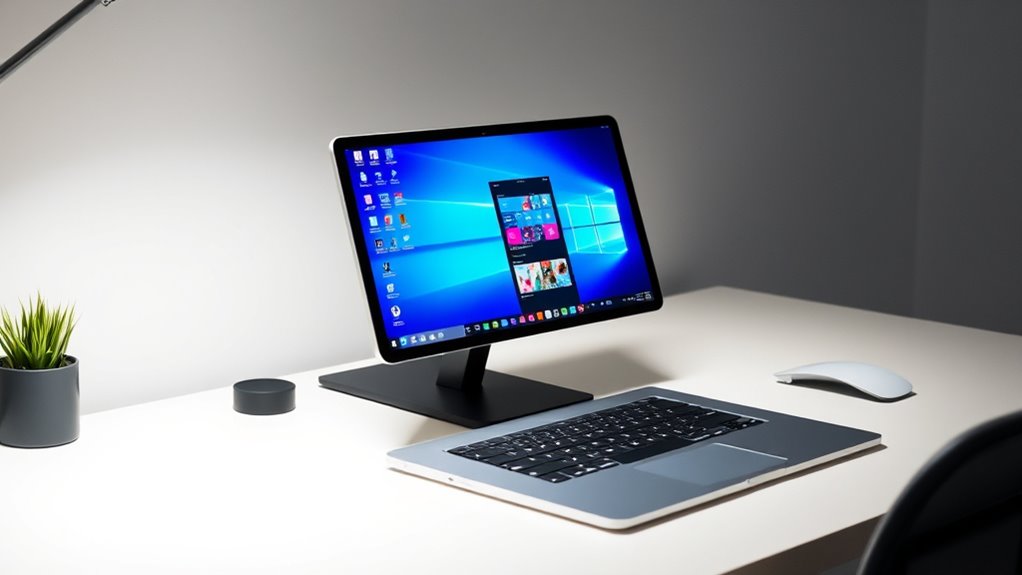
If you’re looking to boost your productivity without investing in a new monitor, turning your tablet into a second screen is a smart solution. The process hinges on establishing a reliable wireless connection and guaranteeing your display looks sharp and accurate. Wireless connectivity plays a crucial role here because it allows you to connect your tablet to your computer without messy cables. Most apps and software solutions support Wi-Fi, meaning you can set up your second monitor anywhere within your network range. To get started, guarantee both your tablet and computer are connected to the same Wi-Fi network, which helps maintain a stable connection and reduces lag. Once connected, you’ll use a dedicated app or software that facilitates the screen extension, such as Duet Display, Splashtop, or iDisplay. These tools are designed to be user-friendly and work seamlessly across different operating systems.
After establishing wireless connectivity, the next step involves display calibration. This step is vital to guarantee your tablet’s display aligns perfectly with your main monitor, providing a smooth and consistent viewing experience. Calibration involves adjusting the resolution, color profile, and scaling settings so that the images and text appear sharp, correctly proportioned, and true to color. Many apps automatically handle basic calibration, but it’s worth spending a few moments manually fine-tuning the display settings in your operating system’s display preferences. Proper calibration prevents issues like blurry images or mismatched colors, which can be distracting and reduce your efficiency. If your tablet supports it, use the built-in display calibration tools or third-party calibration apps for more precise adjustments. Pay attention to aspect ratio and resolution settings to match your main display as closely as possible, minimizing eye strain and visual discrepancies. Additionally, understanding the importance of wireless connection and its impact on stability can help you troubleshoot and optimize your setup for better performance.
Once you’ve set up a stable wireless connection and calibrated your display, you’ll find that your tablet becomes a fully functional extension of your desktop. You can move your cursor seamlessly between screens and drag windows effortlessly. Keep in mind, for optimal performance, it’s best to minimize background applications and guarantee your Wi-Fi signal remains strong. Regularly checking and adjusting the calibration ensures the display stays sharp over time, especially if lighting conditions change or if your tablet’s display settings are altered. Overall, turning your tablet into a second monitor is an effective, cost-efficient way to expand your workspace, making multitasking more manageable and your workflow more efficient.
As an affiliate, we earn on qualifying purchases.
Frequently Asked Questions
What Are the System Requirements for Setup?
You need compatible hardware and the right software to set up your tablet as a second monitor. Confirm your device supports hardware compatibility, like recent operating systems and sufficient RAM. Check that both your tablet and primary computer meet the software requirements for the mirroring app you choose, such as installed drivers or specific OS versions. Keeping these system requirements in mind makes the setup smooth and hassle-free.
Is There a Delay or Lag During Use?
Surprisingly, you might notice a tiny delay or lag during use—just enough to keep things interesting. It all depends on your connection stability and latency concerns. If your Wi-Fi is strong and your devices are close, you’ll barely see the difference. But if your connection wobbles, expect some sluggishness. So, yes, a slight delay can occur, though it’s usually manageable with a stable setup.
Can I Connect Multiple Tablets Simultaneously?
Yes, you can connect multiple tablets simultaneously for a multi device setup, allowing you to create a synchronized display across all screens. Most apps support this feature, enabling you to extend or mirror your desktop across several tablets. Just make certain your devices are compatible and connected to the same Wi-Fi network. This setup is perfect for increasing productivity, offering a seamless multi-screen experience for work, gaming, or multimedia use.
Are There Compatibility Issues With Specific Devices?
Yes, device compatibility can be an issue, especially with certain brands or operating systems. Some apps or software work better with specific device brands, like Apple or Samsung, and may have limitations on older models. Before you start, check the app’s compatibility list and verify your tablets meet the necessary system requirements. This way, you avoid frustrating connection problems and enjoy a seamless second monitor experience.
How Secure Is the Connection Between Devices?
Like a knight guarding a castle, your connection’s security depends on strong wireless encryption and proper device pairing. Typically, the connection is quite secure, especially if you use WPA3 or WPA2 encryption. Always make certain your devices are paired securely, avoiding public Wi-Fi networks for sensitive tasks. Regularly update your software to patch vulnerabilities, keeping your second monitor setup safe from eavesdropping or unauthorized access.
As an affiliate, we earn on qualifying purchases.
Conclusion
Transforming your tablet into a second monitor can boost your productivity by up to 30%, according to recent studies. With just a few simple steps, you can extend your screen space and work more efficiently. Don’t miss out on this versatile setup—it’s easier than you think! So, go ahead, follow the guide, and experience the convenience of having an extra display. Your workspace will never be the same!
calibration tools for tablet display
As an affiliate, we earn on qualifying purchases.
As an affiliate, we earn on qualifying purchases.
As an affiliate, we earn on qualifying purchases.
Fall Picks
fall essentials
As an affiliate, we earn on qualifying purchases.