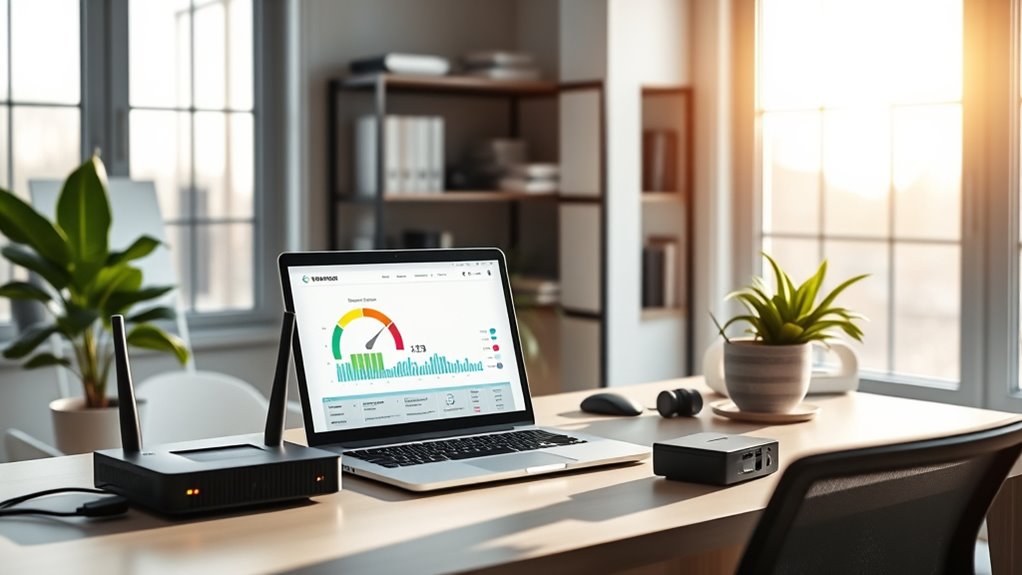

To boost your home office Wi-Fi, start by testing your current speeds and upgrading your plan or router if needed. Place your router in a central, elevated spot away from interference, and secure your network with strong passwords. Use wired connections when possible, limit device connections, and enable Quality of Service (QoS) to prioritize work activities. Changing Wi-Fi channels and updating firmware also help. Keep exploring to learn more ways to get faster, more reliable internet.
Open a free Amazon Business account
Business pricing, bulk buying and tax-exempt orders.
As an affiliate, we earn on qualifying purchases.
Key Takeaways
- Conduct speed tests and upgrade to higher-speed plans or routers supporting Wi-Fi 6/6E for better performance.
- Place your router centrally, elevated, and away from interference sources to maximize signal strength.
- Limit connected devices, prioritize work-related applications, and secure your network with strong passwords.
- Use wired Ethernet connections for critical tasks to ensure stable, fast, and low-latency internet.
- Regularly update router firmware and review your internet plan to eliminate bottlenecks and enhance speeds.
As an affiliate, we earn on qualifying purchases.
Assess Your Current Internet Speed and Plan

Before attempting to improve your Wi-Fi, understanding your current internet speed and the plan you’re paying for is essential. Start with a speed test to measure your download and upload speeds honestly. This initial step helps you determine if you’re getting the service you’re paying for or if there’s a gap between your plan and actual performance. Conduct a bandwidth analysis during different times of the day to spot slowdowns or congestion. Knowing your baseline allows you to identify whether issues stem from your internet plan or other factors. If your speed test results are substantially lower than your plan’s promised speeds, contact your provider. Regular assessments keep you informed and help you decide if upgrading your plan is necessary to meet your home office demands. Additionally, understanding the specific service options available in your area can help you choose the most effective plan for your needs. Being aware of support services can also assist in troubleshooting persistent issues when needed. For example, knowing that some providers offer specialized high-speed plans for remote work can make a significant difference in your connection quality. Furthermore, understanding network congestion patterns can help you schedule critical tasks during times of lower traffic for optimal performance. Considering potential network upgrades in your area may also improve your overall internet experience.
As an affiliate, we earn on qualifying purchases.
Optimize Router Placement for Better Coverage

To improve your Wi-Fi coverage, place your router in a central location within your home. Keep it away from interference sources like thick walls, metal objects, and other electronic devices. This simple step can make a big difference in signal strength and reliability. Additionally, ensure your router’s load capacity is not exceeded by too many connected devices, which can also affect speed and performance. Remember, a calm and organized home layout with minimal clutter around your router can help reduce interference and improve overall Wi-Fi quality. Incorporating smart home devices that optimize network traffic can further enhance your internet experience. Proper router firmware updates also play a crucial role in maintaining optimal performance and security. Regularly monitoring network performance can help identify and resolve issues promptly, ensuring a consistently fast connection.
Centralize Router Location
Placing your router in a central location is key to maximizing Wi-Fi coverage throughout your home. Proper router placement ensures signals spread evenly, reducing dead zones. Avoid placing your router near walls, metal objects, or appliances that can block or interfere with the signal. A centralized location, such as a common area or open space, helps distribute the Wi-Fi evenly across all rooms. Elevate the router off the floor to improve signal strength and reduce interference from furniture or objects. Keep it away from other electronics that emit wireless signals, and avoid placing it in cabinets or enclosed spaces. Additionally, ventilation considerations can prevent overheating and maintain optimal performance. Ensuring good signal strength and proper placement can significantly enhance your Wi-Fi experience. By choosing an ideal, centralized location for your router, you’ll enhance coverage and enjoy faster, more reliable internet throughout your home. A well-placed router also minimizes the need for extenders or repeaters, which can sometimes complicate your network setup. Proper router positioning is essential for consistent and strong Wi-Fi signals across your entire living space. Considering interference sources nearby can further improve your network stability and speed.
Avoid Interference Sources
Are you aware of how electronic devices and household objects can interfere with your Wi-Fi signal? Electromagnetic interference from gadgets like cordless phones, microwaves, or Bluetooth devices can weaken your connection. Additionally, neighboring networks operating on the same or overlapping channels can cause congestion and slow speeds. To minimize these issues, place your router away from potential sources of interference, such as metal furniture or thick walls. Keep it elevated and centrally located for best coverage. Avoid positioning it near:
- cordless phones or baby monitors
- large metal appliances
- microwave ovens during use
This reduces electromagnetic interference and helps your Wi-Fi stay stable, ensuring faster, more reliable internet for your home office. Proper router placement is essential for optimal signal strength and coverage, which can be further enhanced by choosing the right Wi-Fi channel settings to reduce network congestion. Additionally, being aware of digital distractions can help you better manage your environment for improved connectivity. Moreover, understanding the importance of network security can prevent unauthorized access that may slow down your internet speed.
As an affiliate, we earn on qualifying purchases.
Update Firmware and Software on Your Router

Keeping your router’s firmware and software up to date is vital for maintaining peak Wi-Fi performance and security. Firmware updates often include bug fixes, performance improvements, and essential security patches that protect your network from vulnerabilities. Outdated firmware can weaken your router security, making it easier for hackers to exploit weaknesses. Regularly check your router’s admin panel or manufacturer’s website for the latest firmware updates. Installing these updates promptly ensures your device operates smoothly and securely. Updating firmware is straightforward and typically involves downloading the latest version and following simple instructions. Don’t neglect this step—keeping your router current helps prevent interruptions, improves stability, and safeguards your home network against threats. Staying informed about security vulnerabilities and applying updates promptly can help prevent potential breaches. Additionally, some updates may enhance Wi-Fi speed and reliability, providing a better overall experience. Regular firmware updates are also crucial to maintain network stability, especially as your connected devices multiply. Being proactive about these updates not only enhances your Wi-Fi performance but also extends your device’s lifespan, saving you time and money in the long run. Incorporating manufacturer recommendations into your routine can further optimize your network’s efficiency. Stay proactive to enjoy fast, reliable, and secure Wi-Fi.
As an affiliate, we earn on qualifying purchases.
Secure Your Network to Prevent Unauthorized Usage

To prevent unauthorized access to your Wi-Fi, you need to secure your network with strong, unique passwords and proper encryption settings. Password protection is essential; choose complex passwords that are hard to guess. Verify your router uses current network encryption standards like WPA3 or WPA2 to safeguard data. You can further tighten security by:
- Regularly updating your router’s password
- Disabling WPS, which can be vulnerable
- Limiting device access through MAC address filtering
These steps help keep intruders out and protect your bandwidth. Remember, a secure network not only prevents unauthorized usage but also boosts your overall internet performance by reducing unwanted traffic. Taking these precautions ensures your home office stays safe and your Wi-Fi runs smoothly.
Change Wi-Fi Channel to Reduce Interference
Have you noticed your Wi-Fi connection slowing down or dropping unexpectedly? One way to improve your speed is by changing your Wi-Fi channel to reduce signal interference. Wi-Fi routers broadcast on different channels within the 2.4 GHz and 5 GHz bands. When multiple networks operate on the same or overlapping channels, they create signal interference, causing slower speeds and connection drops. To fix this, access your router’s settings and switch to a less congested channel. Using tools like Wi-Fi analyzers can help identify the best channels in your area. By selecting a clearer channel, your router faces less interference from neighboring networks, resulting in a more stable and faster connection. This simple adjustment can considerably boost your home office Wi-Fi performance.
Use a Wired Connection When Possible

Whenever you can, connecting your device directly to the router with an Ethernet cable provides a faster, more reliable internet experience. Ethernet cabling minimizes lag and reduces interference, making your online tasks smoother. Using a wired connection has several wired advantages: it offers consistent speeds, lowers latency, and enhances security. This setup is especially useful for video calls, large file transfers, or online gaming. To maximize these benefits, ensure your Ethernet cable is of good quality and properly connected. While Wi-Fi is convenient, a wired connection helps maintain stable internet, especially during high-demand work sessions. By prioritizing Ethernet cabling where possible, you’ll notice a significant difference in your home office internet performance and overall productivity.
Limit the Number of Devices Connected Simultaneously
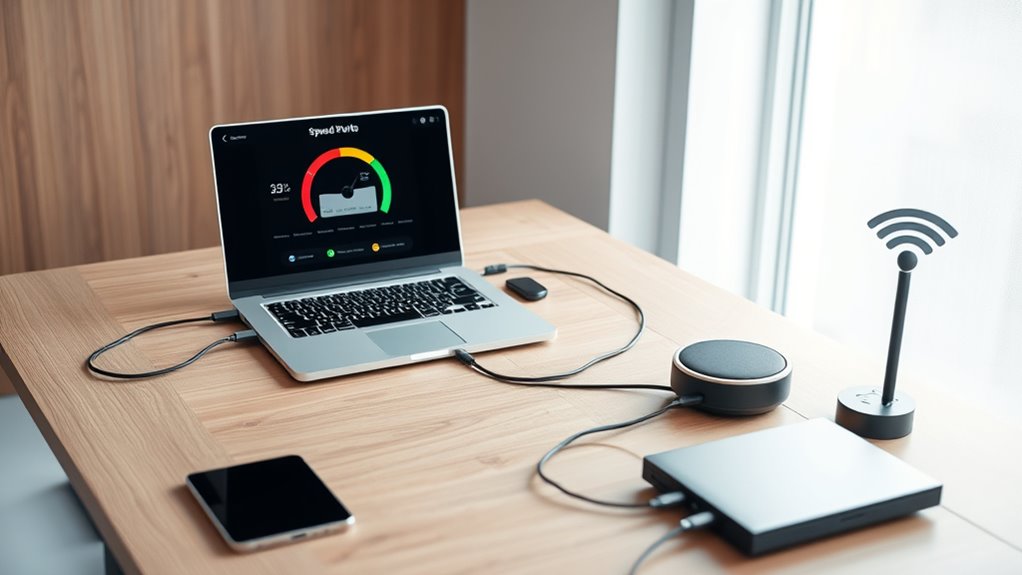
To improve your Wi-Fi performance, try limiting the number of devices connected at once. Managing which devices are active helps reduce network congestion and keeps your connection steady. Implementing device management strategies and optimizing network traffic can make a noticeable difference.
Device Management Strategies
Managing the number of devices connected to your Wi-Fi network is essential for maintaining peak speed and stability. When too many gadgets compete for bandwidth, your internet slows down. To keep things running smoothly, consider device prioritization—assigning higher priority to work devices or streaming essentials. Use parental controls to limit or schedule internet access for kids’ devices during work hours, reducing unnecessary traffic. Additionally, disconnect unused devices or turn off Wi-Fi on gadgets not in use. This helps guarantee your essential devices get the bandwidth they need.
- Prioritize work laptops and essential equipment
- Set parental controls to restrict non-essential devices
- Regularly disconnect unused or idle devices
Network Traffic Optimization
Limiting the number of devices connected to your Wi-Fi at the same time can substantially improve your network’s performance. With fewer devices competing for bandwidth, you can achieve better speed and stability. Use bandwidth balancing to allocate resources effectively, ensuring essential tasks like video calls and file uploads get priority. Implement traffic prioritization by assigning higher priority to work-related applications, such as conferencing tools or cloud storage. Disconnect devices that aren’t in use, and set up your router to limit new connections during busy periods. These steps reduce network congestion, prevent lag, and optimize your internet experience. By managing device connections strategically, you’ll enjoy faster, more reliable Wi-Fi that supports your home office needs seamlessly.
Enable Quality of Service (QoS) Settings

Enabling Quality of Service (QoS) settings allows you to prioritize critical devices and applications, ensuring they get the bandwidth they need. This feature helps manage your network traffic by giving certain devices or activities higher priority. To set it up effectively, focus on router prioritization and bandwidth allocation. Take these steps:
Prioritize essential devices and allocate bandwidth to optimize your network performance with QoS settings.
- Assign higher priority to work devices like laptops or VoIP phones for seamless calls.
- Limit bandwidth for less-critical devices like smart TVs or guest Wi-Fi.
- Customize rules based on your usage patterns to optimize performance.
Consider Upgrading Your Equipment or Internet Plan
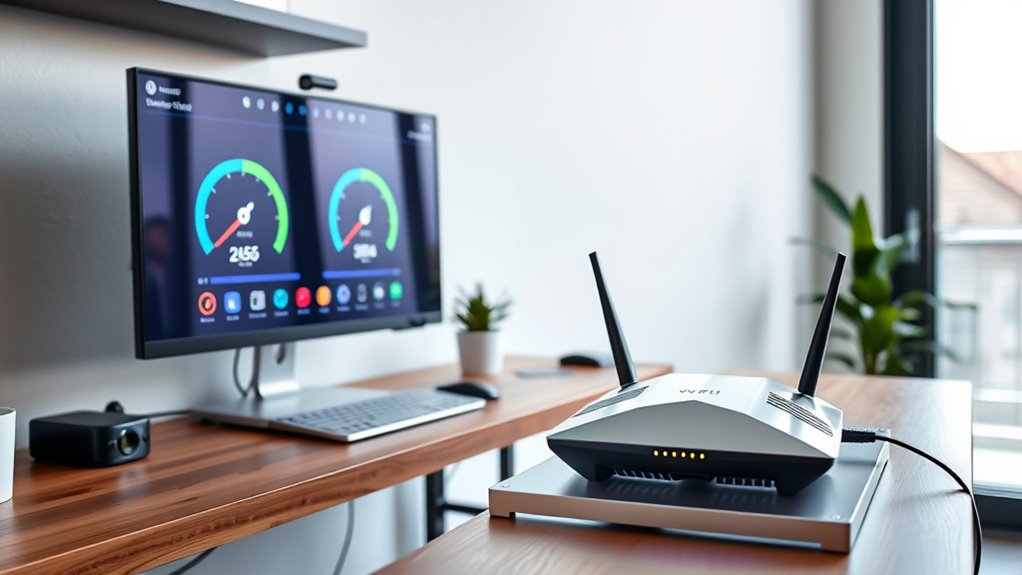
Upgrading your equipment or Internet plan can greatly boost your Wi-Fi performance, especially if your current setup struggles to handle multiple devices or high-bandwidth activities. Start by exploring new router models that support the latest standards, such as Wi-Fi 6 or Wi-Fi 6E, for faster, more reliable connections. Additionally, consider reviewing your internet plans; upgrading to a higher speed tier can considerably reduce buffering and lag. Check if your current plan offers unlimited data and sufficient bandwidth for your home office needs. Replacing outdated routers and adjusting your internet plan can eliminate bottlenecks, increase coverage, and ensure smoother video calls, faster downloads, and seamless multitasking. Investing in better equipment and plans pays off by transforming your home office into a productivity hub.
Frequently Asked Questions
How Can I Identify Wi-Fi Dead Zones in My Home?
You can identify Wi-Fi dead zones by checking your device’s signal strength in different areas of your home. Use a Wi-Fi analyzer app to spot weak spots and see where the signal drops markedly. Focus on adjusting your router placement—placing it centrally and elevated can improve coverage. Moving around with your device helps you pinpoint dead zones, so you know where to boost your signal or add extenders.
What Are the Signs of a Slow Internet Connection During Work Hours?
During work hours, you might notice your video calls freeze, or pages load slowly—classic signs of a slow internet connection. For example, Jane experienced frequent disruptions during meetings due to bandwidth issues and signal fluctuations. These signs indicate your network struggles to handle multiple devices or heavy data use, causing lag and delays. Keeping an eye on these symptoms helps you identify when your Wi-Fi needs an upgrade or repositioning.
How Often Should I Update My Router’s Firmware?
You should update your router’s firmware at least once every 3 to 6 months. Regular firmware maintenance guarantees your router’s security, stability, and performance. Keep an eye out for automatic updates from your manufacturer, but don’t rely solely on them. Manually check for router updates periodically to guarantee you’re protected against vulnerabilities and that your internet speed stays ideal for your home office needs.
Can Using a Wi-Fi Extender Improve My Internet Speed?
Using a Wi-Fi extender can boost your internet speed, especially if you place it strategically. Studies show that proper extender placement can increase coverage by up to 50%, reducing dead zones. Signal boosting depends on positioning the extender halfway between your router and the device needing better connection. Keep it off interference sources, and you’ll notice a significant improvement in your home office internet performance.
What Safety Measures Protect My Network From Cyber Threats?
You protect your network by enabling firewall security, which blocks unauthorized access, and updating firmware regularly. Use strong, unique passwords for your Wi-Fi and devices to prevent intruders from gaining entry. Avoid sharing passwords openly and consider setting up a guest network for visitors. Regularly monitor connected devices and stay informed about latest cyber threats to keep your home office secure from potential cyber attacks.
Conclusion
So, after all that effort, you might still think your internet’s just fine—until a video stalls or a call drops. Ironically, the solution isn’t always a fancy new plan or router; sometimes, it’s simply about tweaking what you’ve got. Don’t wait for frustration to hit—take control now. Because in today’s world, a speedy connection isn’t just a luxury, it’s the difference between productivity and endless buffering. Happy surfing!
Fall yard work Picks
leaf blowers
As an affiliate, we earn on qualifying purchases.