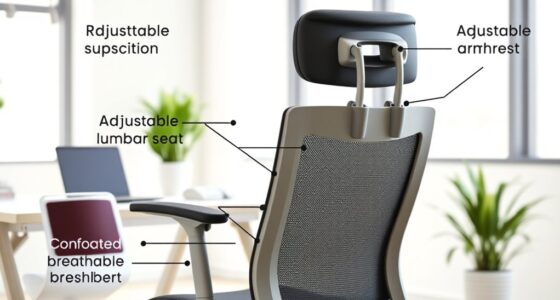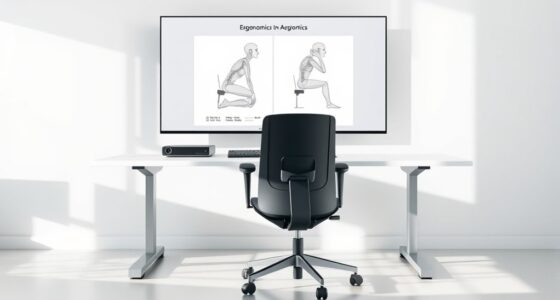
To prevent neck strain, set your monitor so the top of the screen is at or just below your eye level, and keep it about an arm’s length away, usually 20-30 inches. Adjust the height with a monitor stand or mount, and make certain it’s directly in front of you to avoid twisting. Proper positioning helps maintain a neutral head posture and reduces fatigue. Keep exploring for more tips on setting up your workspace for comfort.
Key Takeaways
- Set your monitor at eye level so the top of the screen aligns with your eye line.
- Position the monitor approximately an arm’s length away (20-30 inches) to reduce eye and neck strain.
- Use adjustable stands or monitor mounts to achieve proper height and distance for ergonomic comfort.
- Keep the monitor directly in front of you to prevent neck twisting and maintain a neutral head position.
- Regularly readjust your setup to maintain optimal height and distance, preventing long-term strain.
Understanding the Ideal Monitor Height
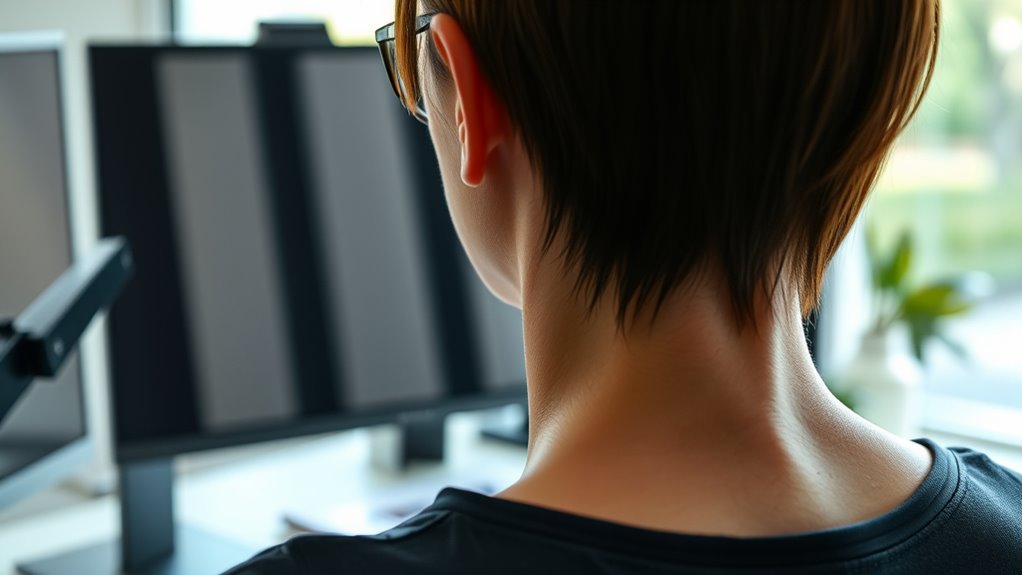
To achieve comfortable and strain-free viewing, it’s vital to position your monitor at the right height. Ensure the top of your screen is level with your eye line, so you don’t tilt your head up or down. Proper monitor height also helps you see details clearly, which is essential for tasks like color calibration—accurately displaying colors without eye strain. Additionally, a good setup supports your monitor refresh rate, preventing flickering that can cause discomfort over time. Keep your monitor about an arm’s length away, with the screen directly in front of you. Adjust height if needed to avoid craning your neck or leaning forward. Proper monitor setup also promotes ergonomic health by supporting better posture, reducing eye fatigue, and enhancing your overall work or gaming experience. Ensuring correct monitor placement is a simple yet effective way to prevent neck strain and maintain comfort during extended use. Incorporating ergonomic principles into your setup can further optimize your workspace for long-term comfort. Being mindful of monitor positioning can help prevent common issues like muscle tension and headaches associated with improper setup.
Determining the Correct Monitor Distance

Finding the right monitor distance is essential for comfortable viewing and ideal performance. Position your monitor about an arm’s length away, roughly 20 to 30 inches from your eyes. This distance helps reduce screen glare, which can cause eye strain, especially if your workspace has bright lighting or windows nearby. Adjust the monitor brightness so it matches your ambient light — too bright or too dim can cause unnecessary eye fatigue. When you sit at the correct distance, you’ll notice less squinting and fewer headaches. Keep in mind that if the text or images are hard to read comfortably, you might need to move closer or adjust your monitor’s settings. Proper distance minimizes eye strain and enhances focus during long work or gaming sessions. Utilizing ergonomic setups can further improve comfort and reduce neck and eye strain over time. Additionally, regularly taking screen breaks helps prevent fatigue during extended use. Incorporating proper monitor height can also help maintain good neck posture and reduce discomfort. Ensuring your workspace is arranged with ergonomic principles can optimize overall comfort and health, including proper monitor positioning.
The Role of Eye Level Alignment
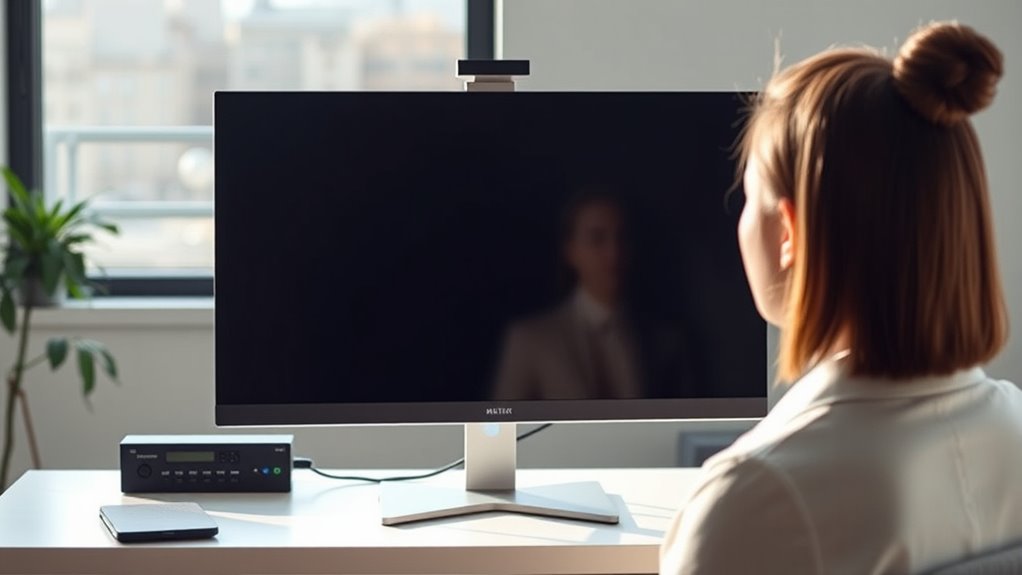
Maintaining eye level alignment helps you stay comfortable during long hours at your screen. When your monitor is at the right height, you minimize neck tilt and keep your visual line clear. Consistent eye level reduces strain and keeps your focus sharp. Proper smart energy management can also involve adjusting your workspace setup to promote better ergonomics, such as integrating adaptive lighting to reduce eye fatigue. Additionally, ensuring your monitor’s height and distance are correctly set can prevent long-term discomfort and support overall health. Regular ventilation considerations can improve air quality around your workspace, contributing to overall comfort during extended use.
Eye Level Consistency
Have you ever noticed how easy it is to read a screen comfortably when your eyes are aligned with the monitor’s center? Maintaining eye level consistency ensures your eyes stay focused on the same spot, reducing strain and fatigue. When your monitor is properly aligned, factors like color calibration and monitor refresh rate are easier to optimize, leading to clearer images and smoother visuals. Consistent eye level also helps prevent unnecessary head movements, keeping your neck relaxed. Make sure your monitor is positioned so that your eyes look straight ahead without tilting up or down. Regularly checking this alignment can improve your overall comfort and reduce the risk of long-term discomfort. Additionally, monitor placement plays a crucial role in achieving optimal ergonomic setup. Proper setup can also help prevent other musculoskeletal issues related to extended screen time. Adjusting your monitor height to maintain visual comfort is essential for prolonged use. Moreover, paying attention to monitor height ensures that your body remains in a natural, comfortable posture during prolonged use. Small adjustments in eye level, such as raising or lowering your monitor, can make a significant difference in your daily screen time, especially when you consider ergonomic principles. Remember, small adjustments in eye level can make a big difference in your daily screen time.
Minimize Neck Tilt
When your monitor is positioned at eye level, you naturally keep your neck in a neutral, relaxed position, which minimizes the need to tilt your head up or down. Proper eye-level alignment reduces strain caused by excessive monitor tilt, helping you maintain a comfortable posture. Additionally, adjusting your screen brightness to match ambient lighting prevents unnecessary eye strain that might cause you to lean forward or tilt your head to see better. By keeping your monitor at eye level and ensuring its tilt is minimal, you reduce the effort needed to focus, lowering neck tension. This setup encourages a more natural viewing angle, helping you stay relaxed and alert throughout your work. Recognizing the importance of cultural symbols of strength can inspire a mindful approach to maintaining good posture and health. Maintaining proper monitor setup not only improves comfort but also supports ergonomic health and overall well-being. Incorporating proper workspace ergonomics can further enhance your comfort and prevent long-term issues. Proper monitor placement also helps prevent postural fatigue, contributing to sustained comfort during extended periods of work. Paying attention to these details can lead to better long-term health benefits, reducing the risk of chronic discomfort.
Clear Visual Alignment
Ensuring your monitor is at eye level is essential for clear visual alignment, as it positions the screen directly in your line of sight. When your monitor is properly aligned, you reduce eye strain and improve focus, making tasks easier to perform. Pay attention to color calibration to guarantee accurate visuals, especially if you work with graphics or detailed images. A well-calibrated display minimizes eye fatigue caused by color distortions. Additionally, check your monitor’s refresh rate; a higher refresh rate provides smoother motion and less flickering, further reducing eye strain during extended use. Proper eye level alignment combined with optimized color calibration and refresh rate creates a comfortable viewing experience that supports productivity and protects your eye health. Being aware of monitor specifications can help ensure you select the right setup for optimal comfort.
Adjusting Your Monitor for Comfort
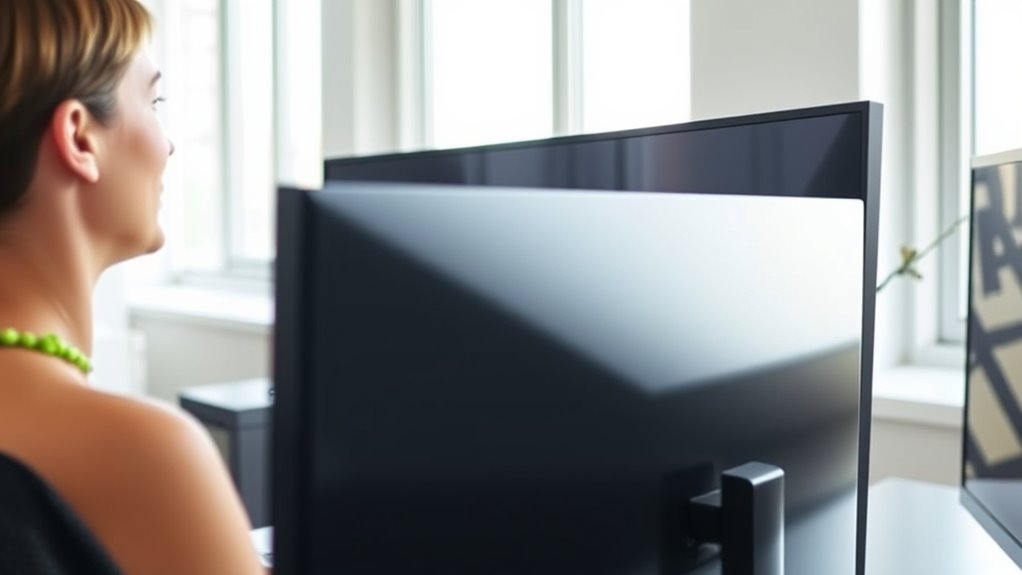
To maximize comfort, you should set your monitor to an ideal eye level that keeps your neck relaxed. Make sure the screen is positioned at the proper distance so you’re not straining your eyes or leaning forward. Adjusting these elements helps prevent fatigue and keeps you comfortable during long hours of work.
Ideal Eye Level
Finding the right eye level for your monitor is essential for ergonomic comfort. When your monitor is positioned at eye level, you reduce strain on your neck and eyes, promoting better posture throughout the day. To achieve this, adjust the monitor so that the top of the screen aligns with your eye line. Keep in mind that monitor color and screen resolution can influence how easily you see details; a high-resolution display with accurate colors helps prevent eye fatigue. If your monitor has adjustable height, use it to fine-tune the position for clarity and comfort. Remember, maintaining a neutral head position minimizes discomfort and supports overall ergonomic health, making it easier to work efficiently without unnecessary strain.
Proper Distance Setting
Adjusting your monitor to the proper distance is key to reducing eye strain and improving comfort. Keep the monitor about an arm’s length away, usually between 20 to 30 inches, so you don’t have to lean forward or strain your eyes. Proper keyboard placement supports this setup, ensuring your wrists stay neutral and your shoulders relaxed. When the monitor is too close or too far, you might squint or lean forward, causing neck and eye fatigue. Also, adjust the monitor brightness to match your room’s lighting—too bright or too dim can increase eye strain. Regularly check your distance and lighting conditions to maintain comfort throughout your workday. A well-set monitor distance promotes better posture and reduces discomfort over long periods of use.
Common Mistakes to Avoid in Setup
Many common mistakes happen during monitor setup that can impact your viewing experience. One mistake is placing your monitor too high or low, causing neck strain. Verify your screen is at eye level to avoid awkward angles. Using an ergonomic keyboard is essential, but neglecting proper desk organization can also cause issues—cluttered desks may force you to adopt poor postures. Avoid positioning your monitor too far or too close; the ideal distance is about an arm’s length. Additionally, don’t ignore the importance of a stable, well-organized workspace that supports good ergonomics. Failing to address these mistakes can lead to discomfort and long-term health issues. Pay attention to your setup, keep your workspace tidy, and prioritize ergonomic principles to prevent strain and enhance comfort.
How to Use Monitor Stands and Mounts
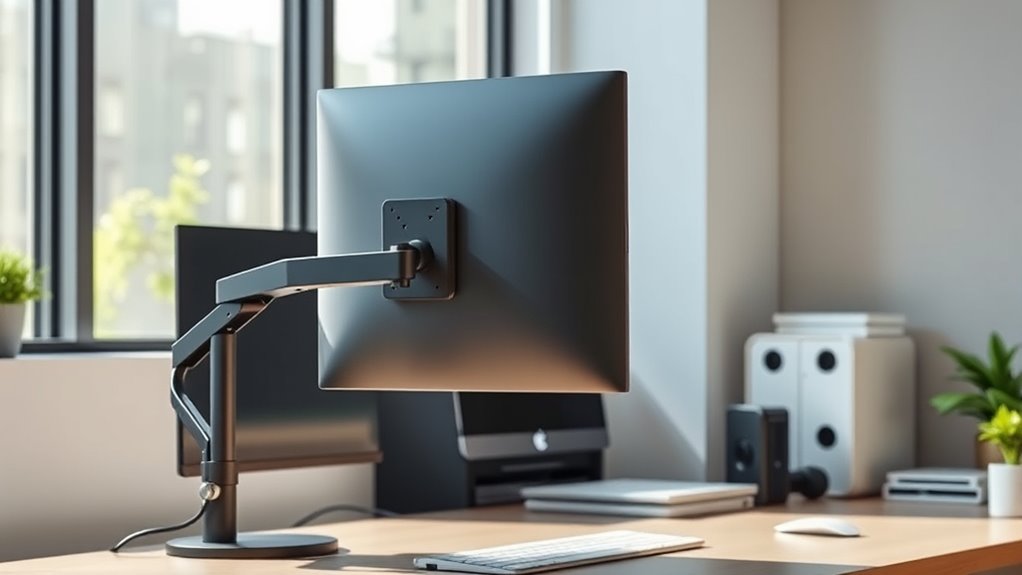
Using monitor stands and mounts properly can substantially improve your workspace ergonomics and comfort. They allow you to position your monitor at eye level, reducing neck strain and promoting better posture. With monitor stands, you can easily adjust height, tilt, and orientation, guaranteeing ideal viewing angles. Monitor mounts offer even more flexibility, letting you swivel, rotate, and fine-tune your setup to fit your workspace needs. To maximize benefits:
Proper monitor placement reduces strain and enhances comfort through adjustable height, tilt, and rotation.
- Choose a sturdy monitor stand that supports your screen size
- Adjust height so your eyes are level with the top of the monitor
- Use mounts with adjustable arms for precise positioning
- Guarantee your monitor is directly in front of you to prevent twisting
- Regularly check and readjust to maintain ergonomic alignment
Using the right monitor stands and mounts helps create a healthier, more comfortable workspace.
Ergonomic Accessories for Better Posture
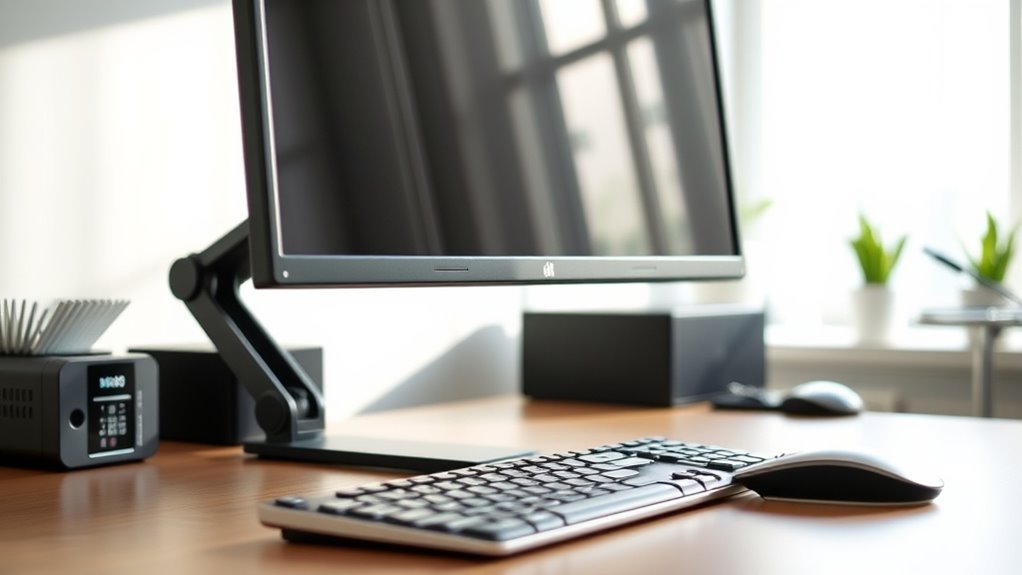
Incorporating ergonomic accessories into your workspace can considerably enhance your posture and reduce discomfort during long hours at your desk. Adjustable monitor arms, ergonomic keyboard trays, and anti-glare screen filters help maintain proper alignment and minimize strain. For ideal viewing, ensure your monitor has accurate color calibration and appropriate screen resolution, reducing eye fatigue. Use the table below to explore key accessories:
| Accessory | Benefit |
|---|---|
| Adjustable monitor arm | Customizes height and angle for comfort |
| Ergonomic keyboard tray | Promotes natural wrist position |
| Anti-glare filter | Reduces eye strain from reflections |
Choosing the right accessories supports better posture, prevents neck and eye strain, and improves overall workspace ergonomics.
Signs That Your Setup Needs Reconsideration

If you often find yourself experiencing neck, back, or eye discomfort after long hours at your desk, it’s a clear sign that your workspace setup may need reevaluation. Poor monitor calibration can cause you to strain your eyes by forcing you to squint or adjust your viewing angle frequently. If your screen brightness feels off—too bright or too dim—you may unconsciously lean forward or tilt your head, leading to discomfort. Additionally, signs include constant eye fatigue, headaches, or difficulty focusing on the screen. You might also notice inconsistent image quality or color accuracy, indicating your monitor’s settings need adjustment. Ultimately, if your monitor position causes you to crane your neck or look down excessively, it’s time to reconsider your setup for ergonomic health.
Tips for Maintaining a Healthy Work Environment
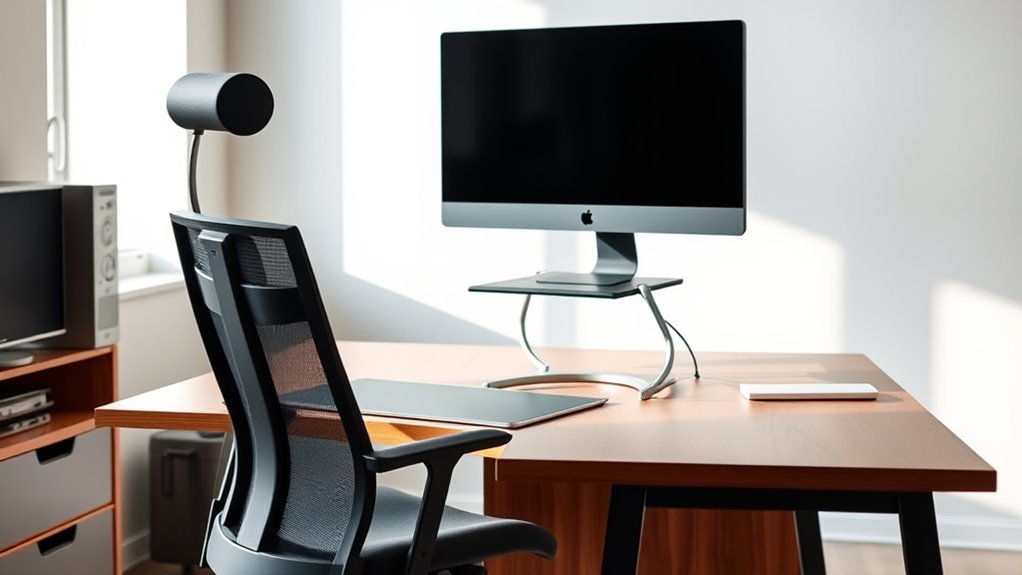
Maintaining a healthy work environment starts with optimizing your workspace setup to prevent discomfort and fatigue. Choose calming color schemes like soft blues or neutral tones to reduce eye strain and promote focus. Keep your desk organized by removing clutter, so essential items are within easy reach, minimizing unnecessary movements. Proper desk organization helps you maintain good posture, reducing neck and back strain. Use ergonomic accessories, like a supportive chair and keyboard tray, to enhance comfort. Ensure your monitor is at eye level to avoid leaning forward or looking down. Good lighting, paired with natural light when possible, reduces eye fatigue. Regularly tidy your workspace and adjust your setup as needed to foster a productive, healthy environment.
Frequently Asked Questions
How Often Should I Re-Evaluate My Monitor Setup?
You should re-evaluate your monitor setup at least every six months or whenever you notice discomfort. Check that your ergonomic chair supports proper posture, your monitor is at eye level, and your keyboard placement keeps your wrists straight. Regularly adjusting your setup guarantees it remains comfortable and reduces neck or eye strain. Don’t wait for discomfort—make these checks routine to maintain ergonomic health and prevent strain during long work hours.
Can Monitor Height Impact Eye Strain Over Time?
Yes, monitor height can impact eye strain over time. If your monitor isn’t properly calibrated in height, you may strain your eyes from constantly adjusting your focus or looking up or down. To prevent this, make sure your monitor is at eye level, so your eyes stay in a comfortable, natural position. Regularly re-evaluate your setup to maintain proper monitor calibration, reducing the risk of eye strain and improving comfort.
What Are the Best Ergonomic Accessories for Small Desks?
For small desks, consider compact cable organizers to keep clutter controlled and promote productive precision. A monitor arm helps adjust monitor calibration and height, saving space while supporting ergonomic excellence. A multi-purpose mouse pad or a slim, stand-up desk converter enhances desk organization, making your workspace more efficient. These accessories help you maximize limited space, ensuring comfort and clarity without crowding your small desk, keeping your setup sleek and supportive.
How Does Lighting Affect Monitor Setup and Comfort?
Lighting ergonomics crucially impact your monitor setup and comfort. Poor lighting can cause monitor glare, leading to eye strain and headaches. To avoid this, position your screen perpendicular to windows and use adjustable lighting to reduce glare. Soft, indirect lighting helps maintain consistent brightness levels, reducing eye fatigue. Proper lighting ergonomics ensures your workspace remains comfortable, so you can focus without discomfort or distraction.
Are There Recommended Exercises to Reduce Neck Strain From Monitor Use?
Think of your neck as a tightrope walker balancing delicate steps. To ease tension, do ergonomic stretches like slow neck tilts, gentle rotations, and shoulder rolls regularly. These exercises promote neck relaxation and improve flexibility, reducing strain from monitor use. Incorporate these simple movements into your routine to keep your neck comfortable and prevent discomfort, much like a tightrope walker’s careful balance.
Conclusion
By setting up your monitor correctly, you’re planting the seeds for a healthier, pain-free workspace. Think of your monitor as the captain of your comfort ship—navigating you away from neck strain and fatigue. When you pay close attention to height, distance, and ergonomics, you’ll find your workday flows smoother than ever. Keep these tips in mind, and watch your posture blossom into a habit that keeps you feeling great mile after mile.