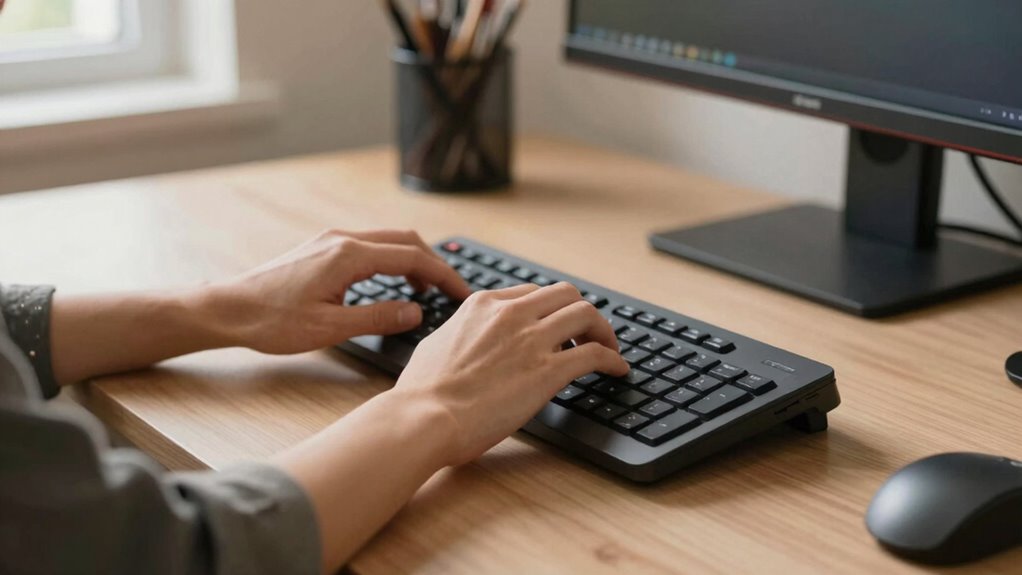
To instantly improve your typing comfort, start by sitting with a straight back and relaxed shoulders, keeping your feet flat on the ground. Adjust your chair and monitor so that your eyes are level with the screen and your elbows are close to your sides at about 90°. Use ergonomic accessories like wrist supports and keep your wrists straight. Remember to take regular breaks and stretch to prevent stiffness. For more quick tips, keep exploring these helpful adjustments.

Get comfort and recovery gear delivered free — and shop member deals
- Fast, free delivery on millions of items
- Access to Prime Big Deal Days deals on October 6–7
- Prime Video, Amazon Music and more included
Key Takeaways
- Adjust your chair height so feet are flat and knees are level with hips immediately.
- Position your monitor at eye level to prevent neck strain instantly.
- Use wrist supports to keep wrists straight and relaxed while typing.
- Keep your elbows close to your sides at a 90° angle for optimal arm positioning.
- Take a quick break to stretch hands, arms, and shoulders to reduce tension quickly.

If you find yourself aching after long hours at the keyboard, you can quickly improve your comfort by adjusting your typing position. The first step is to focus on your posture adjustments. Sit with your back straight and shoulders relaxed, ensuring your feet are flat on the ground. Your knees should be roughly level with your hips, and your elbows should stay close to your sides at about a 90-degree angle. This alignment helps reduce strain on your neck, shoulders, and wrists. Keep your monitor at eye level to prevent neck strain, which means you might need to elevate your screen or adjust your chair height. When your screen is properly positioned, you won’t have to tilt your head forward or downward, which can cause discomfort over time.
In addition to posture adjustments, ergonomic accessories can make a significant difference in creating a more comfortable typing setup. An ergonomic keyboard, for example, can help reduce wrist strain by allowing your hands to rest in a more natural position. Wrist supports are also useful, especially if you tend to rest your wrists on the desk or keyboard while typing. An adjustable chair with lumbar support helps maintain the natural curve of your lower back, promoting good posture and preventing fatigue. Incorporating ergonomic principles into your workspace can further enhance comfort and reduce the risk of repetitive strain injuries. Paying attention to proper ergonomics can also help prevent long-term health issues associated with poor posture. Additionally, choosing adjustable furniture allows you to tailor your workspace to your body’s needs, promoting sustained comfort during long typing sessions. Understanding ergonomic design can guide you in setting up an optimal workspace that minimizes discomfort and maximizes productivity.
You should also pay attention to your hand and arm positioning. Keep your wrists straight and avoid bending them upwards or downwards. If you notice your wrists are strained, consider using a wrist rest to keep them in a neutral position. Your arms should be relaxed and close to your body, with your forearms parallel to the floor. Small adjustments, like repositioning your keyboard or mouse, can have a big impact on comfort. Always ensure your mouse is close enough so you’re not reaching, which can cause shoulder tension. Incorporating breaks and stretches into your routine—such as stretching your hands, arms, and shoulders periodically—can prevent stiffness and promote circulation.
ergonomic keyboard for wrist support
As an affiliate, we earn on qualifying purchases.
As an affiliate, we earn on qualifying purchases.
Frequently Asked Questions
Can Ergonomic Accessories Instantly Improve My Typing Comfort?
Yes, ergonomic accessories can instantly improve your typing comfort. Proper keyboard positioning helps reduce strain, making typing easier and more natural. Wrist support, like a cushioned pad, keeps your wrists aligned and prevents discomfort or injury. By adjusting your workspace with these accessories, you’ll notice immediate relief and better posture, allowing you to type longer without fatigue. Small changes like these make a big difference in overall comfort.
How Long Does It Take to Adjust to a New Typing Position?
Adjusting to a new typing position is like steering a ship into calmer waters; it takes time to find your balance. Usually, you’ll notice improvements within a few days, but fully adapting to changes like keyboard alignment and wrist support might take a week or two. Keep practicing consistently, and your muscles will learn to embrace the new setup, making typing feel more natural and comfortable over time.
Are There Specific Exercises to Reduce Typing Strain Quickly?
Yes, you can do ergonomic exercises for quick relief from typing strain. Try shoulder rolls, gentle neck stretches, and wrist flexion exercises to loosen tight muscles. These quick relief exercises improve circulation and ease tension, helping you feel more comfortable fast. Incorporate them into short breaks during your work to prevent strain from building up. Consistent practice can also enhance your overall typing posture and reduce discomfort over time.
Does Posture Impact Long-Term Hand Health?
Your posture greatly impacts your long-term hand health. Proper hand alignment and wrist support help prevent strain and injuries like carpal tunnel syndrome. When you keep your wrists straight and supported, you reduce unnecessary stress on your tendons and nerves. Adjust your chair height, use ergonomic accessories, and take regular breaks. These habits promote better posture, safeguarding your hands and ensuring comfort during extended typing sessions.
Can Typing Speed Be Affected by Adjusting Comfort?
Yes, adjusting your comfort can boost your typing speed. When you focus on keyboard ergonomics, you reduce strain, allowing you to type more efficiently. Improving wrist flexibility helps you move smoothly across keys without discomfort. By setting up your workspace properly and maintaining good posture, you’ll find it easier to type faster and longer. Comfort directly enhances your ability to focus and maintain rhythm, ultimately increasing your overall typing performance.
adjustable ergonomic office chair with lumbar support
As an affiliate, we earn on qualifying purchases.
As an affiliate, we earn on qualifying purchases.
Conclusion
Now that you’ve discovered quick ways to improve your typing comfort, imagine what even small adjustments could do for your long-term well-being. Will you notice a difference after just one change, or will it take time to see the full benefits? The secret lies in your willingness to experiment and stay attentive. The more you explore, the closer you get to mastering a perfect, pain-free typing position—are you ready to access that potential?
monitor stand for eye level setup
As an affiliate, we earn on qualifying purchases.
As an affiliate, we earn on qualifying purchases.
wrist rest for keyboard and mouse
As an affiliate, we earn on qualifying purchases.
As an affiliate, we earn on qualifying purchases.
Fall Picks
fall essentials
As an affiliate, we earn on qualifying purchases.