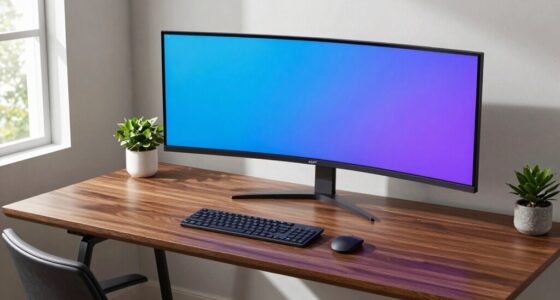
To set up dual monitors, start by choosing compatible displays for your needs and gathering the right cables like HDMI or DisplayPort. Connect each monitor to your computer, ensuring cables are secure. Then, adjust display settings on Windows or Mac to arrange and calibrate the screens properly. Position your monitors ergonomically for comfort. If you encounter issues, troubleshooting tips can help. Continue with these steps to create an efficient, multi-screen workspace tailored for you.
Key Takeaways
- Choose compatible monitors and gather necessary cables like HDMI or DisplayPort.
- Connect each monitor securely to the correct computer ports and power them on.
- Access display settings to arrange monitors, set primary display, and adjust resolution.
- Position monitors ergonomically at eye level and align them for seamless viewing.
- Troubleshoot issues by checking connections, updating drivers, and calibrating displays.

Lumbar Support Pillow for Office Chair, Office Home Essentials,Gifts for Mom,Dad, Back Support Pillow for Car, Chair Cushions,Back Pain Relief Improve Posture,Mesh Cover Double Adjustable Straps
- Extended Adjustable Straps: Fits more chairs securely
- Ergonomic Back Support: Relieves back pain and tightness
- Supports Proper Posture: Maintains natural spine curve
As an affiliate, we earn on qualifying purchases.
Choosing the Right Monitors for Your Needs

Choosing the right monitors for your needs begins with understanding what you’ll use them for. Your decision on monitor size impacts comfort and workspace; larger screens are great for multitasking, while smaller ones suit minimal setups. Consider color accuracy if you work in design, photography, or video editing—high color fidelity ensures your work looks consistent across devices. If gaming is your priority, look for a monitor with a fast refresh rate and low response time. For office tasks, a standard size with decent color reproduction may suffice. Think about resolution too—higher resolutions provide sharper images. By identifying your main activities, you can select a monitor that matches your needs in size, color accuracy, and features, making your dual monitor setup effective and enjoyable. Moreover, understanding monitor connectivity options ensures compatibility with your existing hardware and simplifies setup. Additionally, being aware of energy-efficient features can help you choose monitors that align with sustainable practices and reduce power consumption. To optimize your setup, consider the contrast ratio of your monitors, which influences image quality and viewing experience. Understanding ergonomic adjustments is also crucial for long-term comfort during extended use.

Samsonite Lumbar Support Pillow for Office Chair, Lower Back Support for Car, Back Pillow Desk Chair Cushion with Memory Foam, Improved Posture Backrest
- Contouring Memory Foam: Supports spine and maintains posture
- Adjustable Secure Fit: Fits office chairs and car seats
- Ventilated Mesh Cover: Enhances airflow and cooling
As an affiliate, we earn on qualifying purchases.
Gathering the Necessary Cables and Accessories

Before connecting your monitors, you need to gather the right cables and accessories to guarantee a smooth setup. Start by collecting the necessary cables, such as HDMI, DisplayPort, or VGA, depending on your monitor and computer ports. Ensuring accessory compatibility is essential; double-check that your cables match your devices’ inputs. Organize your cables beforehand to prevent tangling and make the process easier. Consider using cable organizers or clips to keep things tidy. Also, gather any adapters or additional accessories you might need, like a splitter or USB hub. Proper cable organization saves time and reduces frustration during setup, while verifying accessory compatibility ensures your monitors will connect seamlessly without needing extra purchases.

Seat Cushion for Office Chair and Car, Lumbar Support Pillow for Chair
- Supportive L-shaped Design: Firmly supports lower back and coccyx
- Memory Foam Filling: High-density, temperature-sensitive for comfort
- Non-slip Bottom: Anti-slip rubber particles prevent sliding
As an affiliate, we earn on qualifying purchases.
Connecting Your Monitors to Your Computer

Start by checking which ports your computer has available for connecting monitors. Once you identify the right ports, plug in your cables securely, then turn on your monitors and computer. Make sure each monitor powers up correctly before moving on to the next setup step. To ensure a smooth setup, verify that your compatible ports support your monitor connections and are functioning properly. Additionally, consult your device’s port specifications to confirm compatibility and avoid connection issues.
Check Available Ports
To connect your monitors effectively, you need to identify the available ports on your computer. Check your device for port compatibility, which varies between models. Common ports include HDMI, DisplayPort, DVI, and VGA. Knowing which ports your computer has will help you choose the right cable types for a seamless connection. Some computers may have multiple compatible ports, allowing you to connect monitors using different cables. If your monitors support the same port types, connecting them becomes straightforward. However, if your ports don’t match your monitor inputs, you might need adapters. Carefully examine your computer’s ports and your monitors’ input options to confirm compatibility before purchasing any cables or adapters. This step guarantees a smooth setup process moving forward.
Connect and Power On
Are you ready to connect your monitors and turn on your dual setup? First, plug each monitor into the appropriate ports on your computer, guaranteeing secure connections. Once connected, power on your monitors and your computer. After startup, access your display settings to detect the monitors. Use calibration techniques like adjusting brightness, contrast, and color settings for ideal image quality. An ergonomic setup is essential, so position your monitors at eye level and at a comfortable distance to reduce strain. Make sure the resolution and scaling are correctly configured for each display. This ensures a seamless, visually comfortable experience. Connecting and powering on your monitors is straightforward, setting the foundation for effective dual monitor use. Proper setup now makes calibration and ergonomic adjustments easier later.
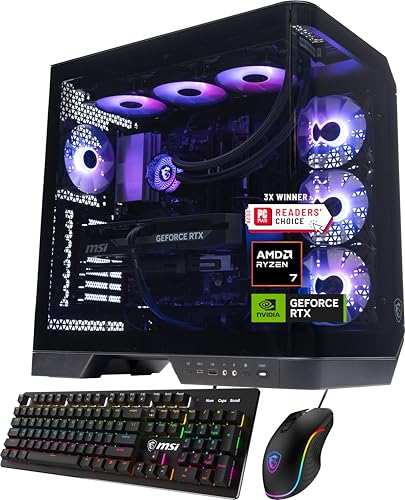
msi Vision ZS Gaming Desktop PC | AMD Ryzen 7 9800X3D | NVIDIA GeForce RTX 5070 12GB | 32GB DDR5 RAM | 2TB NVMe SSD | 360mm AIO Liquid Cooling | Wi-Fi 6E | Windows 11 Home | VR Ready | 9NVP-2068US
- Processor: AMD Ryzen 7 9800X3D with 8 cores
- Graphics Card: NVIDIA GeForce RTX 5070 12GB VRAM
- Memory & Storage: 32GB DDR5 RAM, 2TB NVMe SSD
As an affiliate, we earn on qualifying purchases.
Configuring Display Settings on Windows

Configuring display settings on Windows is a straightforward process that allows you to optimize your dual monitor setup. First, right-click on your desktop and select “Display settings.” Here, you can arrange your monitors, set the main display, and adjust resolution. To guarantee accurate colors, focus on monitor calibration and color management:
Easily optimize your dual monitors by adjusting display settings, calibration, and color management for a seamless visual experience.
- Click “Advanced display settings” to fine-tune resolution and refresh rate.
- Use built-in calibration tools or third-party software for accurate monitor calibration.
- Access “Color management” to adjust color profiles for consistency.
- Select “Display adapter properties” for additional options like color depth. Proper configuration can also improve your visual clarity and overall experience, especially when working with multiple screens. Regular calibration helps maintain consistent image quality across monitors, which is crucial for color accuracy and productivity. Additionally, understanding monitor calibration can help you troubleshoot display issues more effectively. Ensuring your display settings are properly configured optimizes your visual performance, making your dual monitor setup more effective and enjoyable. Proper configuration also supports compassionate caregiving by providing a comfortable and efficient workspace for your needs.
Adjusting Display Settings on Mac

To adjust your display settings on Mac, start by opening System Preferences and selecting Display. From there, you can access Display Preferences to customize how your monitors behave. You can also tweak resolution settings to get the best fit and clarity for your dual monitor setup. Incorporating electrical safety into your setup can help you troubleshoot and optimize your display arrangement effectively. Additionally, ensuring proper connection quality can prevent issues like flickering or misalignment. Paying attention to thermal behavior can also help prevent overheating and ensure your monitors operate smoothly during extended use. Using smart home automation techniques, you might consider integrating your monitor setup with other devices for energy efficiency and safety.
Access Display Preferences
Wondering how to access your display settings on a Mac? It’s simple. First, click the Apple menu and select “System Preferences.” Next, choose “Displays” to open the display preferences panel. Here, you can:
- Adjust monitor color calibration for accurate colors.
- Change display orientation to landscape or portrait modes.
- Set the main display if you’re using multiple monitors.
- Fine-tune brightness and contrast settings.
Customize Resolution Settings
Adjusting your resolution settings on a Mac allows you to maximize display clarity and workspace. To do this, open System Preferences and select Displays. Here, you can choose a scaled resolution that best suits your needs, balancing sharpness and space. For improved color accuracy, consider calibrating your display’s color settings to match your environment or preferences. This calibration process enhances visual consistency across both monitors. Additionally, check your refresh rate under the Display settings to ensure smooth motion, especially if you’re working with fast-paced visuals or gaming. Properly configuring these settings can also help prevent visual artifacts, ensuring a clean and professional appearance. Understanding your display’s native resolution can further optimize the clarity and performance of your dual monitor setup. Fine-tuning resolution, color calibration, and refresh rate ensures your dual monitor setup looks great and performs at its best. Regularly reviewing these settings and making adjustments as needed can also improve overall user comfort during extended use.
Arranging Monitors for Optimal Use

Arranging your monitors for ideal use involves positioning them in a way that enhances your workflow and reduces strain. Proper desk organization and ergonomic placement are key to comfort and productivity. First, place your monitors at eye level to prevent neck strain. Second, align them side by side with minimal gap for seamless viewing. Third, position the primary monitor directly in front of you, with the second to the side, based on usage preference. Fourth, keep cables tidy to avoid clutter and distractions. Adjust the tilt and height of each monitor to match your eye line and natural posture. This setup minimizes discomfort and ensures efficient multitasking. Additionally, understanding ergonomic principles can help you create a workspace that promotes good posture and reduces fatigue. Incorporating these principles can also improve overall home or office setup, leading to better comfort and productivity. Remember, a well-organized desk with ergonomic placement makes your dual monitor experience more comfortable and productive. Proper monitor arrangement also considers ergonomic principles, which can help prevent long-term health issues related to improper setup. For example, regularly practicing visual and auditory cues can further enhance your work efficiency and reduce eye strain. Being mindful of workspace ergonomics can lead to sustained comfort during extended work sessions.
Troubleshooting Common Dual Monitor Issues

Even with careful monitor placement, technical issues can still arise that disrupt your dual monitor setup. Common problems include display detection errors, resolution mismatches, or flickering screens. To troubleshoot, start by checking your keyboard compatibility, especially if you use specialized keys for monitor controls. Ensure your graphics driver is up to date and that your monitors are properly connected. Also, verify your monitor mounting options—sometimes, loose mounts cause display issues. Use this table for quick ideas:
| Issue | Solution |
|---|---|
| Monitors not detected | Reconnect cables, update drivers |
| Resolution problems | Adjust display settings in OS |
| Flickering screens | Check cable connections, update drivers |
| Keyboard compatibility issues | Test with different keyboards |
| Mounting issues | Tighten or reposition monitor mounts |
This approach helps resolve most dual monitor issues efficiently.
Frequently Asked Questions
Can I Use Different Brand or Size Monitors Together?
Yes, you can use different brand or size monitors together, but monitor compatibility might affect your setup. Make certain both monitors support the same connection types and resolutions. You may need to calibrate each monitor separately to achieve consistent color and brightness. Mixing brands or sizes is common, just be prepared to adjust settings to get a seamless experience, especially if their display qualities vary considerably.
Do I Need a Graphics Card That Supports Dual Monitors?
Yes, you need a graphics card that supports dual monitors. Your graphics card handles the video output, so verify it has multiple ports like HDMI, DisplayPort, or DVI. If it only supports one monitor, you’ll need an upgraded card or additional adapters. Check your graphics card’s specifications to confirm it can manage dual displays, making your setup seamless and efficient.
How Do I Set up Dual Monitors With a Laptop?
You can set up dual monitors with your laptop by connecting the second display using the appropriate cable, like HDMI or DisplayPort. Position your monitors for comfortable monitor placement, ensuring they’re at eye level. Keep cable management in mind to avoid clutter and tangles. Once connected, go to display settings to extend your desktop, and adjust resolution for ideal viewing. This setup enhances productivity and creates a seamless workspace.
What Should I Do if My Monitors Display Different Resolutions?
When your monitors display different resolutions, you should adjust the display scaling and resolution settings on each monitor to match. Right-click your desktop, select Display Settings, and then choose the monitor you want to modify. Set the monitor resolution to the recommended level, and adjust display scaling for consistency. This helps create a seamless experience, ensuring your monitor resolution and display scaling work together for smooth, synchronized visuals.
Are There Any Safety Tips for Setting up Multiple Monitors?
To stay safe when setting up multiple monitors, focus on an ergonomic setup to prevent strain. Adjust the height and angle of your monitors for comfortable viewing. Use proper cable management to avoid tripping hazards and keep your workspace tidy. Always unplug devices before connecting or disconnecting cables, and make certain your power strips and outlets are rated for your equipment’s power needs. Taking these steps helps create a safe, efficient workspace.
Conclusion
Now that you’ve set up your dual monitors, you’re opening the door to a whole new world of productivity and creativity. Think of your screens as a well-orchestrated symphony, each playing its part to create a seamless work experience. With your new setup, you’ll find tasks become easier and more enjoyable. Embrace this upgrade—your workspace is now a canvas for endless possibilities, ready for you to paint your success.