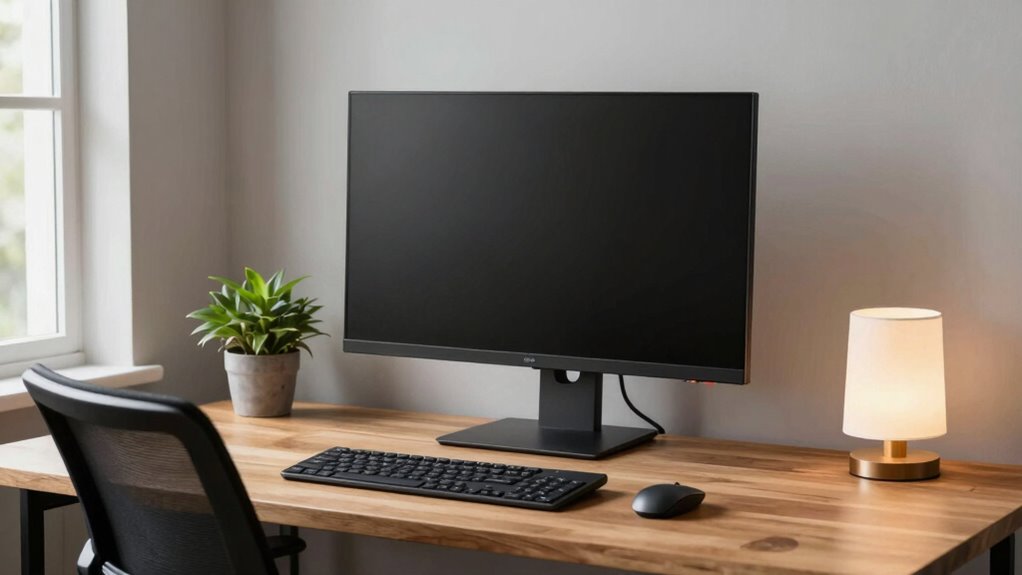

To set up your screen for serious desk work, position it directly in front of you at about an arm’s length away. Adjust the height so the top of the screen aligns with your eye level, and tilt it slightly upward to reduce glare. Keep your eyes focused on the top third of the screen, and make sure your keyboard and mouse are close, with elbows at a 90-degree angle. Good setup prevents discomfort and boosts productivity—you’ll discover more tips if you keep exploring.
Key Takeaways
- Position the monitor directly in front at an arm’s length distance, with the top at eye level.
- Tilt the screen slightly upward (10-20 degrees) to reduce glare and maintain natural eye focus.
- Align the eyes with the top third of the screen to minimize strain and promote comfortable viewing.
- Keep the keyboard and mouse close, with elbows at 90 degrees, to support good posture.
- Use adjustable stands and ergonomic accessories to achieve optimal height and angle for prolonged comfort.
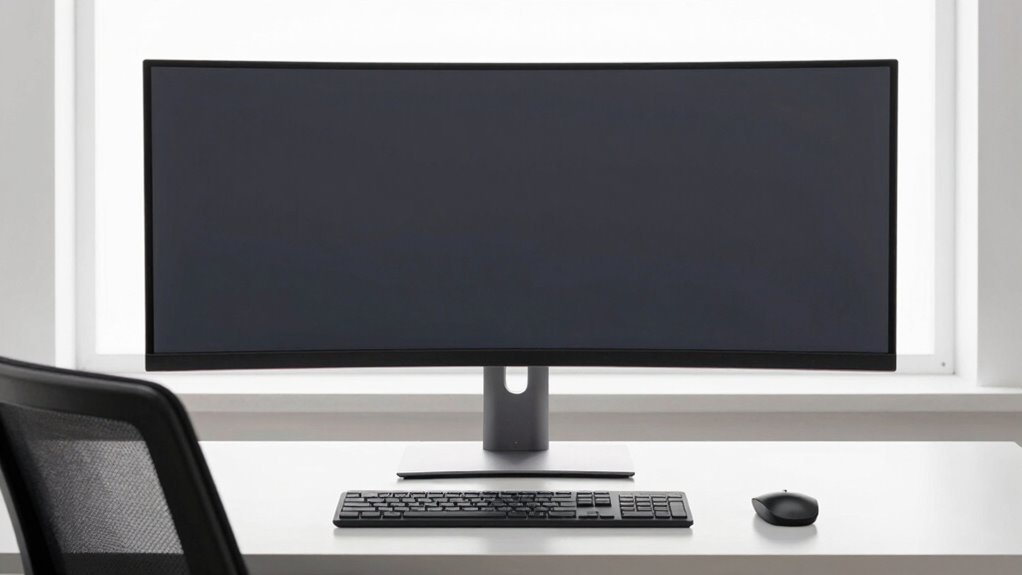
Have you ever wondered if your screen placement is hurting your productivity or causing discomfort? It’s a common issue, especially when you spend hours at your desk. The way you position your screen can markedly impact your focus, comfort, and even your health. Proper screen placement promotes an ergonomic posture, which helps reduce fatigue and prevents long-term musculoskeletal problems. It also plays an essential role in eye strain prevention, allowing you to work longer without discomfort or headaches.
Proper screen placement enhances comfort, focus, and health by promoting ergonomic posture and reducing eye strain.
To start, your monitor should be directly in front of you, about an arm’s length away. When you sit comfortably, your eyes should naturally fall on the top third of the screen. This angle minimizes strain on your neck and shoulders by encouraging a neutral head position. If you find yourself tilting your head up or down, your screen is too high or too low. Adjust the height of your monitor so that the top of the screen is roughly at eye level, which helps maintain an ergonomic posture. This setup reduces unnecessary tension in your neck and prevents the fatigue that comes from craning or straining to see your work. Ensuring proper screen placement can significantly improve your overall comfort during long work sessions. Additionally, understanding how Western art movements influence modern design can inspire your workspace aesthetics to promote a more inspiring environment.
The tilt of your monitor also matters. The screen should be slightly tilted upward, about 10 to 20 degrees, so that you view it comfortably without having to tilt your head or strain your eyes. This angle ensures that light reflects minimally off the screen and that your eyes stay in a relaxed, natural position. Additionally, you should position your keyboard and mouse close enough to avoid reaching or hunching. Your elbows should be close to your body, forming about a 90-degree angle, which supports good ergonomic posture and keeps your shoulders relaxed. Incorporating adjustable monitor stands or ergonomic accessories can further enhance comfort and promote proper alignment during long work sessions. Paying attention to your ergonomic setup can make a noticeable difference in reducing discomfort and increasing productivity.

BONTEC Dual Monitor Stand Riser, Adjustable Length & Swivel Angle, Ergonomic Wooden Desktop Organizer with Smartphone Holder, Computer Monitor Stand for PC Monitor, Laptop, Printer, Large Storage
DUAL MONITOR STAND WITH ADJUSTABLE LENGTH & ANGLE – Elevate two monitors to an ergonomic height for better…
As an affiliate, we earn on qualifying purchases.
As an affiliate, we earn on qualifying purchases.
Frequently Asked Questions
How Do I Adjust My Screen for Multiple Monitor Setups?
To adjust your monitor for multiple setups, position them at eye level and close enough to avoid excessive head movement. Use monitor calibration to guarantee consistent colors and brightness across screens, reducing eye strain. Adjust angles to minimize screen glare from nearby lights or windows. Keep a slight tilt for comfort, and align your screens so your gaze naturally moves between them without strain. Regular calibration and glare reduction enhance your overall workspace.
What Ergonomic Accessories Can Improve Screen Placement?
Imagine you’re back in the age of typewriters—ergonomic accessories like monitor risers and adjustable arms can upgrade your setup today. These accessories help you achieve proper monitor height adjustment, reducing neck strain and improving posture. Adding an ergonomic keyboard or wrist rest also supports comfort. By customizing your screen placement with these tools, you create a healthier, more efficient workspace that keeps you focused and comfortable during long work sessions.
How Often Should I Reposition My Monitor During Work Hours?
You should reposition your monitor whenever you notice discomfort or your viewing distance and monitor height aren’t aligned properly. Aim to keep your monitor at eye level and about an arm’s length away. Reposition it at least once every hour to reduce strain, especially if you shift in your seat or change tasks. Regular adjustments help maintain good posture, preventing neck and eye fatigue during long work sessions.
What Are Signs My Screen Placement Is Causing Discomfort?
If your screen placement causes discomfort, you’ll notice neck or eye strain, headaches, or blurred vision. Check your screen height; it should be at eye level to avoid tilting your head. Also, verify your viewing distance is about arm’s length—too close or far can cause fatigue. Regularly reassess your setup to prevent discomfort and maintain proper ergonomics, making your workspace healthier and more comfortable.
How Does Screen Placement Affect Eye Strain Over Time?
If your screen isn’t properly positioned, you’ll find your eyes quickly paying the price, leading to eye strain and visual fatigue over time. Poor placement causes your eyes to constantly adjust distance or angle, which wears them out. When you keep your screen at eye level and a comfortable distance, you help your eyes stay relaxed, reducing fatigue and making it easier to work longer without discomfort.

WALI Computer Monitor Stand for Desk, Adjustable Laptop Riser, Desk Monitor Stand Underneath Storage for Office, Home, School Supplies (STT003), 1 Pack, Black
Design: The monitor stand for the desk has a large 14.6 x 9.3 inches metal shelf that fits…
As an affiliate, we earn on qualifying purchases.
As an affiliate, we earn on qualifying purchases.
Conclusion
When you set your screen just right, you’ll feel like you’ve stepped into a future where comfort and productivity collide—no flux capacitor needed. Proper placement isn’t just about avoiding neck strain; it’s your secret weapon against fatigue and distractions. Think of it as a well-placed Excalibur, ready to help you conquer your workday. So, take a moment, adjust that screen, and watch your focus sharpen like a knight’s sword in shining armor.

Wireless Keyboard and Mouse Combo, 2.4G Full Size Wave Keys Ergonomic Keyboard with Wrist Rest and 3-Level DPI Adjustable Wireless Ergonomic Mouse for Windows, Mac OS Desktop/Laptop/PC(Black)
【Wave Ergonomic Wireless Keyboard and Mouse Combo】The wireless keyboard features a wave key and wrist rest design that…
As an affiliate, we earn on qualifying purchases.
As an affiliate, we earn on qualifying purchases.

acer SH243Y P1si 23.8" IPS Full HD (1920 x 1080) Zero-Frame Gaming Office Monitor | AMD FreeSync Technology | Up to 144Hz Refresh | 1ms (VRB) | Tilt, Height Adjustment & Swivel | HDMI & VGA Ports
Vibrant Images: Crisp, true-to-life colors come alive in Full HD 1080p resolution. Movies and games appear more real…
As an affiliate, we earn on qualifying purchases.
As an affiliate, we earn on qualifying purchases.