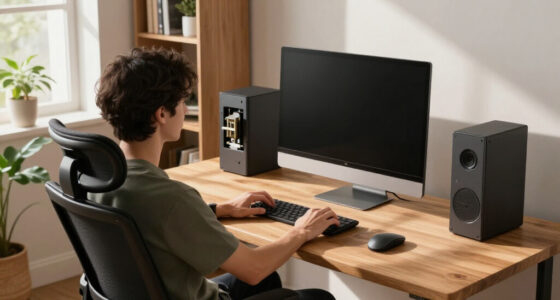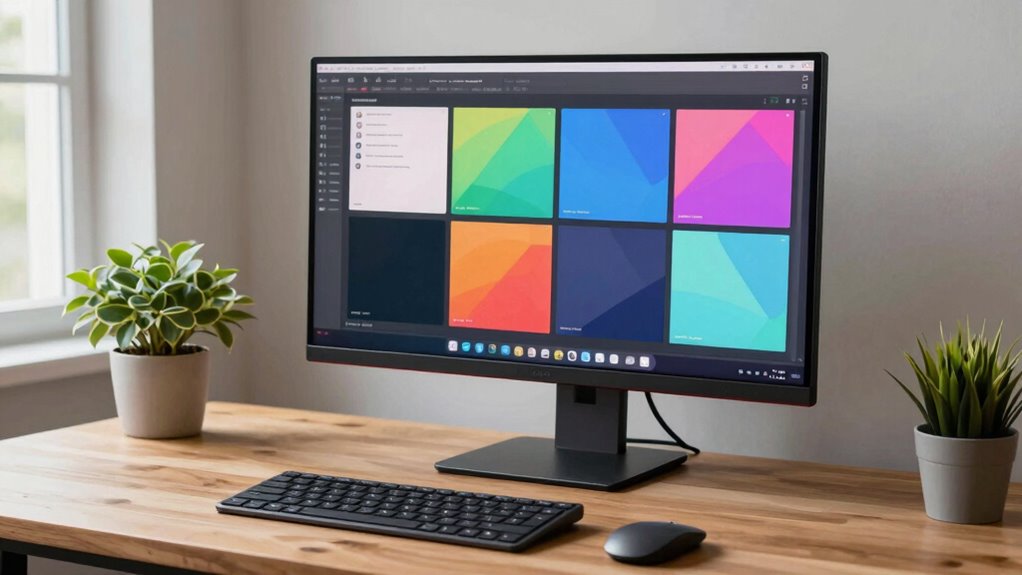

To pick the right screen layout for your workflow, start by considering your tasks and space. Position your screens at eye level, aligned with your gaze, and keep them close to avoid neck strain. Use multiple monitors or stacking based on your needs, ensuring each is within comfortable reach. Employ accessories like monitor arms for space efficiency, and reduce glare with proper placement or anti-glare surfaces. Continuing will reveal how to fine-tune your setup for maximum comfort and efficiency.

Get comfort and recovery gear delivered free with Prime
- Fast, free delivery on millions of items
- Prime Video, Amazon Music and more included
- Member-only deals all year
Key Takeaways
- Assess your work tasks to determine if multi-monitor setups or specific layouts improve efficiency.
- Choose a layout that aligns with your workflow, such as horizontal for multitasking or vertical for referencing documents.
- Position screens at eye level and at an arm’s length to reduce neck strain and enhance comfort.
- Use accessories like monitor arms to optimize space and achieve the ideal screen placement.
- Minimize glare by positioning screens perpendicular to light sources and adjusting angles for visual comfort.
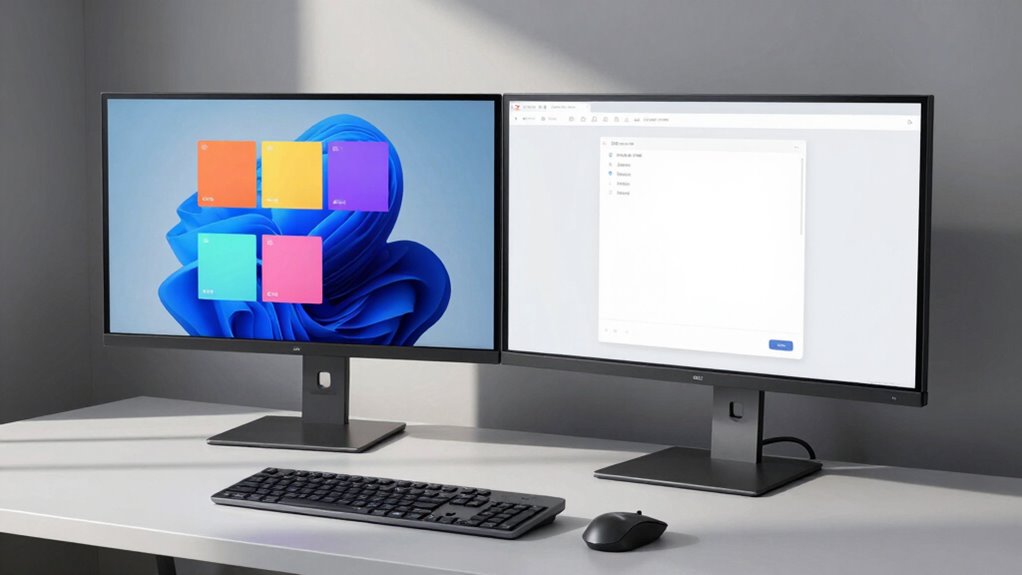
Selecting the right screen layout is essential for creating an efficient and visually appealing workspace. When you set up your screens thoughtfully, you’ll notice a significant boost in your multitasking efficiency. The goal is to minimize distractions and physical strain, so your workspace supports your workflow seamlessly. An ergonomic setup is key here; it reduces fatigue and prevents discomfort, allowing you to work longer and more comfortably. You want screens positioned at eye level, with the top of the display roughly aligned with your gaze. This prevents neck strain and encourages good posture, which is crucial for maintaining focus throughout the day.
Your choice of screen layout depends on the type of work you do most often. If you handle multiple applications or data sources simultaneously, a multi-monitor setup can be a game-changer. Placing screens side by side in a horizontal line creates a wider workspace, making it easier to switch between tasks without constantly toggling windows or minimizing applications. Alternatively, stacking screens vertically works well if you need to reference documents or emails while working on a primary task below. This vertical arrangement maximizes screen real estate without requiring a large desk footprint.
Consider the physical space available to you. If you have limited desk area, a dual-monitor arm can help position screens close together and free up space. For larger desks, a triple-monitor setup might be ideal, giving you dedicated screens for different tasks, which enhances multitasking efficiency. Keep in mind that the distance between your eyes and the screens should be about an arm’s length, and the screens should be tilted slightly upward to match your natural line of sight. Additionally, proper screen placement can prevent glare and reflections, reducing eye strain and improving overall comfort. Incorporating protective styling benefits from textile and fabric accessories, like anti-glare screen covers or matte finishes, can also help reduce eye fatigue.
Adjusting the placement of your screens to reduce glare and reflections is another essential aspect of an ergonomic setup. Position your monitors perpendicular to windows or direct light sources to minimize eye strain. Also, think about the height and angle of your screens; tilting them slightly backward helps keep your neck and shoulders relaxed. The way you arrange your screens impacts how smoothly you can move between tasks and how comfortable you remain during long hours of work.
Ultimately, choosing a screen layout that aligns with your workflow and physical comfort will make a noticeable difference in your productivity. Tailor your setup to your tasks, space, and ergonomic needs, and you’ll create a workspace that’s as efficient as it is comfortable.
As an affiliate, we earn on qualifying purchases.
Frequently Asked Questions
How Do I Determine the Ideal Monitor Size for My Needs?
You determine the ideal monitor size by considering your workspace and tasks. If you work with detailed graphics or multiple windows, opt for a larger screen, around 27 inches or more. Make certain the monitor’s resolution matches your needs for sharp visuals, and check screen brightness for comfortable viewing over long periods. A balance between size, resolution, and brightness helps you stay productive without straining your eyes.
What Are the Best Ergonomic Practices for Multi-Screen Setups?
To guarantee ergonomic comfort in a multi-screen setup, focus on monitor positioning so your screens are at eye level and reduce neck strain. Adjust color calibration for consistent hues across displays, preventing eye fatigue. Keep a slight angle between screens to minimize head turning. Use adjustable stands to fine-tune height and tilt, and maintain proper distance—about an arm’s length—to promote good posture and reduce discomfort during long work sessions.
How Can I Reduce Eye Strain With Different Screen Layouts?
To reduce eye strain with different screen layouts, adjust your settings to minimize blue light exposure, especially in the evening. Use built-in or third-party blue light filters, and guarantee your screens have a high refresh rate for smoother motion. Position screens at eye level, maintain proper distance, and take regular breaks. These steps help reduce eye fatigue, improve comfort, and prevent strain caused by prolonged screen exposure.
Are There Specific Layouts Recommended for Creative Versus Administrative Work?
For creative workflows, opt for a layout that emphasizes large, uncluttered workspace areas, with tools and palettes easily accessible but not distracting. For administrative tasks, choose a layout that organizes multiple windows, inboxes, and spreadsheets side-by-side for efficiency. You should customize your screen setup to match your specific needs, ensuring quick access to essential tools in both creative and administrative work while reducing eye strain.
How Do I Manage Cable Organization With Multiple Screens?
To manage cable organization with multiple screens, use cable management tips like cable clips, sleeves, and Velcro straps to keep cords tidy and prevent tangling. Identify connector types, such as HDMI, DisplayPort, or USB-C, so you can use the appropriate adapters and streamline connections. Route cables along desk edges or behind monitors to keep your workspace neat, ensuring easy access and reducing clutter for a cleaner, more efficient setup.
anti-glare computer screen protector
As an affiliate, we earn on qualifying purchases.
As an affiliate, we earn on qualifying purchases.
Conclusion
Think of your screen layout as a well-tuned orchestra. When each instrument — or window — plays its part in harmony, your workflow flows smoothly. Just as a conductor adjusts the tempo and arrangement to suit the piece, you should tweak your layout until it feels natural and efficient. Remember, the right setup isn’t static; it’s a dynamic melody that adapts as your work evolves. Keep fine-tuning until your workspace sings in perfect harmony.
As an affiliate, we earn on qualifying purchases.
As an affiliate, we earn on qualifying purchases.
Halloween Picks
halloween
As an affiliate, we earn on qualifying purchases.