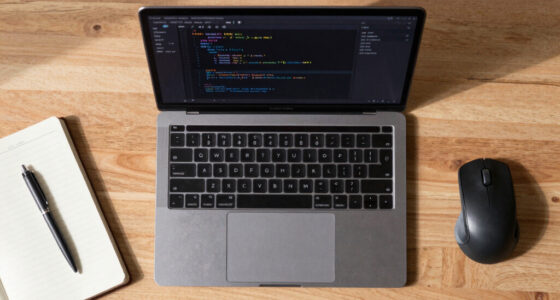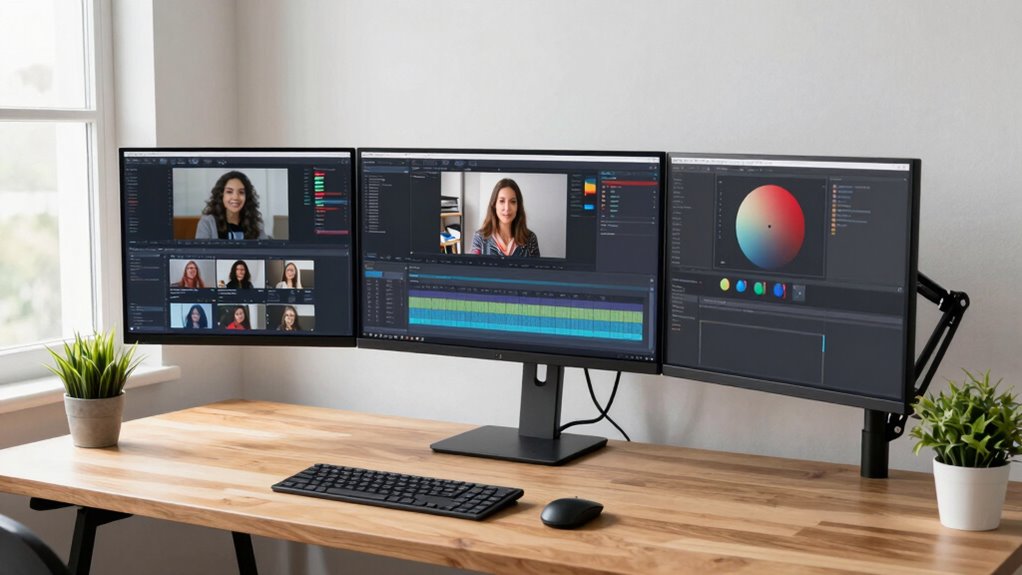
To create a flexible screen setup, start by choosing adjustable monitors with easy-to-use height, tilt, and swivel features. Use versatile mounting options like multi-monitor stands or mounts that support rotation and extension. Organize cables with clips or trays to reduce clutter and make changes simpler. Add repositionable accessories like extendable keyboards or foldable screens for different tasks. If you keep exploring, you’ll discover how to optimize your workspace for both comfort and productivity across various activities.

Get comfort and recovery gear delivered free with Prime
- Fast, free delivery on millions of items
- Prime Video, Amazon Music and more included
- Member-only deals all year
Key Takeaways
- Use adjustable monitor arms and stands for quick repositioning to different heights and angles.
- Implement cable management solutions to keep cords organized and facilitate easy device swapping.
- Incorporate versatile mounting options like multi-monitor stands for flexible screen configurations.
- Add repositionable accessories such as extendable keyboards and mice for ergonomic comfort.
- Design a workspace combining ergonomic adjustments and portable screens for seamless task transitions.
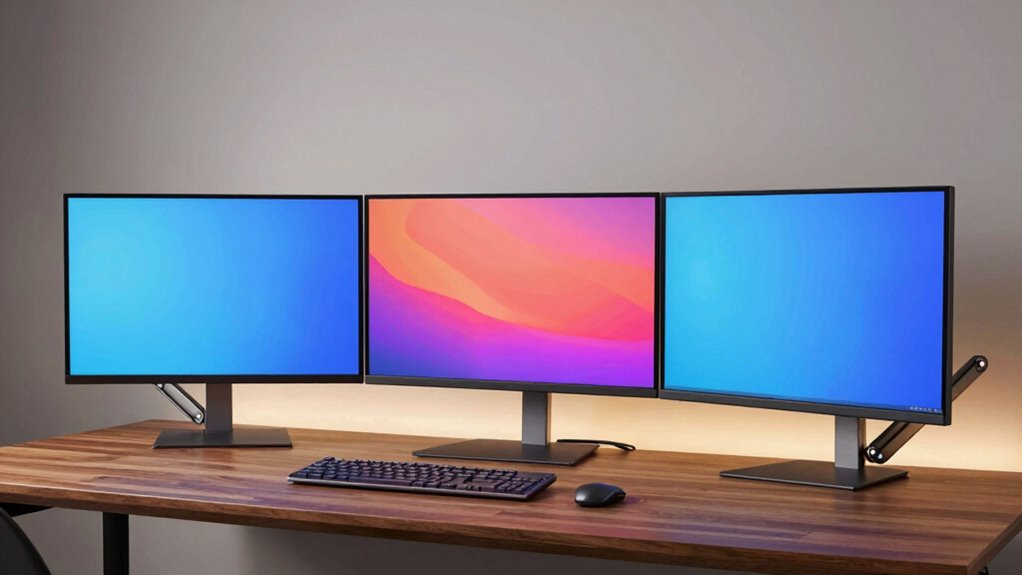
Have you ever wished for a screen setup that adapts seamlessly to your changing needs? Whether you’re working on detailed design projects, watching videos, or switching to a quick video call, your workspace should be adaptable enough to match each task. Building such a setup starts with focusing on ergonomic adjustments. You want your monitor height, tilt, and swivel to be easily adjustable, allowing you to sit comfortably for hours without strain. An adjustable arm or stand makes it simple to reposition the screen, so it’s at eye level and reduces neck or eye fatigue. When your ergonomic setup feels natural, you can switch tasks effortlessly without needing to rearrange your entire workspace.
Cable management is another vital element in creating a flexible screen setup. As you add or change equipment, tangled or cluttered cables can hinder your workflow and make adjustments frustrating. Using cable clips, sleeves, or under-desk trays helps keep everything organized and out of sight. When your cables are managed properly, you can quickly swap monitors or connect new devices without dealing with a mess of wires. This not only makes your workspace look cleaner but also prevents accidental disconnections or damage to your cables. A well-managed setup ensures that switching between different tasks is smooth and efficient, without interruptions caused by clutter or technical issues. Additionally, incorporating cable management tools can further streamline your setup and save time during adjustments. Proper cable organization is essential for maintaining a clutter-free environment that supports quick adjustments. To enhance your setup, consider incorporating adjustable mounting options that can easily adapt to different configurations and preferences. Moreover, selecting versatile mounting solutions can help you optimize your workspace further by accommodating various screen sizes and orientations.
To maximize flexibility, consider investing in a multi-monitor stand or mount. These tools allow you to rotate, extend, or collapse screens based on your needs. For instance, when doing detailed work, you might want a large primary display with secondary screens tucked away, but when gaming or watching videos, you can bring the monitors closer or arrange them differently. Using adjustable mounts makes it easy to switch between these configurations without hassle. Pair this with a keyboard and mouse setup that can also be repositioned or extended, giving you the freedom to work or relax in the most comfortable position.
Finally, keep your workspace adaptable with accessories like portable stands or foldable screens. These allow you to quickly add or remove displays as needed, giving you maximum control over your environment. When combined with thoughtful ergonomic adjustments, smart cable management**, and flexible mounting options, your workspace becomes a dynamic area that supports every task efficiently and comfortably. Building a flexible screen setup isn’t just about having the latest tech—it’s about creating a system that evolves** with your needs, making your work and leisure time more productive and enjoyable.
As an affiliate, we earn on qualifying purchases.
Frequently Asked Questions
What Are the Best Accessories for a Flexible Screen Setup?
The best accessories for a flexible screen setup include adjustable monitor arms, which help you customize display placement for comfort and efficiency. A good quality monitor stand allows easy repositioning, while screen calibration tools guarantee accurate colors across different tasks. Consider a multi-port hub for seamless connectivity, and anti-glare screen filters to reduce reflections. These accessories enable you to optimize display placement and maintain precise screen calibration for any work scenario.
How Do I Cable Manage Multiple Screens Effectively?
Think of your cables as a river flowing through a landscape—neatly organized and unobstructed. Use cable organization tools like zip ties, sleeves, or clips to keep wires tidy and prevent tangles. Opt for mounting solutions that include integrated channels or clips to hide cables behind your screens. Regularly check and adjust your setup, ensuring your cables stay streamlined, so your workspace remains as calm and focused as a still lake.
Can I Integrate a Portable Monitor Into My Setup?
Yes, you can integrate a portable monitor into your setup. Check its compatibility with your device’s ports and operating system; most portable monitors support USB-C or HDMI. Wireless display options like Miracast or Chromecast can also help connect your portable monitor wirelessly. This flexibility lets you expand your workspace easily, whether for work, gaming, or creative tasks, making your setup more adaptable and efficient.
What Are Ergonomic Tips for Using Multiple Screens?
Did you know that proper ergonomic setup can boost productivity by up to 20%? To enhance your multi-screen experience, focus on posture improvements and eye comfort. Position your monitors so the top of the screens are at or just below eye level, and keep them at an arm’s length. Use adjustable stands for better alignment, and take regular breaks to reduce eye strain and maintain good posture.
How Do I Switch Between Different Screen Configurations Easily?
To switch between different screen configurations easily, use adjustable mounts that allow quick adjustments in height, angle, and orientation. Set up multiple profiles for each configuration and save screen calibration settings beforehand. When changing setups, simply adjust the mounts to your preferred position and load the saved calibration. This streamlines your workflow, minimizes downtime, and keeps your workspace ergonomic and efficient for any task.
As an affiliate, we earn on qualifying purchases.
Conclusion
By crafting a flexible screen setup, you’re fundamentally planting a versatile garden that blooms with productivity and comfort. Think of your workspace as a chameleon, adapting effortlessly to every task, whether it’s a detailed project or a quick email. With a few thoughtful adjustments, your screens become an orchestra, harmonizing your work and creativity. Embrace this fluid setup, and watch your efficiency flourish like a well-tended bloom in full sunlight.
As an affiliate, we earn on qualifying purchases.
As an affiliate, we earn on qualifying purchases.
Halloween Picks
halloween
As an affiliate, we earn on qualifying purchases.