To connect multiple monitors to a laptop with only one port, you can use a docking station or port replicator that supports multiple outputs, or employ USB to HDMI or DisplayPort adapters to expand your display options. A USB-C hub with video capabilities or a display splitter like MST hub can also help. Wireless display solutions and DisplayLink technology offer additional flexibility. Keep exploring these options to optimize your multi-monitor setup effectively.

Get comfort and recovery gear delivered free — and shop member deals
- Fast, free delivery on millions of items
- Access to Prime Big Deal Days deals on October 6–7
- Prime Video, Amazon Music and more included
Key Takeaways
- Use a docking station or port replicator to connect multiple monitors through a single port.
- Employ a USB to HDMI or DisplayPort adapter to expand display options without extra ports.
- Connect monitors via a USB-C hub with video output if your laptop supports DisplayPort Alt Mode or Thunderbolt.
- Utilize a DisplayLink docking station or adapter for multi-monitor support over a single USB connection.
- Set up wireless display solutions or Miracast technology to extend or mirror screens without additional hardware.
Using a Docking Station or Port Replicator

A docking station or port replicator offers a simple and efficient way to connect multiple monitors to your laptop. Many modern docking stations support wireless display technology, allowing you to extend your workspace without extra cables. Once connected, you can set up your monitors, adjusting display settings for peak performance. Proper monitor calibration ensures colors are accurate and consistent across screens, which is especially important when working with graphics or detailed visuals. Using a docking station simplifies the process, as it often provides multiple video outputs and easy access to power and data connections. This setup not only streamlines your workspace but also enhances productivity by enabling seamless multi-monitor use, whether wired or wireless, with minimal fuss. Additionally, understanding the role of color accuracy in display technology can help you optimize your setup for the best visual quality. Incorporating energy-efficient hardware can further support sustainable practices in your workspace.
Employing a USB to HDMI or DisplayPort Adapter

If your laptop lacks multiple video outputs, employing a USB to HDMI or DisplayPort adapter provides an effective solution to connect additional monitors. These adapters convert a standard USB port into a video output, allowing you to expand your display setup easily. For flexibility, you might consider wireless adapters, which transmit video signals without physical cables, ideal for clutter-free setups. When choosing an adapter, consider display splitter types—some adapters support multiple monitors from a single port, while others require a dedicated connection for each display. Ensure your laptop’s USB port is compatible and has sufficient bandwidth for smooth video performance. Using these adapters, you can quickly and affordably increase your workspace without investing in a new laptop or complex hardware.
Utilizing a USB-C Hub With Video Output Capabilities

When choosing a USB-C hub with video output, you need to check its compatibility with your laptop and guarantee it supports the resolution and refresh rates you require. Setting up the hub is straightforward, but performance can vary based on the hub’s specifications and your device’s capabilities. Making sure the specs match your needs helps you get smooth multi-monitor setups without issues.
Compatibility and Specs
To successfully connect multiple monitors using a USB-C hub with video output capabilities, you need to verify that your laptop’s USB-C port and the hub itself support the required standards. Check that your port supports DisplayPort Alt Mode or Thunderbolt 3/4, which are essential for video transmission. Your laptop’s graphics card compatibility also matters, as it determines the maximum resolution options and the number of displays you can run simultaneously. Make certain the hub supports the resolution you need, whether it’s 1080p, 4K, or higher. Confirm that the hub’s specifications match your laptop’s capabilities to prevent performance issues or display limitations. Compatibility between your laptop, graphics card, and hub is vital for a seamless multi-monitor setup.
Setup and Performance
Ready to set up your multi-monitor workspace? Using a USB-C hub with video output capabilities offers a straightforward solution, but consider power consumption to avoid draining your laptop’s battery quickly. Connect your monitors securely, ensuring the hub supports your display resolutions for *best* performance. Keep your workspace ergonomic by positioning monitors at eye level and maintaining a comfortable viewing angle, which reduces strain during extended use. Be mindful of the hub’s bandwidth limits; too many high-resolution displays may slow performance. Adjust display settings as needed to balance clarity and responsiveness. Regularly check connections to prevent flickering or lag, especially during intensive tasks. Proper setup enhances both productivity and comfort, making your multi-monitor experience seamless and efficient.
Setting Up a Wireless Display Connection

Setting up a wireless display connection allows you to extend or mirror your laptop screen without cluttering your workspace with cables. This method uses wireless streaming or a Bluetooth display to connect your device to a compatible monitor or TV. It’s simple: enable screen mirroring or wireless display options in your settings, then select your device from the list. Once connected, you can enjoy a clutter-free workspace with a larger display. Imagine presenting seamlessly or multitasking effortlessly. Additionally, many smart home systems support local automation, enabling you to control your displays and other devices seamlessly through voice commands or apps, further enhancing your workspace experience. Incorporating wireless display technology can also improve your setup’s versatility and reduce cable management issues. To ensure a smooth connection, make sure your devices are compatible with wireless streaming standards, which can vary between manufacturers. Regularly updating your device firmware can also help maintain optimal wireless connection performance and security. Being aware of potential interference sources can help you troubleshoot connection issues more effectively.
Connecting Monitors Through a Display Splitter or MST Hub

Connecting monitors with a display splitter or MST hub is a practical way to expand your workspace. You should understand the different types of splitters, how to set them up, and what compatibility issues to watch out for. Knowing these points guarantees you select the right solution for your laptop and monitors. Additionally, choosing a simple, effective system can make setup and ongoing maintenance much easier for busy households or small-space dwellers. To ensure reliable performance, it’s also important to consider connectivity compatibility with your existing hardware and software environment. Being aware of cable standards and specifications helps prevent connection issues and ensures your setup functions smoothly. Understanding thermal behavior and power requirements can further optimize your multi-monitor setup for consistent operation.
Types of Splitters
When expanding your laptop’s display capabilities, using a display splitter or MST (Multi-Stream Transport) hub is often the simplest solution. Splitter types vary, each offering different advantages depending on your setup. For example, HDMI splitters are common and easy to use, supporting multiple displays through a single HDMI port. DisplayPort splitters, especially MST hubs, can handle higher resolutions and refresh rates, making them ideal for demanding tasks. USB-C splitters are versatile, combining video output with power delivery. The splitter advantages include cost-effectiveness, simplicity, and compatibility with many devices. Choose the right splitter type based on your monitor connections and performance needs to guarantee a seamless multi-monitor experience.
Setup Process Steps
To start connecting your monitors through a display splitter or MST hub, first make sure all devices are powered off to prevent any damage. Check that your laptop’s graphics card supports multi-monitor setups via these splitters or hubs. Connect the splitter or MST hub to your laptop’s single output port, ensuring it’s securely inserted. Then, attach your monitors to the splitter or hub’s outputs using compatible cables. Power on your monitors, followed by your laptop. You might need to connect additional power adapters to the monitors or the splitter if they require extra power. Once everything is powered on, your operating system should detect the new displays automatically. If not, adjust display settings manually to extend or duplicate your desktop across the monitors.
Compatibility Considerations
Before you attempt to connect multiple monitors using a display splitter or MST hub, make certain your laptop’s hardware supports this setup. Your graphics card must handle multiple displays, and not all models do. Check if your graphics card supports MST (Multi-Stream Transport) or daisy chaining. Additionally, ensure your drivers are up to date, as outdated drivers can cause compatibility issues. Being aware of these factors helps prevent connectivity issues and *guarantees* a smooth multi-monitor experience. To fully understand the importance of this support, consider the philosophical insights on existence and ethics, which emphasize the need for authentic and well-informed decision-making in complex situations.
Leveraging DisplayLink Technology for Multiple Displays

Have you ever wondered how to easily connect multiple displays to your laptop without complex setups? DisplayLink technology makes this simple by allowing you to connect multiple monitors through a single USB port. With a compatible docking station or adapter, you can expand your workspace effortlessly. This setup supports wireless displays, giving you even more flexibility. Once connected, you might need to calibrate your monitors to ensure colors and resolutions are consistent across screens. DisplayLink provides driver software that simplifies this process, making it easy to manage multiple displays simultaneously. Multi-monitor support enables you to increase productivity and create a more efficient workspace. This approach is ideal if your laptop has limited ports or if you’re looking for a clean, clutter-free workspace. Leveraging DisplayLink technology streamlines multi-monitor setups, saving you time and hassle. Additionally, driver software is often updated to improve compatibility and performance with various operating systems. Ensuring reliable performance can help your displays work consistently over time and prevent connectivity issues.
Configuring Your System for Multiple Displays and Troubleshooting
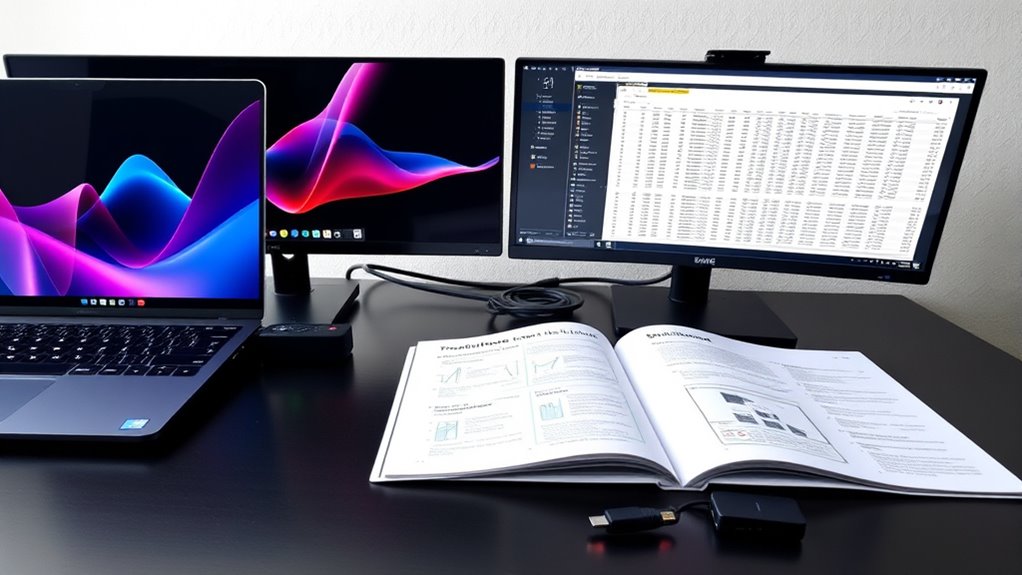
Once you’ve connected multiple monitors using DisplayLink or other methods, the next step is to configure your system for peak display performance. Start by adjusting resolution options to ensure each monitor displays sharp images without lag. Next, calibrate colors on each screen for consistent color accuracy across your setup. Troubleshooting may involve checking driver updates or reconnecting cables if displays aren’t recognized. To optimize your experience, consider these steps:
- Access display settings to fine-tune resolution and orientation.
- Use calibration tools to match color profiles for uniformity.
- Update graphics drivers or troubleshoot connection issues if displays aren’t detected or flickering persists.
Frequently Asked Questions
Can I Connect More Monitors Than My Laptop’s Ports Support?
Yes, you can connect more monitors than your laptop’s ports support by using docking stations or daisy chaining compatible monitors. A docking station expands your connection options, allowing multiple displays through a single port. Daisy chaining links monitors using DisplayPort’s Multi-Stream Transport (MST) feature, enabling you to run several monitors from one port. This way, you maximize your display setup without needing additional ports directly on your laptop.
Will Using Adapters Affect Display Quality or Performance?
Using adapters can affect display quality or performance if they’re not compatible with your laptop or monitor. Poor-quality adapters may limit display resolution or cause lag, so check for compatibility and support for your desired resolution. Opt for high-quality, certified adapters to guarantee smooth performance. If you choose the right adapter, you’ll maintain good display quality and performance, even when connecting multiple monitors through a single port.
Is It Possible to Connect Monitors Wirelessly Without Lag?
Yes, you can connect monitors wirelessly with a wireless display, but achieving lag-free streaming depends on your equipment and network. To minimize lag, use a high-speed Wi-Fi connection, preferably Wi-Fi 6, and guarantee your devices support standards like Miracast or Chromecast. Keep your network optimized by reducing interference and bandwidth-heavy activities. While some lag may still occur, proper setup can provide a smooth, wireless multi-monitor experience.
Do All USB-C Hubs Support Video Output Simultaneously?
Not all USB-C hubs are created equal; think of them as different tools in a toolbox. Some support video output simultaneously with USB-C compatibility, while others don’t. Check the hub’s specifications for video output support before buying. If you need multiple monitors, choose a hub explicitly designed for that purpose, ensuring it’s compatible with your laptop’s USB-C port for seamless, multi-screen productivity.
How Do I Ensure My Laptop Recognizes Multiple Displays Correctly?
To guarantee your laptop recognizes multiple displays correctly, start by connecting your monitors properly. Then, go to display settings to detect and arrange them, adjusting monitor positioning for ideal workflow. Perform display calibration to match color and brightness across screens, ensuring consistency. If issues persist, update your graphics driver and check cable connections. Proper setup guarantees your laptop recognizes each monitor and provides a seamless multi-display experience.
Conclusion
So, there you have it—your one-port wonder can become a multi-monitor marvel. Who knew plugging in a dock, adapter, or even going wireless could turn your laptop into a mini command center? Just remember, juggling screens isn’t just about productivity; it’s about proving you’re smarter than your hardware. So go ahead, defy the odds, and give your screens the space they deserve—because nothing screams “tech genius” like a perfectly orchestrated multi-monitor setup.
Fall Picks
fall essentials
As an affiliate, we earn on qualifying purchases.