To calibrate your monitor for eye comfort and color accuracy, start by adjusting the brightness so it matches your ambient lighting — not too bright or too dim. Set your color temperature to a neutral setting like 6500K to mimic natural daylight, reducing eye strain. Use a calibration tool to fine-tune contrast and make certain colors are true to life. Following these steps helps maintain consistent hues and a comfortable viewing experience, and if you continue, you’ll learn more tips to perfect your setup.

Get comfort and recovery gear delivered free — and shop member deals
- Fast, free delivery on millions of items
- Access to Prime Big Deal Days deals on October 6–7
- Prime Video, Amazon Music and more included
Key Takeaways
- Set your monitor’s color temperature to a neutral mode like 6500K to ensure accurate colors and reduce eye strain.
- Use hardware calibration devices, such as a colorimeter, to measure and create an ICC profile for precise color and luminance adjustments.
- Adjust brightness and contrast to comfortable levels where shadow and highlight details are clearly visible without causing eye fatigue.
- Select preset modes like “Warm” or “Cool” to match ambient lighting and enhance visual comfort during extended use.
- Follow calibration software instructions to fine-tune gamma and color settings, maintaining consistent, accurate display output.
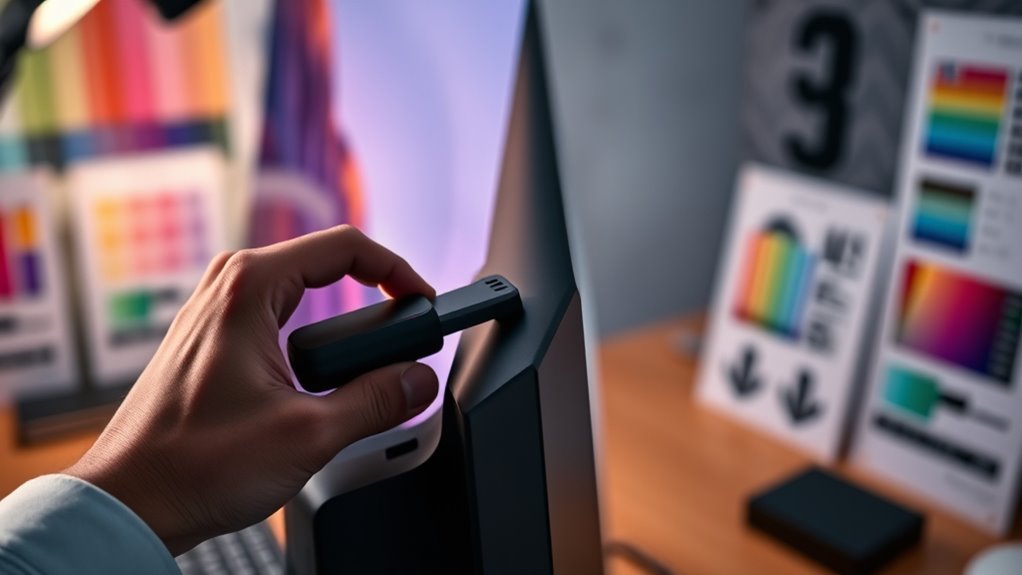
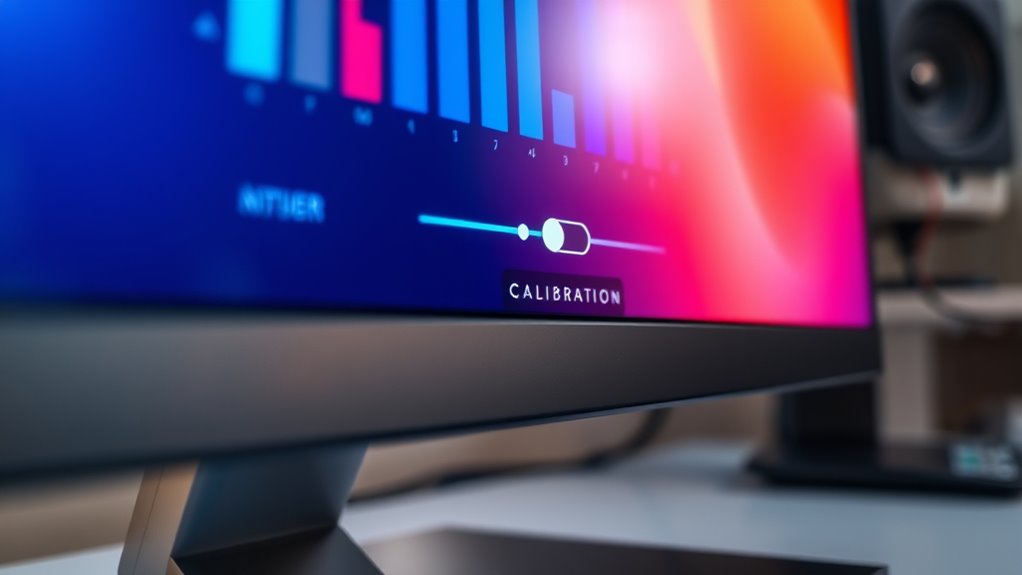
Calibrating your monitor is vital to guarantee that colors, brightness, and contrast are accurate, whether you’re editing photos, designing graphics, or simply enjoying your favorite movies. One of the first steps in achieving this is adjusting the color temperature. Color temperature determines whether your display appears warm (more yellow/red hues) or cool (more blue hues). Most monitors have preset modes like “Warm,” “Cool,” or “6500K,” which is considered a standard neutral setting. You should start by setting your monitor to a neutral or 6500K mode, as this closely resembles natural daylight and provides a good baseline for accurate color reproduction. Adjusting the color temperature helps reduce eye strain and guarantees that colors appear consistent across different devices and mediums. Proper monitor calibration ensures that your display maintains consistent color accuracy over time, especially if your environment’s lighting conditions change. To get the most precise results, hardware calibration is key. Unlike software-based adjustments, hardware calibration involves using a colorimeter or spectrophotometer—small devices that sit on your screen and measure the actual output. These tools connect to your computer and work with calibration software to analyze your display’s color output. The software then creates an ICC profile, which your system uses to correct any discrepancies in color, luminance, and gamma. This process guarantees that what you see on the screen matches industry standards and your intended color palette. Hardware calibration is especially vital if you work in color-sensitive fields like photography, graphic design, or video editing, where small inaccuracies can lead to significant issues down the line.
During calibration, you should also pay attention to your monitor’s brightness and contrast. Setting brightness too high can cause eye strain, while too low may hide details in shadows. The goal is to find a comfortable level that still reveals subtle differences in dark and light areas. Contrast adjustments help improve the dynamic range, making images look more vivid and true to life. Once you’ve set the correct brightness and contrast, proceed with calibration tools to fine-tune color temperature and gamma settings. Many calibration devices and software guides walk you through these steps, making it straightforward to achieve consistent, accurate colors.
As an affiliate, we earn on qualifying purchases.
Frequently Asked Questions
How Often Should I Recalibrate My Monitor?
You should recalibrate your monitor every 4 to 6 weeks to maintain ideal color accuracy and eye comfort, especially if you use it regularly. Keep in mind that monitor lifespan can influence calibration frequency; as your monitor ages, colors may shift, requiring more frequent adjustments. Regular calibration ensures consistent performance, so set reminders to check and recalibrate, helping you avoid eye strain and keep colors true.
Can Calibration Improve Gaming Performance?
Yes, calibration can improve your gaming performance by enhancing display responsiveness and guaranteeing accurate colors. When you calibrate your monitor, you reduce lag and improve visual clarity, giving you a competitive edge in fast-paced games. Proper calibration ensures your display reacts quickly to your actions, making gameplay smoother and more responsive. This optimization helps you spot details faster, ultimately boosting your overall gaming experience.
What Tools Are Best for Professional Color Grading?
Think of your monitor as a canvas that needs perfect brushes. For professional color grading, you want tools that handle precise color spaces like Adobe RGB or DCI-P3. Calibration software like X-Rite i1Profiler or Calibrite ColorChecker helps you fine-tune your display, ensuring accurate colors. These tools measure and adjust your monitor’s output, giving you confidence in your work’s color fidelity, just like an artist trusting their palette.
Does Ambient Lighting Affect Calibration Accuracy?
Yes, ambient light can affect calibration accuracy. When your environment has bright or uneven lighting, it influences how you perceive colors and brightness, making your monitor seem different from calibrated standards. To maintain calibration accuracy, control ambient light by reducing glare, using neutral-colored walls, and employing soft, indirect lighting. This creates a more consistent viewing environment, ensuring your monitor displays colors accurately and reduces eye strain.
Is Calibration Necessary for All Types of Monitors?
You might think calibrating your monitor is just a minor task, but it’s vital for all monitor types—whether LCD, OLED, or CRT—to guarantee color accuracy and eye comfort. Calibration importance varies with monitor quality, but even high-end screens benefit from it. Without calibration, you risk distorted images and eye strain, making your viewing experience feel like staring at a blurry, unrefined masterpiece. Don’t skip this essential step!
colorimeter for monitor calibration
As an affiliate, we earn on qualifying purchases.
As an affiliate, we earn on qualifying purchases.
Conclusion
Calibrating your monitor might seem like a small task, but it’s a big step toward comfort and precision. Think of it as fine-tuning a musical instrument—when everything’s in harmony, your eyes relax, and your colors pop. Without calibration, your screen’s imperfections can cause strain and misjudgments. So, embrace the process; it’s like giving your workspace a gentle glow. After all, a well-calibrated monitor offers both eye comfort and vibrant accuracy—your eyes and images will thank you.
monitor color calibration device
As an affiliate, we earn on qualifying purchases.
As an affiliate, we earn on qualifying purchases.
hardware monitor calibration kit
As an affiliate, we earn on qualifying purchases.
As an affiliate, we earn on qualifying purchases.
Fall Picks
fall essentials
As an affiliate, we earn on qualifying purchases.