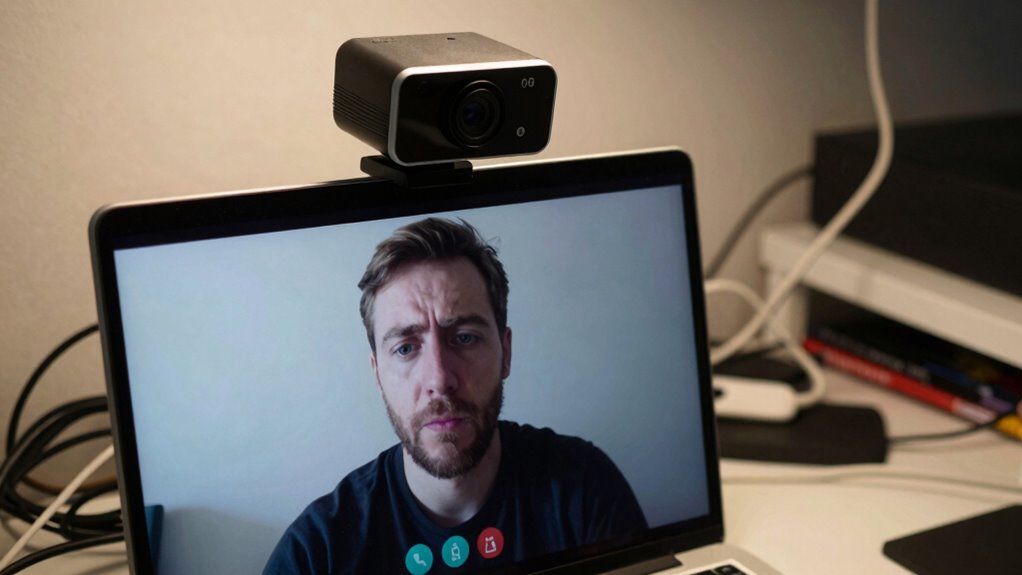

Many people forget to test their equipment before a call, leading to issues like poor lighting, audio problems, or bad camera angles. They often overlook the importance of a quiet, tidy space and proper lighting, which can make you look unprofessional or distract others. Not checking your internet connection or background can cause interruptions, too. If you want to avoid these common pitfalls and improve your setup, there’s more useful advice to discover.

Get comfort and recovery gear delivered free — and shop member deals
- Fast, free delivery on millions of items
- Access to Prime Big Deal Days deals on October 6–7
- Prime Video, Amazon Music and more included
Key Takeaways
- Failing to test equipment, camera framing, and lighting before the call causes delays and poor visuals.
- Ignoring audio checks and using built-in microphones results in unclear communication.
- Choosing noisy, cluttered backgrounds or ignoring virtual backgrounds reduces professionalism.
- Overlooking internet stability leads to frequent disconnections and disrupted conversations.
- Not addressing lighting issues causes shadows and poor visibility of facial expressions.
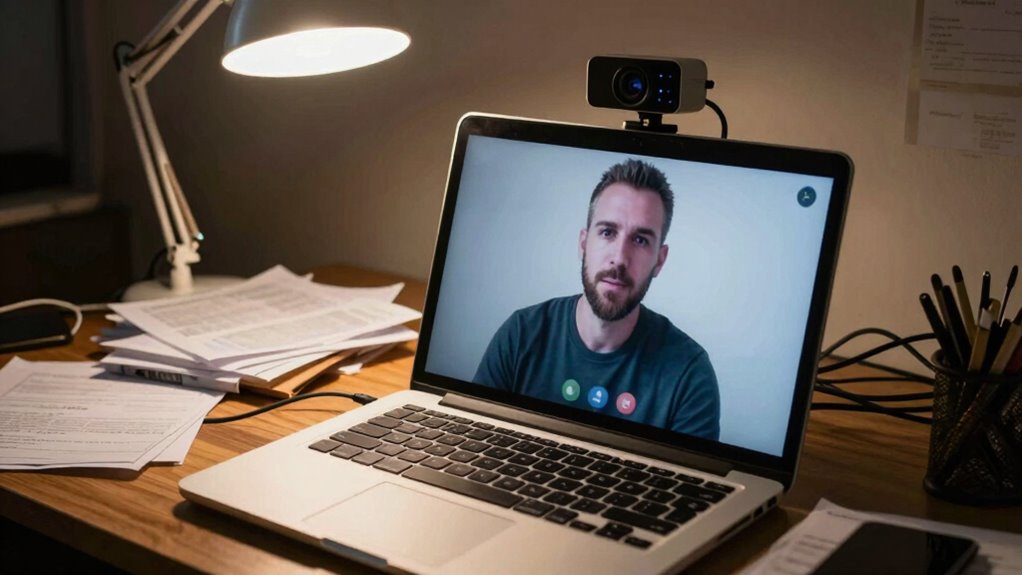
Setting up a video call can sometimes be straightforward, but when errors occur, they can quickly become frustrating. One of the most common issues you might face is background distractions. Even if you’ve tested your setup beforehand, unexpected interruptions—like noisy family members, pets, or a cluttered background—can disrupt your focus and make you appear unprofessional. You might think a quick glance at your surroundings won’t matter, but during a call, these distractions are easily noticeable. To avoid this, consider choosing a quiet, tidy space or using a virtual background if your platform offers it. Confirming a clean, uncluttered background helps you stay focused on the conversation and makes a better impression.
Audio issues are another frequent problem that can derail your video call experience. You may find yourself speaking, but your microphone isn’t picking up your voice, or others can’t hear you clearly. Sometimes, the issue comes from simple things like muted microphones or incorrect audio device selection in your settings. If your audio cuts in and out, check your device connections first—make sure your microphone and speakers are plugged in properly. Additionally, test your audio before the call begins to catch any problems early. Using headphones with a built-in microphone can also improve audio quality and reduce echo or background noise, making communication smoother. Remember, poor audio quality often causes frustration and can lead to misunderstandings, so taking a moment to troubleshoot can save you time and embarrassment during the actual meeting. Incorporating sound therapy science insights, such as choosing quiet environments, can also help improve your overall communication clarity. Being aware of microphone placement can further enhance your audio quality.
Another common mistake is neglecting to test your equipment beforehand. Many people jump straight into a call without verifying that their camera, microphone, and internet connection are working correctly. This oversight can lead to delays, awkward silences, or being unable to share your screen when needed. Always allocate a few minutes before the scheduled meeting to run a quick test. Check your camera’s framing and lighting, ensure your microphone works properly, and confirm your internet connection is stable enough for a video call. If you notice issues during this prep, address them immediately—whether that means adjusting your camera angle, switching to a different microphone, or moving closer to your Wi-Fi router.
Finally, neglecting proper lighting can make a significant difference in how you appear on camera. Poor lighting can cast shadows or make your face hard to see, making it harder for others to read your expressions or interpret your reactions. Aim for natural light or position a lamp facing you to illuminate your face evenly. Avoid sitting directly under harsh overhead lights, which can create unflattering shadows. Good lighting not only improves your appearance but also helps keep your audience engaged.
As an affiliate, we earn on qualifying purchases.
Frequently Asked Questions
How Do I Troubleshoot Audio Issues During a Video Call?
To troubleshoot audio issues during a video call, first check your audio device settings to verify the correct microphone is selected. Make sure your microphone placement is close enough to pick up your voice clearly, but not too close to cause distortion. Test your audio before joining calls, and if problems persist, try restarting your device or updating your sound drivers. Adjust volume levels and disconnect other devices that may interfere with your microphone.
What Lighting Setup Improves Video Quality?
To improve your video quality, use soft ambient lighting that evenly illuminates your face without harsh shadows. Position yourself near natural light, like a window, but avoid direct sunlight that causes glare. Supplement with warm, diffused artificial lights if needed. Adjust your lighting so it’s in front of you, not behind, to make certain your face is clear and well-lit. This setup creates a professional, balanced look on video calls.
How Can I Improve My Internet Connection for Video Calls?
To improve your internet connection for video calls, start with router placement—position your router centrally, elevated, and away from interference. Use bandwidth optimization techniques like limiting background downloads and disconnecting unused devices. Consider upgrading to a higher-speed internet plan if needed. These steps guarantee a stable, faster connection, reducing lag and buffering issues. Proper setup guarantees smooth communication and a professional appearance during your video calls.
What Are Common Security Risks in Video Conferencing?
You should be aware of security risks like unauthorized access and data breaches during video conferencing. Make sure your platform uses strong encryption protocols to protect your data and communications. Also, verify participant authentication before granting access to sensitive meetings. Regularly update your software, use strong passwords, and enable waiting rooms or lobby features to control who joins, reducing the risk of security breaches in your video calls.
How Do I Manage Background Distractions Effectively?
Did you know 60% of participants find background distractions disruptive? To manage them, try using a virtual background to hide clutter and create a professional setting. Enable noise reduction features to minimize ambient sounds. Position yourself against a plain wall, and keep your environment tidy. These simple steps help keep your focus sharp and guarantee your audience stays engaged without being distracted by background chaos.
ring light for video conferencing
As an affiliate, we earn on qualifying purchases.
As an affiliate, we earn on qualifying purchases.
Conclusion
To avoid common video call setup errors, check your lighting, test your audio, and guarantee your background is tidy. Keep your device charged, position yourself properly, and stay connected. By focusing on these key areas, you create a smooth, professional experience. Prepare your environment, test your equipment, and stay attentive. When you do, your video calls become seamless, confident, and effective—making every meeting a success.
As an affiliate, we earn on qualifying purchases.
Wi-Fi extender for stable internet
As an affiliate, we earn on qualifying purchases.
As an affiliate, we earn on qualifying purchases.
Halloween Picks
halloween
As an affiliate, we earn on qualifying purchases.