Choosing between ultrawide and dual monitors depends on your workflow and workspace. Ultrawides offer a seamless, immersive view ideal for multitasking and creative tasks, while dual monitors give you flexibility to organize multiple windows and dedicated tasks. Both setups can boost productivity, but your specific needs matter most. If you want to learn how each option impacts your work and how to choose the best fit, keep exploring for detailed insights.
Key Takeaways
- Ultrawide monitors enable seamless multitasking with a continuous workspace, reducing window switching and increasing focus.
- Dual monitors allow task-specific setups, offering flexibility to organize multiple applications independently.
- Ultrawides improve visual flow for creative tasks, while dual monitors excel in workflows requiring dedicated screens for different tools.
- Space and ergonomic considerations influence productivity; ultrawides save space, dual monitors may require more desk area.
- Choice depends on workflow needs; ultrawides suit immersive multitasking, dual monitors benefit organized, task-specific work.

Sceptre 34-Inch Curved Ultrawide WQHD Monitor (3440 × 1440), R1500, up to 180Hz/165Hz, DisplayPort x2, 99% sRGB, 1ms, Built-in Speakers, Machine Black, 2025 (C345B-QUT168)
- Response Time: 1ms MPRT for instant colors
- Backcover Lighting: Colorful LED back cover illumination
- Display Resolution: WQHD 3440 x 1440 for detailed images
As an affiliate, we earn on qualifying purchases.
As an affiliate, we earn on qualifying purchases.
Understanding the Key Features of Ultrawide and Dual Monitors

Ultrawide and dual monitors each offer distinct features that cater to different user needs. When comparing them, resolution differences play a significant role; ultrawide screens typically have a wide aspect ratio, providing a seamless, immersive view, while dual monitors allow you to customize each display’s resolution independently. Color accuracy is another key factor; ultrawide monitors often focus on delivering vibrant, uniform colors across a single large screen, which benefits creative work. Conversely, dual monitors can be calibrated separately, offering more flexibility for color-sensitive tasks. Understanding these features helps you determine which setup aligns best with your priorities, whether it’s a broad, continuous workspace or multiple optimized screens. Both options serve different workflows and preferences effectively. Additionally, integrating European cloud innovation can enhance your workflow by providing secure, energy-efficient solutions that support flexible and scalable multi-monitor setups.

ViewSonic VA2456A-MHD_H2 24 Inch 1080p Dual Pack Head-Only Monitors, IPS Display with 120Hz for Dual-Screen Home and Office Setups, HDMI, DisplayPort, and VGA Inputs
- Display Size: 24 Inch Full HD IPS display
- Refresh Rate: 120Hz for smooth visuals
- Dual Pack: Includes two monitors for dual-screen setup
As an affiliate, we earn on qualifying purchases.
As an affiliate, we earn on qualifying purchases.
Impact on Multitasking and Workflow Efficiency
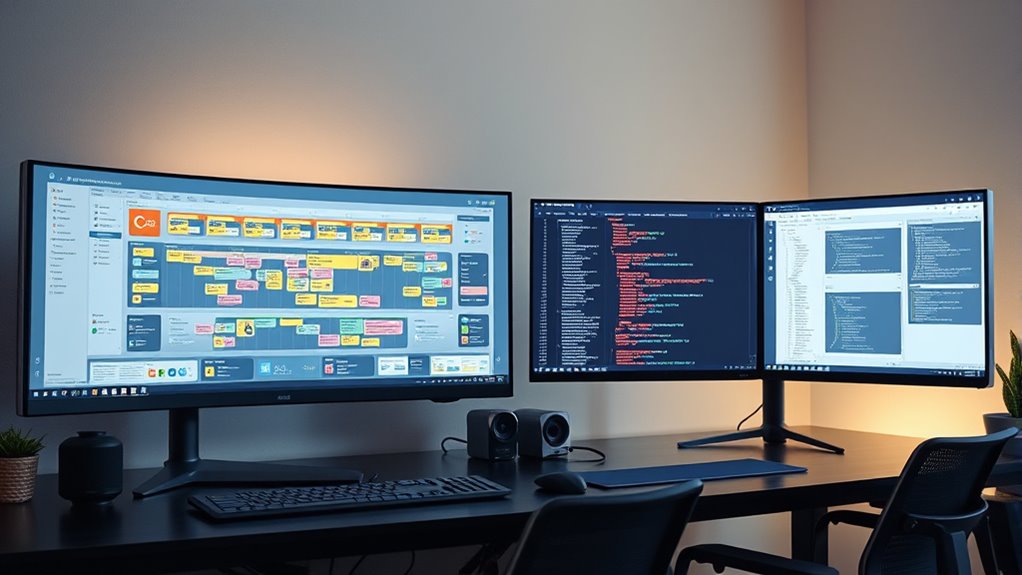
When it comes to multitasking and workflow efficiency, your choice of monitor setup can make a significant difference. Ultrawide monitors provide a seamless user interface, allowing you to view multiple applications side by side without switching windows. This improves software integration, so you can drag and drop files or compare documents easily. Dual monitors, on the other hand, give you dedicated screens for specific tasks, reducing clutter and minimizing task-switching time. Both setups enhance multitasking, but ultrawides streamline workflows by offering a continuous display, which is especially useful for complex projects. Your decision depends on how you prefer to manage multiple apps; either way, your productivity benefits from improved visual organization and efficient software integration. Additionally, monitor resolution plays a key role in ensuring crisp, clear images across your setup, further enhancing your workflow.

BoYata Monitor Stand, Adjustable Height Metal Desktop Riser, Black
- Adjustable Height: Twist knob for height customization
- Ergonomic Design: Reduces neck, shoulder, and back strain
- High Weight Capacity: Supports up to 33.06 lbs with stability
As an affiliate, we earn on qualifying purchases.
As an affiliate, we earn on qualifying purchases.
Space and Ergonomics Considerations
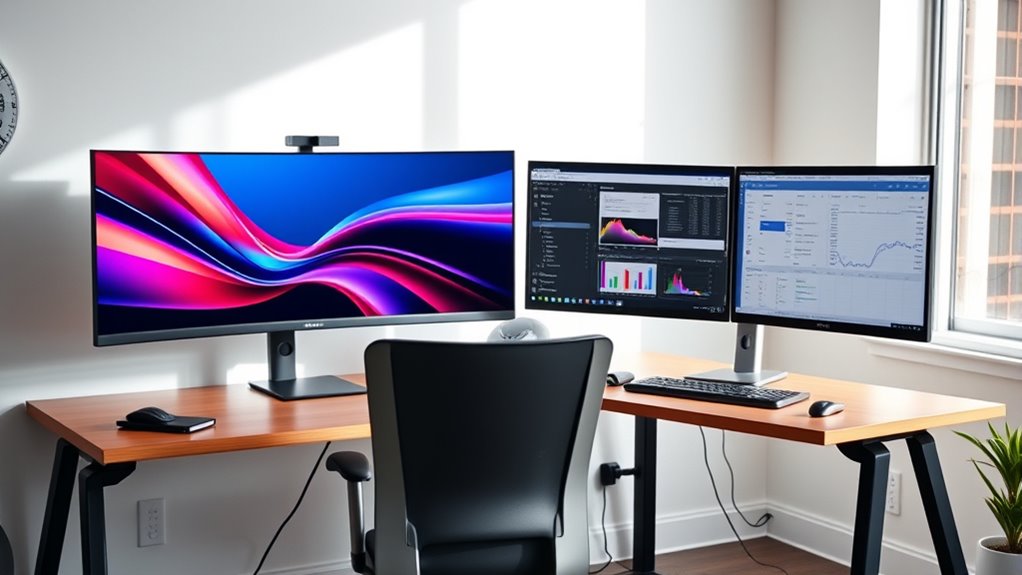
Choosing the right monitor setup involves considering how space and ergonomics impact your comfort and workspace organization. An ergonomic setup promotes better posture, reducing strain during long work sessions. When evaluating space, dual monitors often require more desk space, potentially cluttering your area, while ultrawides consolidate screens into one, saving space. Proper desk space allocation guarantees your monitors are at eye level and within comfortable reach. Additionally, understanding monitor upgrades can help you select the best configuration for your needs.

ViewSonic VG3820C 38 Inch 1600p Ultrawide Curved Monitor, IPS Display with 96W USB-C and KVM Switch for Productive Multi-Tasking, Advanced Ergonomics, HDMI, and DisplayPort Inputs
- Immersive Ultrawide Curved Display: 38-inch 2300R curved WQHD+ resolution
- High-Wand USB-C Power Delivery: 96W power, fast data, video, audio transfer
- Integrated KVM Switch for Multitasking: Control two systems with one keyboard and mouse
As an affiliate, we earn on qualifying purchases.
As an affiliate, we earn on qualifying purchases.
Visual Comfort and Eye Strain Factors

While space and ergonomics influence how comfortably you can work, visual comfort and eye strain are equally important for maintaining productivity during long hours. Ultrawide monitors often provide a seamless viewing experience, reducing the need to shift focus between multiple screens, which can lessen eye fatigue. Both ultrawide and dual monitors equipped with flicker reduction technology help minimize flickering that causes eye strain. Additionally, screens with blue light filters can decrease eye fatigue and discomfort, especially during extended use. Adjusting brightness and contrast settings further enhances visual comfort. Proper monitor setup can further improve ergonomics and reduce strain over time. Incorporating adjustable stands and positioning your monitor at eye level ensures optimal viewing angles, further reducing potential eye and neck strain. Moreover, understanding visual ergonomics principles can help you tailor your workspace to reduce overall eye discomfort during long work sessions.
Cost Analysis and Budget Implications
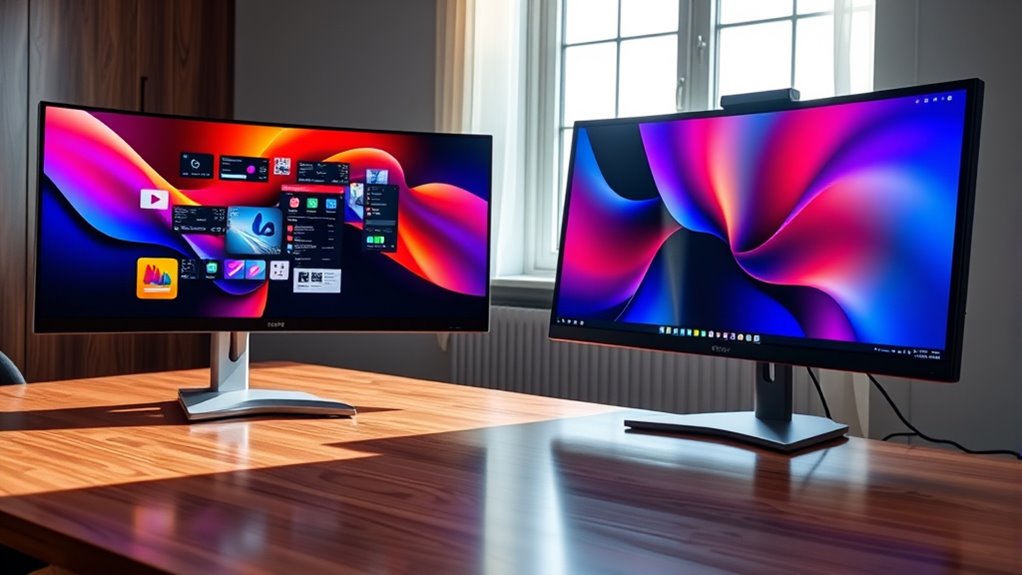
When comparing ultrawide and dual monitors, you’ll want to consider the initial purchase costs, as ultrawides often come with a higher price tag. However, think about the long-term value—whether the productivity gains or space savings justify the investment. Balancing upfront expenses with future benefits helps you choose the option that fits your budget best. Additionally, exploring types of monitors and their features can further inform your decision-making process. For example, understanding monitor resolutions can help you select displays that maximize clarity and efficiency over time.
Upfront Purchase Costs
Upfront purchase costs for ultrawide monitors generally surpass those of dual monitor setups, reflecting their larger size and advanced display technology. When doing a price comparison, you’ll find ultrawides often come with a higher sticker price due to their single, expansive screens. This can impact your budget planning, especially if you’re working within a tight financial framework. While dual monitors might seem more affordable initially, keep in mind that additional stands, cables, or mounting solutions can add to the overall expense. Ultrawides tend to include these features in the package, but their higher purchase price remains a key consideration. If upfront costs are a primary concern, understanding these differences helps you make an informed decision aligned with your financial priorities.
Long-term Value
Although ultrawide monitors typically have higher initial costs, their long-term value can offset this investment through increased productivity and fewer accessories needed over time. As technology trends shift toward streamlined setups, ultrawides align with user preferences for immersive, efficient workspaces. While dual monitors may seem cheaper upfront, you might spend more on stands, cables, and calibration. Plus, ultrawides reduce desk clutter and improve ergonomics, saving costs on additional peripherals. Consider this comparison:
| Aspect | Ultrawide Monitor | Dual Monitors |
|---|---|---|
| Initial Cost | Higher | Lower |
| Accessories Needed | Fewer | More |
| Productivity Gains | Significant | Moderate |
| Space Efficiency | High | Moderate |
| Long-term Savings | Potentially greater | Less |
Choosing based on user preferences and tech trends maximizes your long-term value.
Compatibility and Setup Challenges
Setting up ultrawide or dual monitors can pose compatibility and configuration issues you need to contemplate. You might encounter hardware requirements or connection problems that slow down your workflow. Ensuring proper mounting and ergonomic setup also plays a key role in making your workspace both functional and comfortable. Additionally, considering wiring basics and monitor compatibility with your existing hardware can save you time and frustration during installation. Being aware of power supply needs and ensuring adequate ventilation can help prevent overheating and ensure a safe, efficient setup. Incorporating adaptive display technology can further optimize your viewing experience and reduce eye strain. Recognizing hardware specifications is essential to confirm that your devices can support the chosen display setup effectively.
Hardware Compatibility Requirements
Choosing between ultrawide and dual monitors requires guaranteeing your hardware can support their specific requirements. Your graphics card plays a vital role, as it must handle higher resolutions and multiple displays smoothly. Many ultrawide monitors demand more powerful GPUs, especially if you’re into gaming or graphic-intensive tasks. For dual monitors, make sure your graphics card has enough ports and bandwidth to support both screens simultaneously. Docking stations can simplify setup by providing multiple video outputs in one device, but verify their compatibility with your monitors and laptop. Some docking stations may not support ultrawide resolutions or multiple displays at full quality. Before purchasing, check your graphics card specs and docking station capabilities to avoid connection issues and guarantee a seamless, productive setup. Additionally, support breakfast options can be a delightful way to stay energized during long setup sessions or work marathons.
Connection and Port Issues
Connecting ultrawide and dual monitors can present compatibility and setup challenges that you need to address upfront. One common issue is cable compatibility; not all cables support the required resolution or refresh rate, so you might need specific HDMI, DisplayPort, or USB-C cables. Additionally, your computer’s ports may limit your options—some systems lack the necessary ports or have insufficient bandwidth, leading to reduced performance or the inability to connect multiple displays simultaneously. Before purchasing, verify your graphics card’s outputs and your monitors’ input options. Using adapters can solve some issues, but they may introduce latency or compatibility problems. To ensure a smooth setup, check port limitations and cable compatibility early on, avoiding frustration during installation.
Mounting and Ergonomics
Mounting your ultrawide or dual monitors can be more complicated than it seems, especially when considering compatibility with your workspace and equipment. You might struggle to find the right mounting options that fit your desk or wall setup. Some monitors may lack VESA compatibility, limiting your mounting choices. Additionally, ergonomic accessories like adjustable arms or monitor stands can be tricky to install properly, affecting your comfort during long work sessions. Visualize cluttered cables, unstable mounts, or awkward angles that cause strain. To avoid these issues, double-check your monitor’s mounting options, ensuring they support your preferred setup. Investing in ergonomic accessories can help position your screens at eye level, reducing neck and eye strain, and creating a more comfortable, productive work environment.
Suitability for Different Professions and Use Cases

Different professions and use cases have unique needs that influence whether ultrawide or dual monitors are more suitable. If you’re into video editing, an ultrawide monitor provides seamless timelines and wide workspace, making it easier to view entire projects without switching screens. For software development, dual monitors often work best, allowing you to keep code on one screen and testing or documentation on another, increasing efficiency. Creative professionals benefit from ultrawides for immersive editing, while multitasking tasks like data analysis or financial trading may find dual monitors more flexible. Ultimately, your profession and workflow determine which setup enhances productivity. Consider whether you need wide, uninterrupted space or multiple screens for multitasking to choose the best option for your needs.
Making the Right Choice for Your Needs
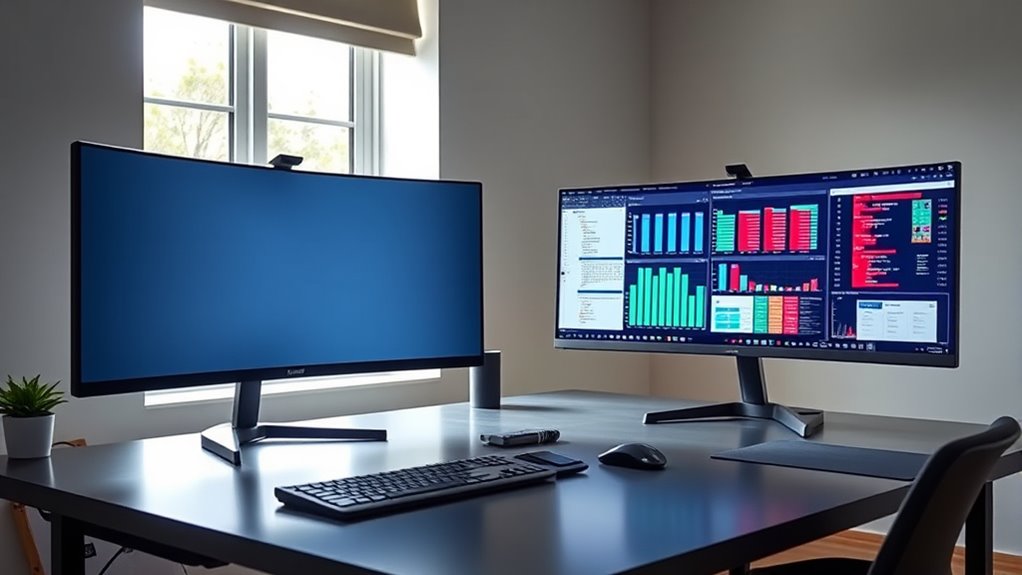
Choosing between an ultrawide and dual monitors ultimately depends on your specific needs and workflow. If you prioritize seamless multitasking with a single, expansive display, an ultrawide might suit you better. On the other hand, if you need flexibility to organize multiple windows or specialized setups, dual monitors could be ideal. Consider resolution differences; ultrawides often have wider screens but may have slightly lower pixel density, affecting clarity. Color accuracy is another factor—professional photo or video editing benefits from monitors with precise color reproduction. Visualize this:
- An ultrawide stretching across your desk, providing a continuous workspace
- Dual screens creating distinct zones for apps or tools
- Vivid, accurate colors enhancing your editing precision
Ultimately, match your choice to your work demands, considering resolution needs and color fidelity for perfect productivity.
Frequently Asked Questions
How Do Ultrawide and Dual Monitors Affect Gaming Experiences?
Ultrawide monitors create immersive gameplay by offering a wider field of view, making you feel more involved in the action. They reduce the need to shift your gaze, providing seamless visuals. Dual monitors can also enhance gaming but may create a split in your focus, disrupting immersion. If you want an uninterrupted, panoramic experience, ultrawide monitors are the better choice for boosting your gaming enjoyment.
Can Ultrawide Monitors Replace Multiple Monitors Entirely?
Think of your ultrawide monitor as a sprawling control tower—it can handle many tasks at once, but might not replace a dedicated multi monitor workflow. While ultrawides excel for immersive work, a single monitor setup can’t match the flexibility of dual or multiple monitors for specific tasks. If your work needs quick switching between windows, dual monitors still offer advantages; ultrawides can supplement, but rarely fully replace, multi monitor setups.
Are There Any Health Risks Associated With Prolonged Use of Ultrawide or Dual Screens?
Prolonged use of ultrawide or dual screens can cause eye strain and ergonomic concerns if you don’t take proper precautions. You might experience discomfort from glare, improper screen height, or extended focusing on screens. To reduce risks, take regular breaks, adjust your monitor positions for ergonomic comfort, and use screen filters. Staying mindful of these factors helps protect your eyes and overall health during long screen sessions.
How Do These Monitor Setups Impact Team Collaboration or Remote Work?
Think of your monitor setup as a bridge connecting your team across distances. Ultrawide and dual monitors enhance collaborative efficiency by streamlining remote communication, making it easier to share screens and multitask. They help you stay synchronized, reducing miscommunication and boosting teamwork. With clear, expansive displays, you can seamlessly coordinate projects, making remote collaboration feel more natural—like working side-by-side, even when miles apart.
What Are the Future Technological Developments in Ultrawide and Dual Monitor Displays?
You can anticipate future ultrawide and dual monitors to feature curved screen innovations, enhancing immersion and reducing eye strain. Additionally, high refresh rate technology will improve motion clarity, especially for gaming or fast-paced tasks. These advancements will make your workspace more dynamic, seamless, and comfortable, allowing you to work more efficiently and enjoy smoother visuals. Staying updated on these tech trends ensures your setup remains cutting-edge and productivity-boosting.
Conclusion
Choosing between ultrawide and dual monitors depends on your workflow needs. Think of it like picking the right tool for the job—each has its own strengths, like a Swiss Army knife versus a pair of scissors. Consider your space, budget, and comfort, and you’ll find the perfect match to boost your productivity. Whichever you choose, making an informed decision guarantees your setup works as smoothly as a well-oiled machine.