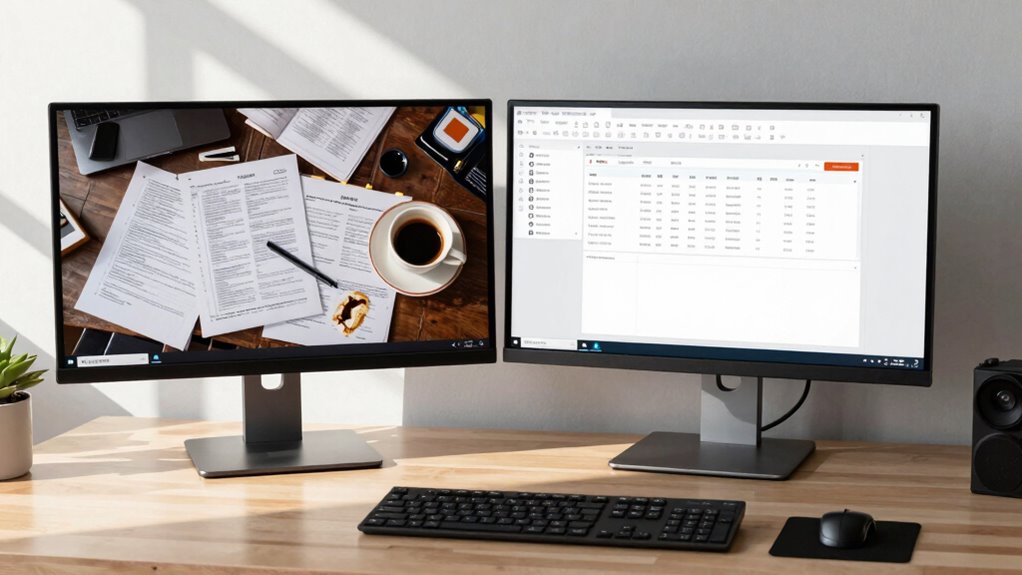

Using two monitors can markedly boost your productivity if you set them up intentionally and organize your tasks well. It makes multitasking easier by keeping reference materials open while working on other tasks. However, the benefits depend on proper placement, resolution, and discipline to avoid distractions. If you focus on ergonomic setup and organized workflow, you’ll find your efficiency improves. Keep going to discover how to turn your dual monitors into a productivity powerhouse.
Key Takeaways
- Dual monitors can boost productivity if used to organize tasks and reduce window switching.
- High-resolution displays improve multitasking efficiency by enabling clear viewing of multiple applications simultaneously.
- Proper ergonomic placement of monitors minimizes physical discomfort and maintains focus during extended use.
- Effective discipline in task organization ensures dual screens enhance workflow without causing distraction.
- The productivity benefit depends on thoughtful setup, including resolution, placement, and task-specific use.
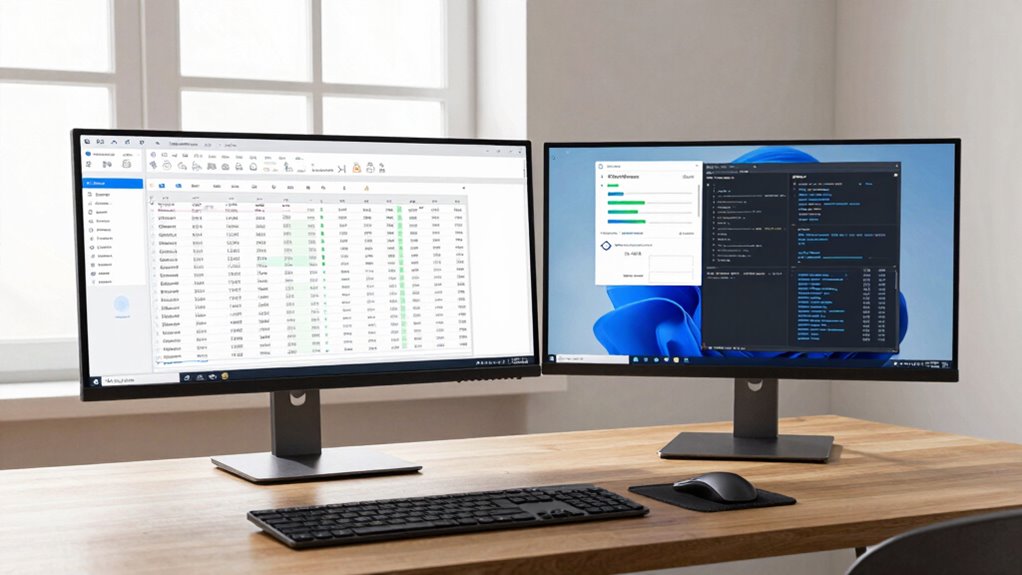
Many people assume that adding a second screen instantly boosts productivity, but the reality is more nuanced. While it’s tempting to think that more screen space automatically means you’ll get more done, the benefits depend heavily on how you use that extra monitor. One key factor is multitasking efficiency—how smoothly you can juggle multiple tasks at once. When you have two screens, you might find it easier to keep reference materials open on one while working on the other. However, if you’re prone to switching back and forth or get easily distracted, this setup can sometimes hamper your focus rather than enhance it.
Screen resolution also plays a pivotal role in determining whether a second monitor will improve your workflow. A high-resolution display allows you to view more content clearly without cluttering your workspace. If your second screen has a low resolution, it might cause eye strain or force you to switch between windows more often, reducing your overall efficiency. In contrast, a monitor with sharp resolution lets you see multiple documents, apps, or spreadsheets simultaneously, making multitasking smoother and more effective. Additionally, color accuracy and clarity can significantly impact how comfortably and efficiently you work across multiple screens.
But even with the right resolution, the way you arrange your workspace influences how productive you can be. Simply having two screens isn’t enough—if they’re poorly positioned or too close together, it can cause neck strain or force awkward head movements. You need to position your monitors at eye level and at a comfortable distance to minimize physical discomfort and keep your focus sharp. This setup allows you to glance effortlessly from one screen to another, maintaining your multitasking efficiency without unnecessary strain. Being mindful of ergonomic principles can further enhance your overall comfort and productivity during long work sessions. Additionally, workspace organization can help you keep your digital environment clear and manageable, reducing mental clutter and distraction.
Beyond physical setup, your mental approach matters. Using two screens effectively requires discipline—resisting the temptation to open too many tabs or windows at once. It’s better to organize your workspace, dedicating specific screens to particular tasks or types of content. For example, you might keep your email or chat window on one monitor and your main work on the other. This way, you can quickly switch your attention without losing track of what you’re doing, ultimately boosting your productivity. Moreover, understanding how visual ergonomics influence your comfort can help you optimize your monitor placement for better focus and less fatigue.
In the end, adding a second screen can improve your workflow, but only if you consider factors like multitasking efficiency, screen resolution, ergonomic placement, and disciplined organization. It’s not a magic solution, but when used thoughtfully, dual monitors can make your work smoother, more organized, and less frustrating.

Kado 2-Pack Dual 27" Flat Screen 1920×1080 75Hz FHD Computer Monitor
DUAL MONITOR SETUP – Flat monitors in a dual setup provide a seamless viewing experience with reduced peripheral…
As an affiliate, we earn on qualifying purchases.
As an affiliate, we earn on qualifying purchases.
Frequently Asked Questions
How Does Screen Size Impact Productivity Differences?
A larger screen size boosts your productivity by offering more space to work with, making multitasking easier. Higher screen resolution sharpens text and images, reducing eye strain and enhancing focus, while better color accuracy helps you see details clearly, especially in design tasks. When your screen is bigger and clearer, you can work more efficiently, minimize switching between tabs, and enjoy a more comfortable, immersive experience that keeps you engaged longer.
Do Dual Screens Reduce Eye Strain?
Did you know dual screens can reduce eye strain by up to 20%? Yes, using two monitors helps lessen visual fatigue because you’re not constantly shifting focus between distant and close-up screens. This setup allows your eyes to rest more naturally, reducing discomfort over long hours. So, investing in dual screens could boost your comfort and productivity while minimizing eye strain during those extended work sessions.
What Are the Cost Implications of Adding a Second Monitor?
Adding a second monitor costs more upfront, but it can lead to cost savings over time through increased productivity. You’ll need to take into account hardware compatibility to ensure your device supports dual screens without extra expenses. While there’s an initial investment, the boost in efficiency may outweigh costs, especially if you reduce time spent switching between tabs or applications. Ultimately, the investment can pay off in improved workflow and longer-term savings.
Can Dual Screens Improve Multitasking for Specific Professions?
Imagine your workspace as a well-oiled machine—dual screens act as turbochargers for your multitasking efficiency. If you’re in professions like design, programming, or data analysis, dual monitors considerably boost workflow enhancement by allowing you to view multiple applications simultaneously. This setup minimizes toggling between tabs, reduces errors, and increases focus, transforming your productivity and turning complex tasks into manageable, streamlined processes.
How Do Different Monitor Setups Affect Ergonomics?
Different monitor setups greatly impact your ergonomics. A well-organized workspace encourages maintaining an ergonomic posture, reducing neck and eye strain. Dual monitors allow you to position screens at eye level, minimizing awkward movements, while a single monitor might require you to twist or crane your neck. Proper workspace organization guarantees your monitors are at comfortable distances, supporting healthier habits and boosting long-term comfort during extended use.

BONTEC Dual Monitor Stand Riser, Adjustable Length & Swivel Angle, Ergonomic Wooden Desktop Organizer with Smartphone Holder, Computer Monitor Stand for PC Monitor, Laptop, Printer, Large Storage
DUAL MONITOR STAND WITH ADJUSTABLE LENGTH & ANGLE – Elevate two monitors to an ergonomic height for better…
As an affiliate, we earn on qualifying purchases.
As an affiliate, we earn on qualifying purchases.
Conclusion
Switching from one screen to two isn’t just a small upgrade; it’s like releasing a productivity tornado. You’ll find your focus sharper, your multitasking smoother, and your workday more efficient than you ever imagined. Don’t settle for mediocrity when doubling your screens can turn your entire workflow into a well-oiled machine. Embrace the power of dual monitors, and watch your productivity soar to heights you never thought possible—it’s nothing short of a game-changer.

HUANUO FlowLift™ Dual Monitor Stand, Fully Adjustable Gaming Monitor Desk Mount for 13–32″ Computer Screens, Full Motion VESA 75×75/100×100 with C-Clamp & Grommet Base, Each Arm Holds 4.4 to 19.8 lbs
Compatible with Wide Screens – To ensure compatibility with the dual monitor mount, your each monitor must meet…
As an affiliate, we earn on qualifying purchases.
As an affiliate, we earn on qualifying purchases.

WALI Computer Monitor Stand for Desk, Adjustable Laptop Riser, Desk Monitor Stand Underneath Storage for Office, Home, School Supplies (STT003), 1 Pack, Black
Design: The monitor stand for the desk has a large 14.6 x 9.3 inches metal shelf that fits…
As an affiliate, we earn on qualifying purchases.
As an affiliate, we earn on qualifying purchases.